Understanding Group Policy and Its Purpose
Group Policy is a fundamental feature of Windows that allows administrators to define and enforce specific settings for users and computers within an organization. It controls everything from password complexity requirements and desktop wallpaper to software installation restrictions and network security protocols. The primary tool used to edit local Group Policy is the Group Policy Editor, accessed through the Microsoft Management Console snap-in gpedit.msc. This utility presents a hierarchical structure of policies organized under Computer Configuration and User Configuration, each containing Administrative Templates, Windows Settings, and Software Settings. By editing these policies, you can standardize system behavior, enhance security, and reduce support costs. For example, you can disable access to the Control Panel, enforce a specific screensaver timeout, or block unauthorized USB devices. Understanding how to navigate and modify these policies is essential for any IT professional or power user who manages Windows environments.
How to Access the Group Policy Editor
There are several reliable methods to launch the Group Policy Editor in Windows. The most straightforward approach is using the Run dialog: press the Windows key plus R, type gpedit.msc, and press Enter. Alternatively, you can search for "Group Policy" or "Edit group policy" from the Start menu (Windows key plus S) and select the corresponding result. Another method involves opening Task Manager with Ctrl+Shift+Esc, clicking File, selecting Run new task, typing gpedit.msc, and confirming with OK. These methods work on Windows editions that include the Group Policy Editor natively. The following list summarizes the common access techniques:

- Run dialog: Win + R, type gpedit.msc, press Enter.
- Start search: Win + S, type "gpedit" or "group policy", click "Edit group policy".
- Task Manager: Ctrl+Shift+Esc > File > Run new task > gpedit.msc > OK.
- Command Prompt or PowerShell: type gpedit.msc and press Enter.
- Windows Tools folder: locate Administrative Tools, then Local Security Policy or Group Policy Management (for domain environments).
It is important to note that the Group Policy Editor is not included in Windows Home editions. If you are using Windows 10 or 11 Home, you will need to upgrade to Pro, Enterprise, or Education, or enable the feature manually using a third-party script. Attempting to run gpedit.msc on a Home edition returns an error indicating that Windows cannot find the file.
Navigating the Group Policy Editor Interface
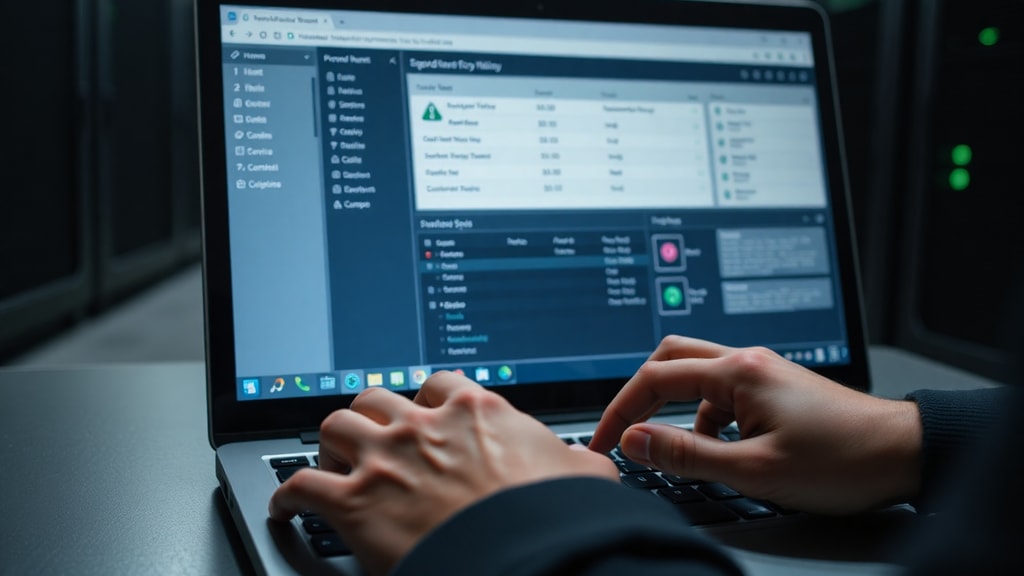
Once the Group Policy Editor opens, you will see a two-pane layout. The left pane displays a tree structure with two main branches: Computer Configuration and User Configuration. Under each branch, the most commonly used section is Administrative Templates, which contains hundreds of registry-based policy settings. Other sections include Windows Settings (for security, scripts, folder redirection) and Software Settings (for software installation). The right pane shows the list of policies available in the selected node. Each policy entry includes a name, a description, and its current state. To edit a policy, simply double-click it. A dialog box appears with three options: Not Configured, Enabled, and Disabled. After choosing the desired state, you may need to set additional options or parameters before clicking OK to apply the change. Policy changes typically take effect immediately for new programs, but existing processes may require a logoff or system restart to reflect updates.
Table: Common Group Policy Categories and Examples
To illustrate the variety of settings you can control, the table below lists some key policy categories under Computer Configuration and User Configuration, along with typical examples of policies that administrators often edit.

| Configuration Area | Category | Example Policy Setting |
|---|---|---|
| Computer Configuration | Windows Settings / Security Settings | Password Policy: enforce password length minimum of 8 characters |
| Computer Configuration | Administrative Templates / System | Disable automatic Windows Update installation |
| Computer Configuration | Administrative Templates / Network | Block access to USB removable storage devices |
| User Configuration | Administrative Templates / Start Menu and Taskbar | Remove Run menu from Start button |
| User Configuration | Administrative Templates / Desktop | Force a specific desktop wallpaper |
| User Configuration | Windows Settings / Internet Explorer Maintenance | Set a custom home page for all users |
These examples demonstrate how Group Policy can enforce consistent configurations across a fleet of computers. When editing a policy, always verify that the chosen setting aligns with your organization's security requirements and user needs.
Detailed Steps to Edit a Specific Group Policy
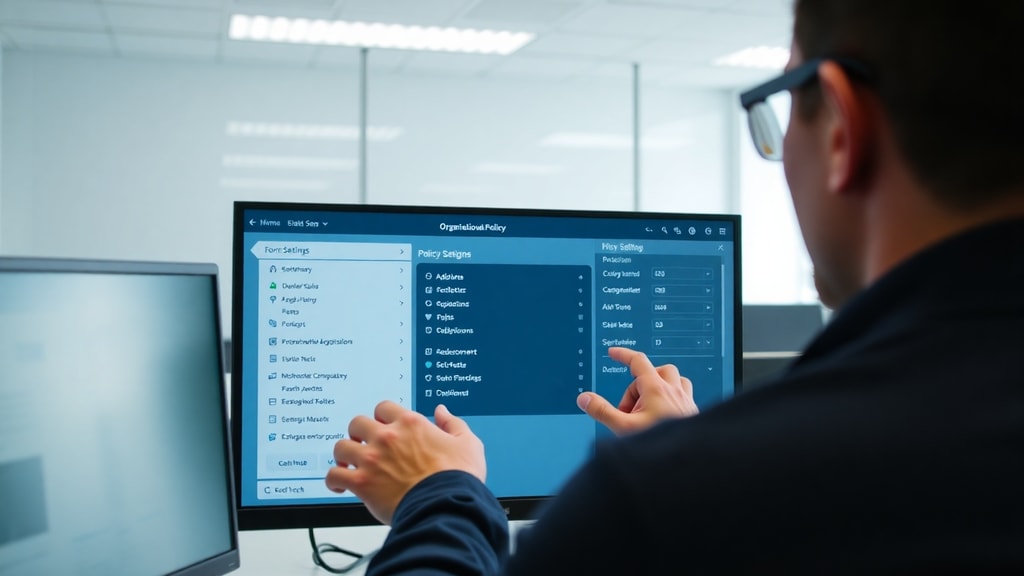
Let us walk through a typical editing scenario: disabling the Command Prompt for standard users. This is a common policy to restrict unauthorized system access. First, open the Group Policy Editor. Navigate in the left pane to User Configuration, expand Administrative Templates, then System. In the right pane, locate the policy named "Prevent access to the command prompt". Double-click it. In the dialog that opens, select "Enabled". Below, you can choose whether to also disable the Command Prompt script processing, which is recommended. Click Apply and OK. The policy is now saved. To test, log off and log back in as a standard user, then try to open cmd.exe. You should see a message indicating that the command prompt has been disabled by your administrator. To reverse the change, simply set the policy back to "Not Configured" or "Disabled". Remember that some policies require a reboot or a group policy refresh using gpupdate /force in an elevated command prompt. For local edits, the changes are usually immediate after the next logon.
Advanced Context: Active Directory and Group Policy Management
In enterprise environments, Group Policy is often managed centrally through Active Directory. The tool used is the Group Policy Management Console (GPMC), which is installed on a Windows Server acting as a Domain Controller. Instead of editing local policies, administrators create Group Policy Objects (GPOs) and link them to sites, domains, or organizational units (OUs). This allows for granular control over specific groups of users and computers. For example, a GPO linked to the "Accounting" OU can enforce stricter password policies, while another GPO linked to the "Development" OU may allow more software installation rights. Editing a GPO in GPMC follows a similar interface to the local Group Policy Editor but adds management capabilities like backup, restore, and modeling of policy effects. When working in a domain, local policies are often overridden by domain-based GPOs. Understanding the inheritance and precedence order is crucial for troubleshooting unintended configurations. For detailed guidance on configuring GPMC, refer to the official Microsoft documentation.

Practical Tips for Editing Group Policy Effectively
Before making changes to Group Policy, it is wise to create a system restore point or backup the existing policy settings. For local policies, you can export the entire registry branch that holds policy data. For domain GPOs, use the backup feature in GPMC. Always test changes on a single computer or a small group of users before deploying widely. Document every change with a clear description and date, especially in multi-admin environments. Some policies have dependencies on other settings; for instance, disabling the command prompt may also need to disable batch file execution for full effectiveness. Use the "Explain" tab in the policy dialog to read the official Microsoft description of the setting, which often clarifies the intended behavior. Finally, be aware that Group Policy can be applied via local security policies, registry keys, or even scripts, so check for conflicts if you have multiple management methods in place.
References
For further information and official guidance on editing Group Policy in Windows, consult the following sources:
Microsoft Learn. "Group Policy Management Console." Accessed April 2025. https://learn.microsoft.com/es-es/windows-server/identity/ad-ds/manage/group-policy/group-policy-management-console
Solvetic. "Editar Políticas de Grupo GPO Windows 10 Profesional o Enterprise." Accessed April 2025. https://www.solvetic.com/tutoriales/article/5671-editar-politicas-de-grupo-gpo-windows-10-profesional-o-enterprise/