Understanding Your Network Options
Connecting another computer to the internet is a common task for anyone who has added a new device to a home or office environment. The method you choose depends entirely on your existing setup and the hardware you have available. The primary goal is to provide the second computer with a pathway to your router, which then connects to your internet service provider. There are three main approaches: using a wired Ethernet connection, sharing a connection wirelessly, or bridging two computers directly. Each has distinct advantages in terms of speed, stability, and ease of setup. Before starting, identify whether your second computer has an Ethernet port, built-in Wi-Fi, or needs an adapter. Also check if your main computer or router has spare ports or specific sharing features. This article will guide you through every viable method, from simple cable connections to advanced software bridging.
The most straightforward scenario is having a router or modem with multiple Ethernet ports. In this case, you simply plug an Ethernet cable from the router into the second computer and it will obtain an IP address automatically via DHCP. Most modern routers support up to four wired connections without any configuration changes. If your router is far from the second computer, or if you prefer a cable-free solution, you can use Wi-Fi. Just ensure your network name and password are correctly entered on the second machine. However, situations arise when there is no router, or the router has only one active port, or you want to share a laptop's cellular connection to a desktop. In those cases, you must rely on alternative methods like network bridging or Internet Connection Sharing.
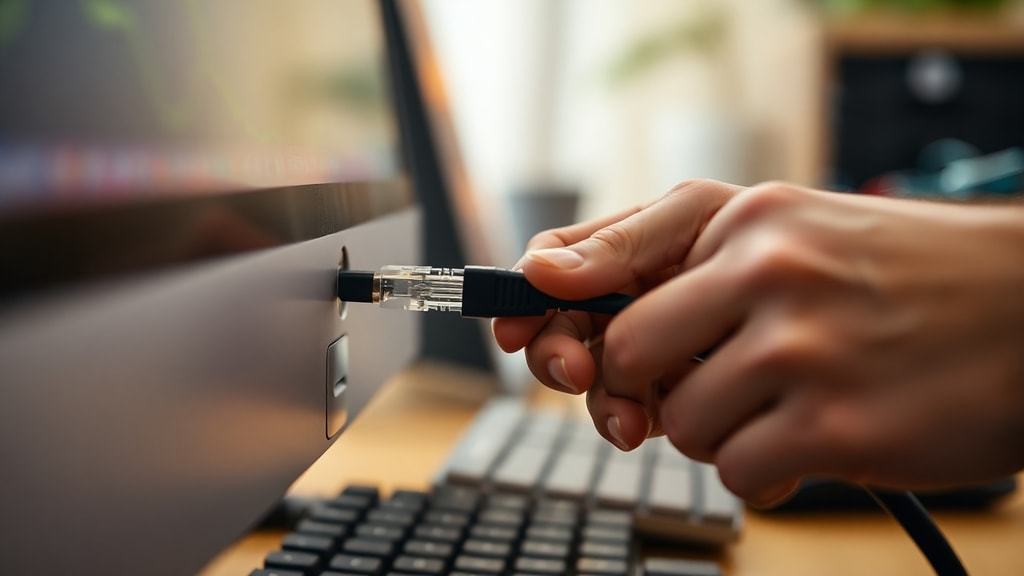
Method 1: Using a Network Switch to Expand Wired Connections
A network switch is a small hardware device that multiplies the number of Ethernet ports available from your router. If you have only one active port but want to connect two or more computers, a switch is the ideal solution. It does not require configuration and simply passes the internet connection to every device plugged into it. To set this up, take an Ethernet cable and connect it from your router's LAN port to the switch's uplink or standard port. Then, connect each computer to any of the remaining ports on the switch using separate Ethernet cables. Both computers will automatically receive internet access because the switch operates at layer two of the network stack, meaning it does not care about which device is which. This method works perfectly for desktop computers or laptops that have Ethernet ports, offering the most stable and fastest connection possible.
For example, if you have a desktop computer in your office and want to add a second computer in the same room, and your main router is nearby, a switch avoids any need for wireless setup. The only additional requirement is that you have enough Ethernet cables. Switches are inexpensive and can be found at any electronics store. You must ensure your router has at least one free port to connect to the switch. If your router is also used for Wi-Fi, the switch will not interfere with wireless devices. This is the recommended approach for permanent installations because it reduces network latency and avoids interference common with Wi-Fi. According to a discussion on Reddit's HardwareBrasil community, users emphasize that using a switch is the "most reliable way" to add a new computer to an existing wired network.
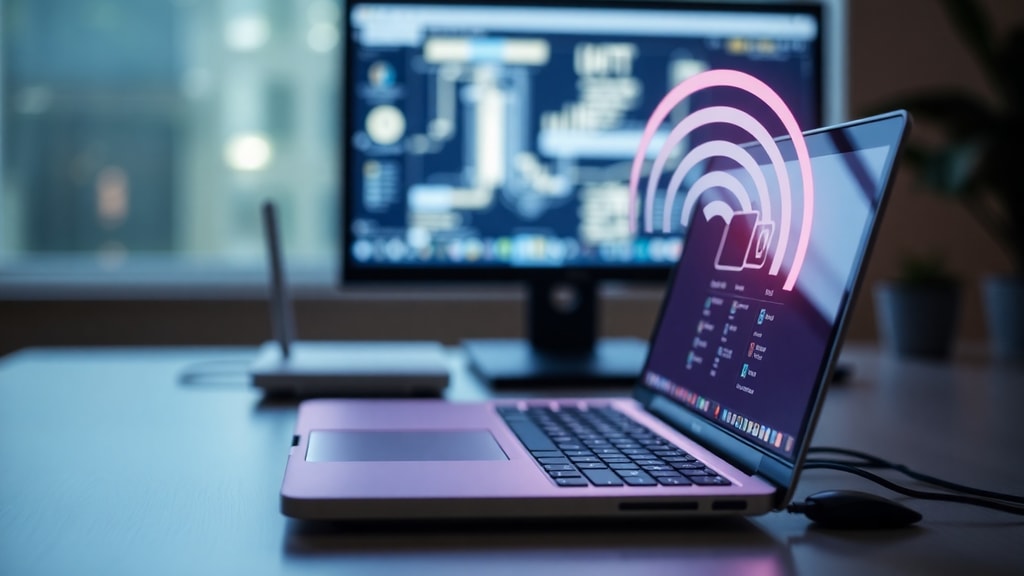
Method 2: Direct Cable Sharing with Network Bridging (Without a Router)
If you do not have a router or switch, and your first computer already has internet access (via cellular data, Wi-Fi, or a modem), you can share that connection with a second computer using a single Ethernet cable. This is often called network bridging. The first computer essentially acts as a bridge, passing internet traffic to the second device. The key is to connect the two computers directly with an Ethernet cable and then configure Windows to bridge the internet adapter with the local network adapter. This works for both wired and wireless scenarios on the first machine. For instance, if your first PC uses Wi-Fi to connect to the internet, you can bridge that Wi-Fi adapter with its Ethernet port, and the second PC connected via Ethernet will gain internet access.
To implement this, physically connect the two computers with an Ethernet cable. On the first computer (the one with internet), open the Control Panel and navigate to Network and Sharing Center. Click on Change adapter settings. You will see at least two entries: your active internet connection (e.g., Wi-Fi or cellular) and the Ethernet port. Hold the Ctrl key and click both adapters. Right-click either one and select Bridge Connections. Windows will create a new network bridge. On the second computer, no configuration is needed; it will receive a dynamic IP through the bridge. Note that the first computer must remain powered on and connected to the internet for the second to stay online. This method is highly effective for connecting an old desktop without Wi-Fi to a laptop that has cellular internet, as noted by Microsoft Learn resources.
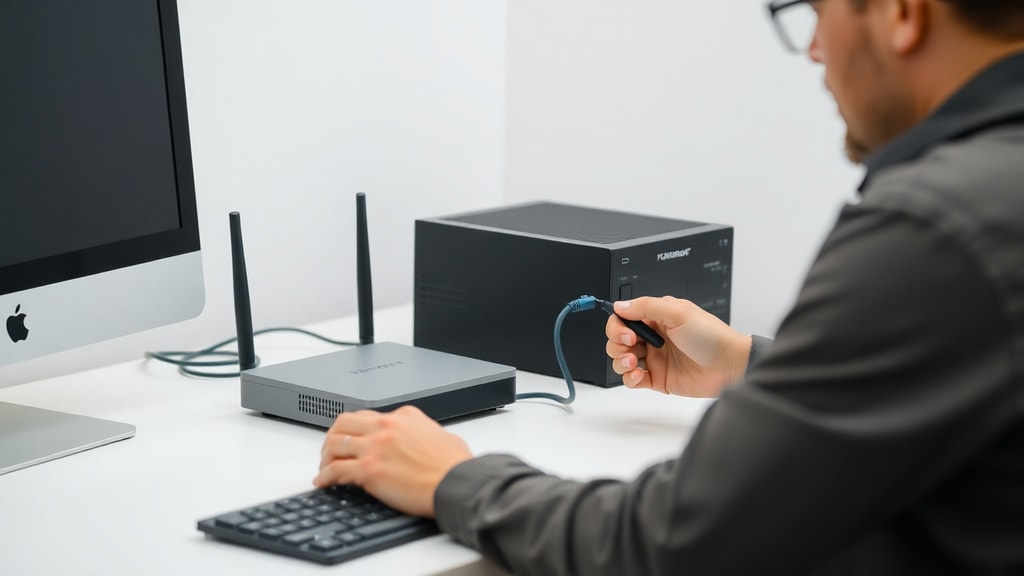
Step-by-Step Table: Comparing Connection Methods
The following table summarizes the core features, hardware requirements, and limitations of each primary method discussed. Use it to quickly decide which approach fits your situation.
| Method | Hardware Needed | Internet Access Type for Host | Speed | Configuration Required | Best Use Case |
|---|---|---|---|---|---|
| Network Switch | Switch + Ethernet cables | Router with available port | Gigabit | None | Multiple wired devices in same room as router |
| Direct Cable Bridge | One Ethernet cable | Any (Wi-Fi, cellular, modem) | Up to Ethernet speed | Simple (Bridge setup on host) | Two computers without router |
| Wi-Fi Mobile Hotspot | Wi-Fi adapters on both PCs | Host PC must have internet | Wireless standard speed | Minimal (Windows hotspot) | Laptop sharing to another laptop |
| Wi-Fi Direct (Same Network) | Router with Wi-Fi | Router | Varies by router | None (connect to SSID) | Any computer with Wi-Fi card |
Method 3: Using Windows Mobile Hotspot to Share Wi-Fi
If both computers have Wi-Fi capabilities and you want to avoid cables, Windows includes a built-in feature called Mobile Hotspot. This allows a computer that is connected to the internet (through Wi-Fi, Ethernet, or cellular) to broadcast its own Wi-Fi network, which the second computer can join. This is especially useful when you have no router or when the router is far away. On the host computer, go to Settings, then Network and Internet, and click Mobile hotspot. Turn it on and choose the internet connection you want to share from the dropdown menu. The system will automatically generate a network name and password, which you can customize. On the second computer, open the Wi-Fi list, find the new hotspot, enter the password, and connect. The host computer must remain awake and connected to the internet for the hotspot to work.
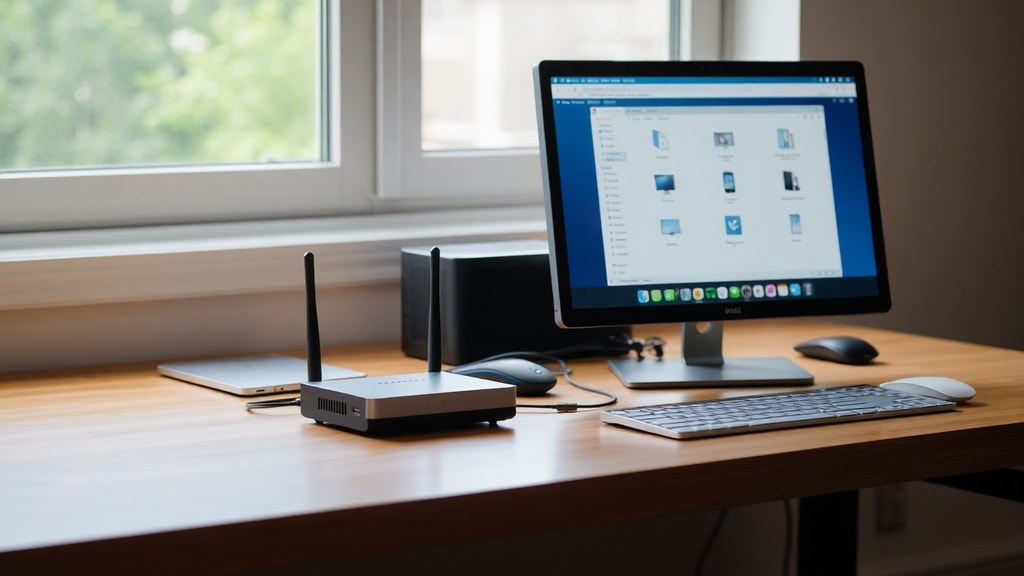
One important note: the host computer's wireless adapter must support sharing. Most modern laptops do, but older adapters might not handle the virtual miniport driver required. If you encounter issues, check the Device Manager for the Wi-Fi adapter properties and see if "Microsoft Wi-Fi Direct Virtual Adapter" is present. The hotspot method is excellent for temporary setups or when you want to share a metered connection like cellular data without overloading the router. However, keep in mind that the host computer uses its own resources to manage the hotspot, which can drain battery faster on laptops. Also, the second computer's internet speed will be limited by the host's connection speed and Wi-Fi throughput.
Method 4: Wi-Fi Direct Connection Without Router or Cable
For a completely wireless connection between two computers without any additional hardware, you can use Wi-Fi Direct. This feature, supported in Windows 10 and 11, allows two devices to create a peer-to-peer network. Unlike the mobile hotspot, Wi-Fi Direct does not require the host computer to already have internet; it simply creates a local network. However, for internet access, the host must share its connection. To set this up, you can use the "Projecting to this PC" feature or third-party software, but the most reliable method is to use the built-in "Mobile hotspot" from the host and then connect the second PC directly. Essentially, the host creates an ad-hoc network. After connection, the second PC can access the internet if the host is sharing its active internet connection. This is equivalent to the mobile hotspot with the host's internet enabled.
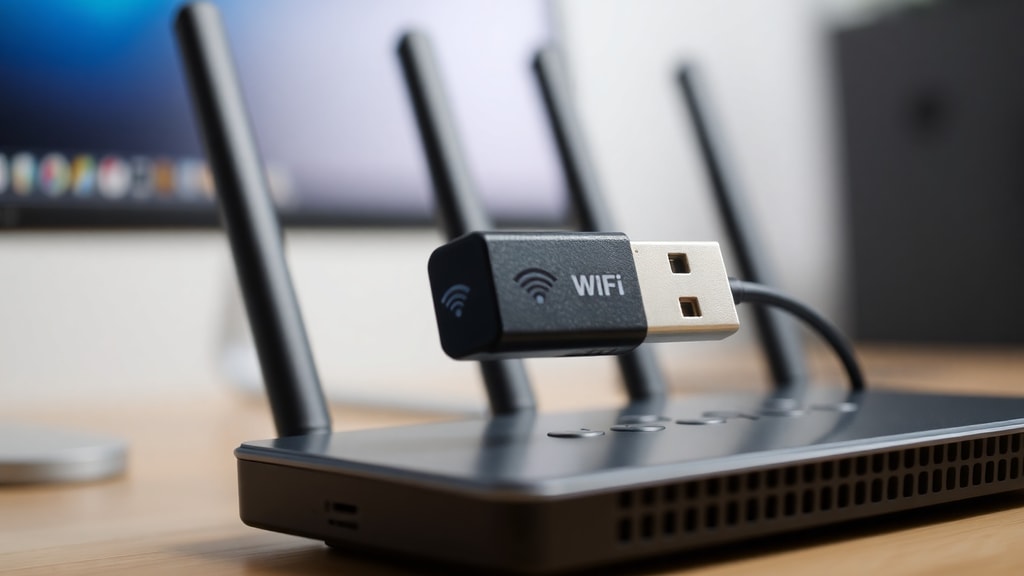
Alternatively, you can use the legacy "Ad-hoc network" creation via Command Prompt using netsh commands, but this is deprecated in newer Windows versions. For most users, the mobile hotspot method covered previously is the most straightforward Wi-Fi Direct solution. The key advantage of Wi-Fi Direct is that it does not require a router, making it ideal for field work, presentations, or sharing internet from a laptop to a second computer in a hotel room where only one Ethernet port is available. Ensure both computers have Wi-Fi adapters that support virtual Wi-Fi, which is standard on all post-2015 devices.
Common Troubleshooting and Important Considerations
When connecting another computer to the internet, you may encounter issues like "No Internet Access" or limited connectivity. First, verify that the second computer has its network adapter enabled. In Windows, check Network Connections to see if the adapter shows "Enabled". If using a cable, ensure both ends are fully inserted. Faulty cables often cause intermittent connections. For bridging, ensure that the host computer's internet connection is active before creating the bridge. If the bridge fails, remove it (highlight and delete) and try again. Sometimes, Windows needs a restart to finalize the bridge. For wireless hotspots, ensure both computers are within range and using compatible Wi-Fi standards (802.11n or later). Additionally, turn off any third-party firewall software temporarily to test connectivity.
Another important point is security. When sharing your internet connection via bridge or hotspot, the second computer can access the same network as the host. Ensure the second computer has up-to-date antivirus and firewall protection. If you are on a public network, enable network discovery and file sharing cautiously. For a permanent solution, investing in a router or switch is safer and more reliable than bridging. Also, consider power consumption: leaving a laptop on continuously to act as a bridge or hotspot may degrade its battery over time. If you plan to use these methods long-term, a dedicated network device is more energy-efficient.
List of Essential Tools and Adapters
Depending on your chosen method, you may need specific hardware. Below is a list of essential tools that can simplify the process.
- Ethernet cable (Cat5e or Cat6) for direct connection or switch.
- Network switch with at least two ports (e.g., TP-Link TL-SG105).
- USB-to-Ethernet adapter if the second computer lacks an Ethernet port.
- USB Wi-Fi adapter (if the computer has no built-in Wi-Fi).
- Powerline adapters (if you cannot run cables between rooms).
- Windows 10 or 11 operating system on both computers for smooth bridging.
- External monitor or keyboard to configure the host computer easily.
Conclusion
Connecting another computer to the internet is achievable through several practical methods, each suited to different hardware and network environments. The easiest and most reliable is using a network switch, which requires zero configuration and provides full wired speed. If you lack a router port or need a temporary solution, direct cable bridging or Windows Mobile Hotspot are effective. For those with limited equipment, Wi-Fi Direct offers a wireless alternative. Always ensure your network drivers are updated and that you use quality cables. The table and list provided here serve as quick references for choosing and executing your approach. With the steps outlined in this article, you can successfully add a second computer to your internet connection within minutes.
References
For further technical details on network bridging and mobile hotspot configurations, refer to official Microsoft documentation. The article "Conectar-se a outro computador na mesma rede" on Microsoft Learn provides step-by-step instructions for bridging connections and using Windows mobile hotspot. Another useful source is the Reddit discussion on r/hardwarebrasil titled "Como colocar internet no meu PC?" which offers practical community advice on using switches and cables. Additionally, All Things Windows has a guide on connecting two computers using an Ethernet cable on Windows 10, which covers USB adapters and Internet Connection Sharing. These resources offer deeper troubleshooting and alternative configurations that may help in specific scenarios.