Why Checking Your Printer Toner Level Matters
Running out of toner in the middle of an important print job can be frustrating. Whether you are printing documents at home or in a busy office, knowing how much toner remains helps you avoid unexpected interruptions and maintain consistent print quality. Many modern printers provide several ways to check toner levels, from on-screen menus to dedicated software applications. Understanding these methods ensures you can plan replacements and keep your workflow smooth. This article covers the most practical techniques for monitoring toner levels across different operating systems and devices.
Method 1: Using the Windows Control Panel
Windows includes a built‑in feature that allows you to see estimated toner levels without installing extra software. This method works for most printers connected via USB or network. To access it, open the Control Panel. You can do this by searching for Control Panel in the Start menu. Navigate to Devices and Printers. Locate your printer icon, right‑click on it, and select Printing Preferences or Options depending on your printer model. Look for a tab labeled Service, Maintenance, or Supplies. Inside that tab, you should see an option such as Toner Levels or Estimated Ink Levels. Clicking it will display a visual indicator showing the remaining toner percentage for each cartridge. This method is quick and does not require an internet connection. For more details, refer to the official HP Support guide on checking toner levels.
Method 2: Using the Printer Manufacturer’s Software
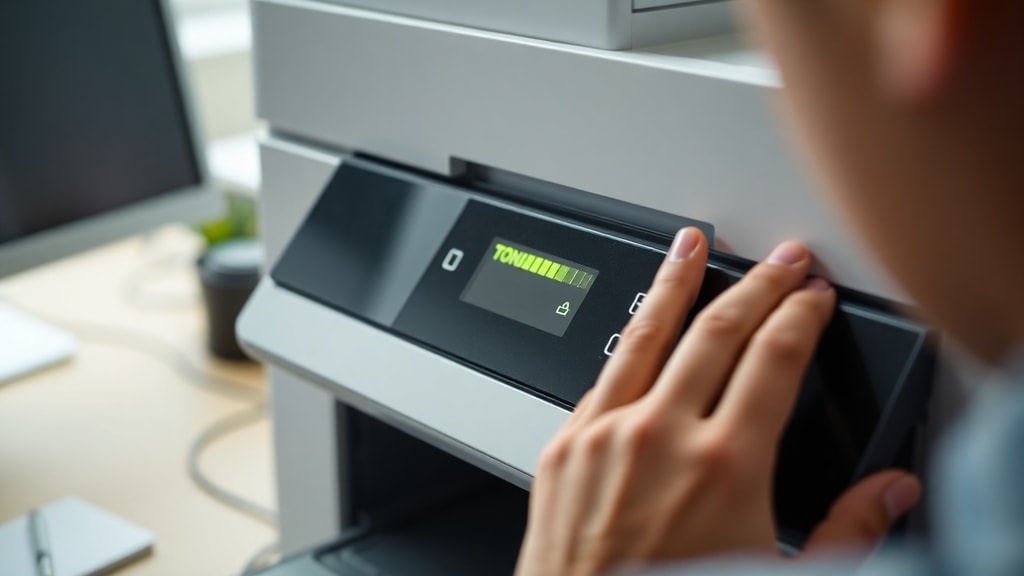
Most printer manufacturers provide dedicated software that offers more detailed information than the Windows Control Panel. Installing the software that came with your printer or downloading it from the manufacturer’s website gives you access to advanced status reports. For example, HP Smart, Epson Status Monitor 3, Canon IJ Network Tool, and Brother iPrint&Label all include toner level indicators. Once installed, open the software and look for a Status, Maintenance, or Supplies section. The toner levels are usually shown as bar graphs or percentages. Some programs even alert you when toner is low and offer direct links to order replacements. Using manufacturer software is especially useful for network printers because it can display the status of multiple cartridges at once. The Epson documentation provides a clear example of how to find these settings.
Method 3: Via the Printer’s Web Interface
If your printer is connected to a network and has an IP address, you can check toner levels through a web browser. This method is platform‑independent and works on Windows, Mac, Linux, or even mobile browsers. First, find your printer’s IP address. You can usually print a network configuration page from the printer control panel or find it in the printer settings on your computer. Type the IP address into any web browser’s address bar. This opens the printer’s built‑in administration page. Navigate to a section called Status, Supplies, or Consumables. Here you will see the exact toner percentage for each cartridge, along with other useful information such as page count and estimated remaining life. Some printers, like Xerox models, refer to this feature as CentreWare or Embedded Web Server. The precise steps vary by brand, but the process is similar across most devices. For a detailed walkthrough, consult the Xerox support page on checking supplies.
Method 4: Directly from the Printer Control Panel
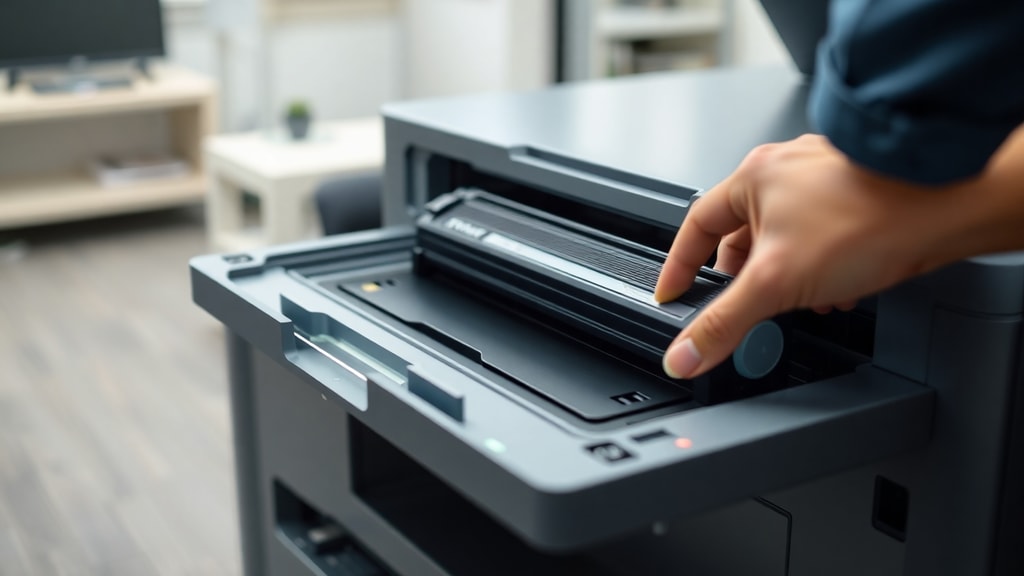
Nearly every printer with a display screen allows you to check toner levels without turning on a computer. This is the most direct method and works even if your printer is not connected to a network. On the printer’s control panel, press the Home button. Navigate to Settings, Information, or Status. Look for an option labeled Supplies, Toner Status, or Consumables. The screen will show a bar or percentage for each toner cartridge. Some printers also provide a menu item called Print Reports, which includes a supply status page that prints a detailed summary. Checking from the control panel is ideal for quick verification, especially if you are standing next to the printer. If you need a printed report, select Print Quality Report or Printer Status Report from the same menu.
Method 5: Checking Toner Levels on a Mac
Mac users can monitor toner levels directly from System Settings. Open System Settings (or System Preferences on older macOS versions) and click on Printers & Scanners. Select your printer from the list, then click Options & Supplies. A new window opens; click the Supply Levels tab. Here you will see a graphical representation of toner or ink levels for each cartridge. This method works for most printers that support AirPrint or are connected via USB. If the Supply Levels tab is missing, your printer may not support this feature through macOS. In that case, you can use the manufacturer’s software (which is also available for Mac) or the printer’s web interface.
Method 6: Using a Mobile App
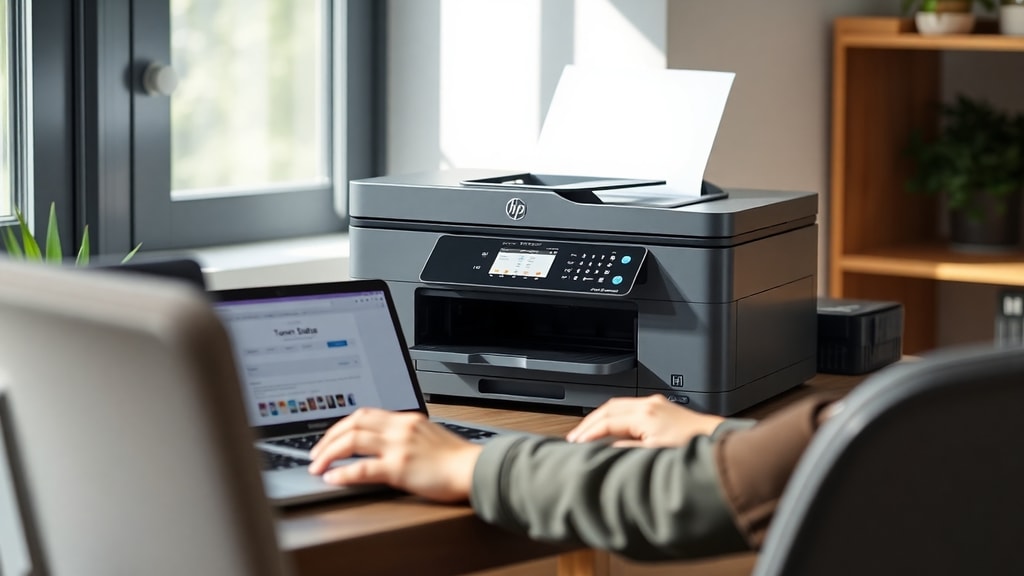
If you prefer checking toner levels on your smartphone or tablet, many printer brands offer free mobile apps. HP Smart, Epson iPrint, Canon PRINT, and Brother iPrint&Scan are popular examples. After installing the app, connect it to your printer – usually by scanning the printer’s QR code or entering its IP address. The app’s dashboard displays the toner levels clearly, often with a color‑coded indicator. Some apps also send push notifications when toner is low and let you order replacements directly. Mobile apps are convenient because they allow you to check supplies from anywhere in your home or office without walking to the printer. They also give you access to other features like scanning and printing from your device.
List of Quick Ways to Check Toner Levels
Below is a list summarising the fastest methods for common scenarios.

- Windows: Control Panel > Devices and Printers > right‑click printer > Printing Preferences > Service tab.
- Manufacturer software: Open HP Smart, Epson Status Monitor, or equivalent and look for Supplies.
- Web interface: Enter printer IP in browser > navigate to Status > Supplies.
- Printer control panel: Press Home > Settings > Supplies.
- Mac: System Settings > Printers & Scanners > Options & Supplies > Supply Levels.
- Mobile app: Install brand app, connect printer, view toner status on dashboard.
Table Comparing Toner Checking Methods
The following table outlines the main characteristics of each method to help you choose the best one for your situation.
| Method | Ease of Use | Requires Computer/Device | Accuracy |
|---|---|---|---|
| Windows Control Panel | Easy | Windows PC | Good (estimated) |
| Manufacturer Software | Very easy | Windows or Mac | High (exact percentage) |
| Web Interface | Moderate | Any device with browser | High |
| Printer Control Panel | Very easy | None | High |
| Mac System Settings | Easy | Mac | Good (estimated) |
| Mobile App | Very easy | Smartphone/tablet | High |
Final Considerations
Regularly checking your printer toner level prevents downtime and ensures that your prints remain sharp and clear. Each method has its advantages. For quick glances, the printer control panel or mobile app are the most convenient. For detailed, remote monitoring, the web interface or manufacturer software give you exact percentages and additional data. Windows and Mac built‑in tools are good fallbacks when you do not have the printer’s software installed. Regardless of the method you choose, make it a habit to check toner levels at the start of each month or before running large print jobs. This proactive approach saves time and reduces waste. If you notice the toner level is low, order a replacement cartridge immediately to avoid interruptions.
References
HP Support. (n.d.). How to check ink or toner levels on HP printers. Retrieved from https://support.hp.com/pt-pt/document/ish_3084212-2529318-16
Epson Documentation. (n.d.). Checking Ink Levels. Retrieved from https://files.support.epson.com/htmldocs/st24__/st24__ug7/ink_1.htm
Xerox Support. (n.d.). How to check toner level on Xerox printers. Retrieved from https://www.support.xerox.com/pt-br/article/KB0038367
Xerox User Guide. (n.d.). Check supply status. Retrieved from https://www.xerox.com/technical_product_documentation/Versant_4100_Press/User_Guide/pt_BR/Xerox/Xerox/checkcrustatus3100.html
WikiHow. (n.d.). How to Check Printer Ink Levels on Windows and Mac. Retrieved from https://pt.wikihow.com/Ver-os-N%C3%ADveis-de-Tinta-da-Impressora-no-Windows and https://pt.wikihow.com/Checar-a-Quantidade-de-Tinta-Restante-em-um-Cartucho-de-Impressora