Introduction: Understanding the Fastboot Screen on Your Phone
When you restart your smartphone and instead of the usual boot animation you see a dark screen with the word "FASTBOOT" displayed, it can be alarming. This mode is not a sign that your device is broken beyond repair, but it does indicate that something has interrupted the normal startup process. Fastboot is a diagnostic protocol used by Android devices, especially those from manufacturers like Xiaomi, Motorola, and Google, to allow low-level communication with the device's bootloader. It is primarily intended for developers and technicians to flash firmware, unlock the bootloader, or perform recovery operations. However, for the average user, seeing this screen upon restart typically means an unintended trigger has occurred. Understanding why this happens and how to resolve it is essential to getting your phone back to normal operation.
What Exactly Is Fastboot Mode?
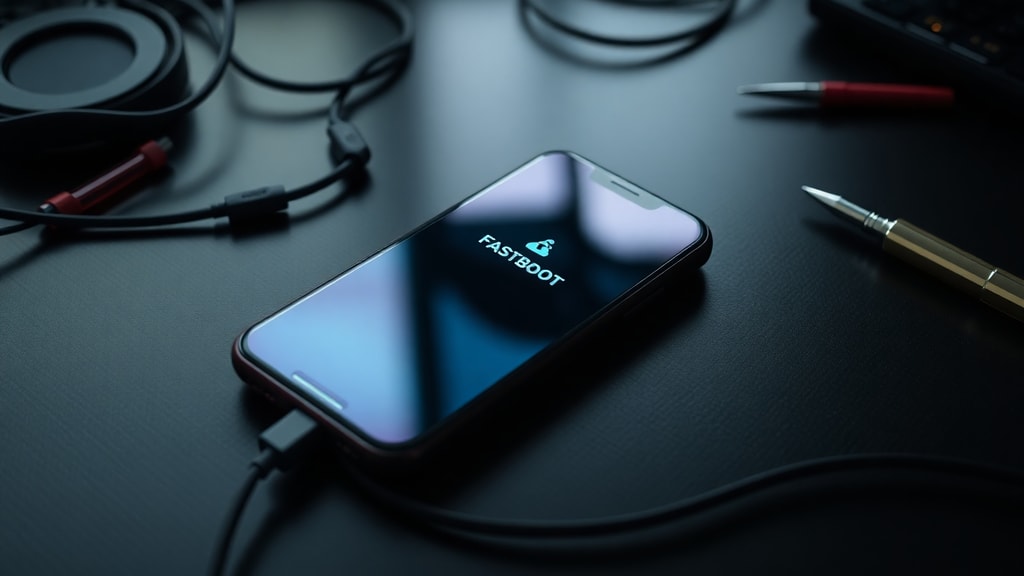
Fastboot is a tool that runs before the operating system loads. It is part of the Android software development kit and is used to modify the flash file system on the device via a USB connection from a computer. When your phone enters Fastboot, it is waiting for commands from a computer. The screen usually shows the word "FASTBOOT" along with some hardware information. In this state, the phone cannot make calls, access data, or use apps. It is purely a maintenance mode. For most users, accidentally landing in Fastboot is a minor inconvenience, but it can become a persistent problem if the underlying cause is not addressed.

Common Reasons Why Your Phone Shows Fastboot on Restart
Several scenarios can cause your phone to boot directly into Fastboot instead of the normal system. The most frequent cause is an accidental combination of key presses during the restart. However, hardware defects, software errors, and failed updates can also lead to this state. Below is a list of the primary culprits:
- Accidental button press: Holding the Volume Down button while pressing the Power button triggers Fastboot. This often happens when the phone is in a pocket, a bag, or pressed against a surface.
- Stuck or defective volume button: A jammed Volume Down key can act as if it is being held continuously, forcing the phone into Fastboot each time it restarts.
- Interrupted system update: If your phone was installing an update and the battery died or the connection was lost, the firmware may become corrupted, causing the system to fall back to Fastboot.
- Failed rooting or custom ROM installation: Users who attempt to unlock the bootloader, root their device, or install custom firmware may break the boot process, leaving the phone stuck in Fastboot.
- Hardware memory failure: In rare cases, a failing internal memory chip can prevent the operating system from loading, forcing the bootloader to open Fastboot as a fallback.
Understanding which of these applies to your situation will help you choose the right solution.
Accidental Button Press: The Most Common Scenario
By far, the most frequent reason users see Fastboot after restarting is that they inadvertently held the Volume Down button while the phone was booting. This can happen if you press the power button while your finger is also resting on the volume rocker. It also occurs when the phone is inside a tight pocket or a car mount that presses against the side buttons. Many modern phones are sensitive to prolonged button presses during startup, and the combination of Power + Volume Down is universally recognized as the Fastboot shortcut. If you only see Fastboot once and it disappears after a forced restart, this is almost certainly the cause.
How to Exit Fastboot Mode Quickly
If your phone is currently displaying the Fastboot screen, there are a few simple steps you can take to exit. The easiest method is to perform a forced restart. On most devices, you can do this by pressing and holding the Power button for 10 to 15 seconds until the screen goes black and the phone reboots. If that does not work, try holding the Power button and the Volume Up button simultaneously for the same duration. Alternatively, if you have a computer with the Android Debug Bridge (ADB) and Fastboot tools installed, you can connect your phone via USB and type the command "fastboot reboot" in a terminal. However, for most users, a long press on the power button is sufficient.

When Fastboot Keeps Coming Back: Stuck Buttons and Debris
If you exit Fastboot only to see it again after the next restart, you likely have a physical button issue. A stuck Volume Down key is the prime suspect. Dust, pocket lint, or a damaged button mechanism can cause the button to remain pressed even when you are not touching it. To test this, try pressing the Volume Down button several times to see if it feels sticky or unresponsive. You can also try tapping the side of the phone gently on a soft surface to dislodge any debris. If the problem persists, cleaning around the button with a soft brush or compressed air may help. In severe cases, the button may need professional repair.
Software Update Failures and Corrupted Firmware
Another common reason for persistent Fastboot is a failed system update. When your phone downloads an over-the-air update, it must install the new firmware files correctly. If the installation is interrupted by a low battery, a lost Wi-Fi connection, or a crash, the system files can become incomplete or corrupted. The bootloader detects this error and defaults to Fastboot to prevent the phone from booting into a broken system. In this situation, the only reliable fix is to flash the correct firmware using a computer. This process varies by manufacturer, but generally involves downloading the official ROM and using Fastboot commands or a manufacturer-specific tool (like Xiaomi's Mi Flash Tool) to reinstall the operating system. It is advisable to back up any data beforehand if possible.
Rooting, Custom ROMs, and Bootloader Modifications
Users who have attempted to root their phone or install a custom ROM may encounter Fastboot as a sign that the bootloader is unlocked but the system partition is not valid. For example, if you tried to flash a custom recovery like TWRP and the installation failed, or if you wiped the system partition without installing a new ROM, the phone will have no operating system to load. In such cases, Fastboot is the only mode available. The solution is to reflash a working ROM using a computer. Additionally, if the bootloader itself is corrupted, you may need to relock or reflash the bootloader using official manufacturer tools. This process is more advanced and often requires detailed instructions from forums like XDA Developers or your device's support page.
Hardware Failures: When Memory or Motherboard Issues Are to Blame
Although less common, hardware failures can cause the phone to consistently boot into Fastboot. If the internal memory chip (eMMC or UFS) is failing, the bootloader may be unable to read the system partition and will fall back to Fastboot as a safety measure. Similarly, a damaged motherboard or loose connections can interrupt the boot process. Unfortunately, these issues are not easily fixed by software methods. If you have tried forced restarts, checked for stuck buttons, and even reflashed firmware without success, the problem may be hardware-related. In such cases, it is best to consult a professional repair technician or contact the manufacturer for service options.
Table: Fastboot Causes and Typical Solutions
| Cause | Symptoms | Solution |
|---|---|---|
| Accidental button press | Fastboot appears only once after restart | Force restart by holding power button 15 seconds |
| Stuck Volume Down key | Fastboot reappears every time phone restarts | Clean button, tap device, or replace button |
| Failed system update | Phone shows Fastboot after update attempt | Flash official firmware via computer |
| Corrupted bootloader or rooting attempt | Phone stuck in Fastboot after custom ROM work | Reinstall ROM or restore stock firmware |
| Hardware memory failure | Fastboot persists despite all software fixes | Professional repair, may require motherboard replacement |
This table summarizes the most common causes and their corresponding solutions. Use it as a quick reference to diagnose your issue.
Preventive Measures to Avoid Future Fastboot Problems
Once you have successfully exited Fastboot, there are steps you can take to reduce the chance of it happening again. First, be mindful of how you hold your phone when pressing the power button. Avoid placing the phone in tight pockets or pouches that press the volume keys. If you use a case, ensure it does not interfere with the side buttons. Second, keep your phone's software up to date by installing system updates when they are available, but make sure you have a stable internet connection and sufficient battery charge before starting an update. Third, if you are an advanced user considering rooting or installing custom ROMs, always follow trusted guides and have a backup plan, such as knowing how to flash stock firmware. Finally, periodically clean your phone's buttons with a dry brush to prevent debris buildup. For additional guidance on handling persistent Fastboot issues, you can refer to resources like Techtudo's article on exiting Fastboot on Xiaomi or Smartoutlets' detailed explanation of Fastboot mode.
Conclusion: Fastboot Is Not the End of Your Phone
Seeing Fastboot on your phone's screen after a restart is frustrating, but it is rarely a fatal problem. In most cases, it is caused by a simple physical trigger or a temporary software glitch. By understanding the reasons behind this mode and applying the appropriate fixes, you can restore your device to normal operation without losing data. Start with the easiest solution: a forced restart. If the issue persists, investigate stuck buttons or failed updates. Only if all else fails should you consider hardware failure. Patience and a systematic approach will resolve the vast majority of Fastboot occurrences.
References
The information in this article was compiled from reputable sources that explain Fastboot mode on Android devices. Key references include Techtudo's guide on how to exit Fastboot on Xiaomi, which covers button combinations and software fixes. Smartoutlets provides a comprehensive analysis of why Fastboot appears and how to address it. Canaltech also offers practical steps for exiting the Fastboot screen. These sources were consulted to ensure accuracy and reliability. For further reading, please visit the original articles: - Techtudo: How to Exit Fastboot on Xiaomi - Smartoutlets: Xiaomi Fastboot: What It Is, Why It Appears, and How to Exit - Canaltech: How to Exit Fastboot Screen on Xiaomi