Understanding the Problem with the Windows Key
The Windows key is one of the most frequently used buttons on a keyboard. It opens the Start menu, triggers shortcuts like Win + R for Run, Win + E for File Explorer, and Win + I for Settings. When this key stops working, productivity can take a noticeable hit. The issue might seem alarming, but it is usually caused by software conflicts, driver problems, or accidental lock settings rather than hardware failure. Before assuming the keyboard is broken, there are several logical steps to try. This article covers every practical method to restore the Windows key function, from simple physical checks to advanced system repairs.
Initial Physical and Keyboard Lock Checks
Some keyboards, especially on laptops, include a hardware or firmware lock for the Windows key. This is often implemented through a function key combination to prevent accidental presses during gaming. The most common method is pressing Fn + Windows key simultaneously. If that does not work, try Fn + F2, Fn + F6, or Fn + Escape, depending on your laptop brand. On some gaming keyboards, there is a dedicated Windows lock button or switch. Look for a key with a Windows icon crossed out or a lock symbol. Pressing that key or flipping the switch will re-enable the Windows key. Always test the key in a text editor or by opening the Start menu after each attempt. If the physical lock is not the issue, move on to software-based solutions.
Using the On-Screen Keyboard to Confirm the Issue
Before diving into complex fixes, use the built-in On-Screen Keyboard to verify whether the Windows key failure is hardware or software related. Click the Start button with your mouse, type osk, and press Enter to open the On-Screen Keyboard. Look for the Windows key on the virtual keyboard and click it with your mouse. If the Start menu opens, the Windows key function works at the system level, and the problem is likely with your physical keyboard hardware or its driver. If clicking the on-screen Windows key also does nothing, the issue is deeper in the operating system. This simple test helps narrow down the troubleshooting path.
Reinstalling the Keyboard Driver
Driver corruption is a frequent cause of key malfunctions. Reinstalling the keyboard driver can often fix the Windows key without affecting other functionality. Follow these steps:
Steps to Reinstall the Keyboard Driver
Right-click the Start button or press Win + X on a working keyboard to open the Power User menu. Select Device Manager. Expand the Keyboards category. You will see an entry like Standard PS/2 Keyboard or HID Keyboard Device, depending on your system. Right-click that entry and choose Uninstall device. Confirm the uninstallation if prompted. Do not restart the computer manually at this point. Instead, shut down the PC completely by using the mouse or power button. Wait a few seconds, then power on the computer normally. Windows will automatically detect the missing driver and reinstall it during startup. After logging in, test the Windows key. This process often resolves driver-related glitches.

Removing Hidden Registry Settings That Block the Key
Sometimes, third-party software or system tweaks add a registry entry that explicitly disables the Windows key. This setting is known as a ScanCode Map. Deleting this entry can restore normal function. Open the Registry Editor by pressing Win + R, type regedit, and click OK. Navigate to the following path:
HKEY_LOCAL_MACHINE\SYSTEM\CurrentControlSet\Control\Keyboard Layout
Look for a value named ScanCode Map in the right pane. If it exists, right-click it and select Delete. Confirm the deletion. Close the Registry Editor and restart your computer. After reboot, the Windows key should work normally. If you are uncomfortable editing the registry, make a backup by selecting File, Export, and saving the branch before deleting anything. This method is safe when done correctly and is a common fix recommended by Microsoft support.
Running System File Checker and DISM
Corrupted system files can interfere with keyboard input processing. The System File Checker (SFC) and Deployment Imaging Service and Management Tool (DISM) can repair these files. Open Command Prompt as an administrator. Click Start, type cmd, right-click Command Prompt, and select Run as administrator. In the terminal, type sfc /scannow and press Enter. This scan checks integrity of all protected system files and replaces corrupted ones. The process can take 15 to 30 minutes. After it completes, run the DISM tool by typing:
DISM /Online /Cleanup-Image /RestoreHealth

This command repairs the Windows system image itself. It requires an internet connection. Once both scans finish, restart your computer and test the Windows key. This combined approach resolves many persistent key failures.
Resetting Windows Apps via PowerShell
In some cases, the Start menu and Windows key rely on the Universal Windows Platform (UWP) app infrastructure. Re-registering these packages can fix issues. Open PowerShell as an administrator. Right-click the Start button and select Windows Terminal (Admin) or PowerShell (Admin). Type the following command:
Get-AppXPackage -AllUsers | Foreach {Add-AppxPackage -DisableDevelopmentMode -Register "$($_.InstallLocation)\AppXManifest.xml"}
Press Enter and allow the process to complete. This command re-registers all built-in Windows apps without deleting personal data. It can take several minutes. After completion, restart the computer. This fix is particularly effective when the Windows key stops working after a Windows update or application corruption.
Booting into Safe Mode and Scanning for Malware
Malware or conflicting third-party software can disable the Windows key intentionally or accidentally. Booting into Safe Mode loads only essential drivers and services, allowing you to diagnose the problem. To enter Safe Mode, hold the Shift key while clicking Restart from the power menu. Go to Troubleshoot, Advanced Options, Startup Settings, and then Restart. Press 4 or F4 to enter Safe Mode. Once in Safe Mode, test the Windows key. If it works, the issue is caused by a background application or driver. Run a full antivirus scan using Windows Defender or your preferred security software. Also, open Task Manager and disable suspicious startup programs. After identifying and removing the problematic software, restart normally.
Common Troubleshooting Methods Overview
The following table summarizes the most effective solutions in order of simplicity. Use it as a quick reference guide.
| Method | What It Does | Time Required |
|---|---|---|
| Fn + Win key combination | Unlocks hardware key lock | Less than 1 minute |
| Reinstall keyboard driver | Fixes driver corruption | 5 minutes |
| Delete ScanCode Map registry entry | Removes software block | 5 minutes |
| Run SFC and DISM | Repairs system file corruption | 30 minutes |
| PowerShell app re-registration | Resets UWP app infrastructure | 10 minutes |
| Safe Mode malware scan | Removes conflicting software | 20 minutes |
Checklist for Quick Resolution
Follow this checklist to systematically address the issue without missing a step. Each item corresponds to a method described in detail above.
Press Fn + Windows key or Fn + F2/F6 to unlock hardware lock.
Test with On-Screen Keyboard by typing osk.
Uninstall keyboard driver from Device Manager and reboot.

Open Registry Editor and delete Scancode Map if present.
Run sfc /scannow followed by DISM in Command Prompt as admin.
Execute PowerShell command to re-register apps.
Boot into Safe Mode and run antivirus scan.
Consider external keyboard replacement if all software fixes fail.
When to Consider Hardware Replacement
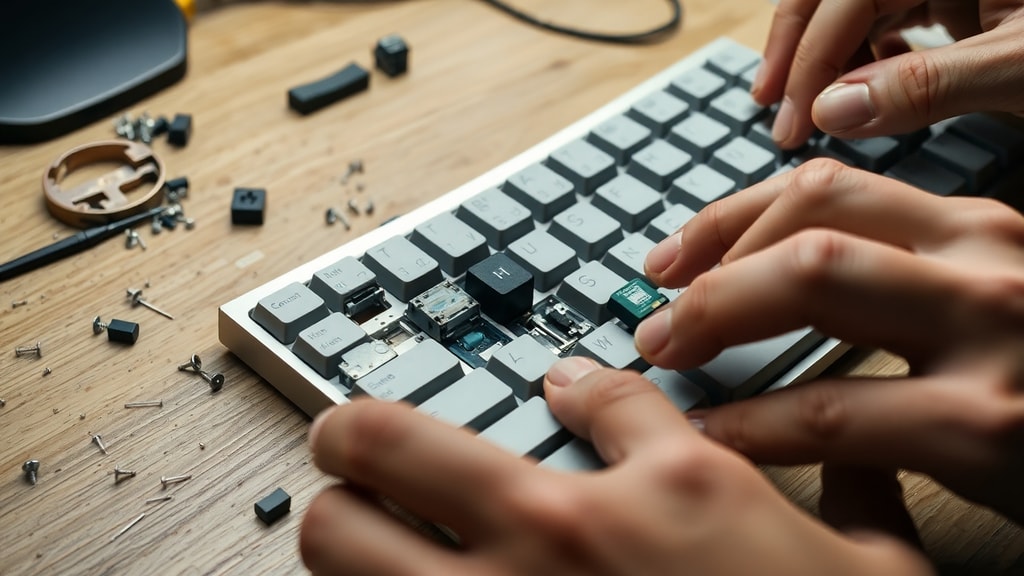
If all software and registry solutions fail, and the On-Screen Keyboard test confirmed that the system recognizes the Windows key function, the physical keyboard or a specific key switch may be damaged. For laptop users, this can be frustrating because the keyboard is integrated. However, an external USB or wireless keyboard can serve as a temporary or permanent workaround. Most external keyboards have fully functional Windows keys. If the laptop is under warranty, contact the manufacturer for repair. For desktop users, replacing the keyboard is straightforward and inexpensive. Sometimes, debris or liquid damage under the keycap causes the failure. Cleaning the key switch with compressed air or isopropyl alcohol can help, but proceed with caution.
Preventing Future Windows Key Issues
To avoid recurring problems, keep your operating system updated regularly. Windows updates often include driver patches and bug fixes. Avoid installing unknown third-party keyboard customization software that might inject registry edits. Use caution when editing the registry; always back up before making changes. Periodically run system file checks to maintain file integrity. If you use a gaming keyboard, read the manual to understand its dedicated Windows key lock function. Good maintenance practices reduce the likelihood of sudden key failures.
Performing a System Restore as a Last Resort
If none of the above methods resolve the issue and the problem began recently, consider using System Restore. This feature reverts system files, registry settings, and installed programs to an earlier point in time without affecting personal files. Type Create a restore point in the Start menu search bar. In the System Properties window, click System Restore. Choose a restore point dated before the Windows key stopped working. Follow the prompts to complete the restoration. Your computer will restart. After the process, test the Windows key. This method can undo changes caused by a problematic update or software installation.
Frequently Asked Questions About the Windows Key
Can a Windows update disable the Windows key? Yes, some updates have introduced bugs that affect keyboard input. Microsoft typically releases patches quickly. Check Windows Update for optional updates. Will resetting the PC fix the key? Resetting the PC while keeping files can resolve persistent issues, but it is time-consuming and should be a last option. Does the Windows key work on all keyboard layouts? Yes, the key is universal across QWERTY and other layouts, though its location may vary. Can I remap the Windows key to another key? Yes, using tools like PowerToys Keyboard Manager, but this only masks the problem. Fix the underlying issue for a permanent solution.
References
Microsoft Learn provides official answers and community troubleshooting for Windows key failures. One discussion addresses the Windows key not functioning on keyboards with specific models. Another covers the Windows flag key ceasing to respond after updates. A third details registry-based solutions for key blocking. Microsoft Support articles also offer step-by-step guidance for driver reinstallation and system file repair. For more information, refer to the following sources.
Microsoft Learn Q&A: Botão Windows no teclado não funciona. Available at https://learn.microsoft.com/pt-br/answers/questions/3311535/bot-o-windows-no-teclado-n-o-funciona.
Microsoft Learn Q&A: Tecla Windows do teclado não funciona. Available at https://learn.microsoft.com/pt-br/answers/questions/3781839/tecla-windows-do-teclado-n-o-funciona.