What Is a Solid State Drive?
A Solid State Drive, commonly known as an SSD, is a modern storage device that has transformed the way computers handle data. Unlike older technologies that rely on spinning disks, an SSD uses interconnected flash memory chips, typically NAND flash, to store information permanently. This design makes it non-volatile, meaning it retains data even when the power is turned off. The absence of moving parts is the core reason why SSDs are faster, more durable, and quieter than traditional Hard Disk Drives, or HDDs. For anyone looking to upgrade their computer or buy a new one, understanding what an SSD is and how it works is essential. This guide will explain everything you need to know.
How an SSD Works
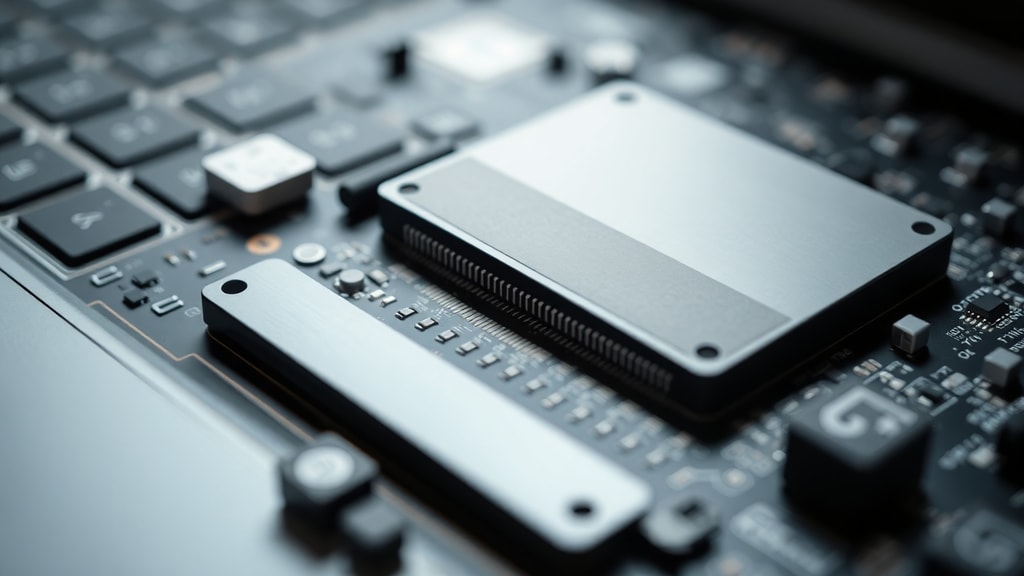
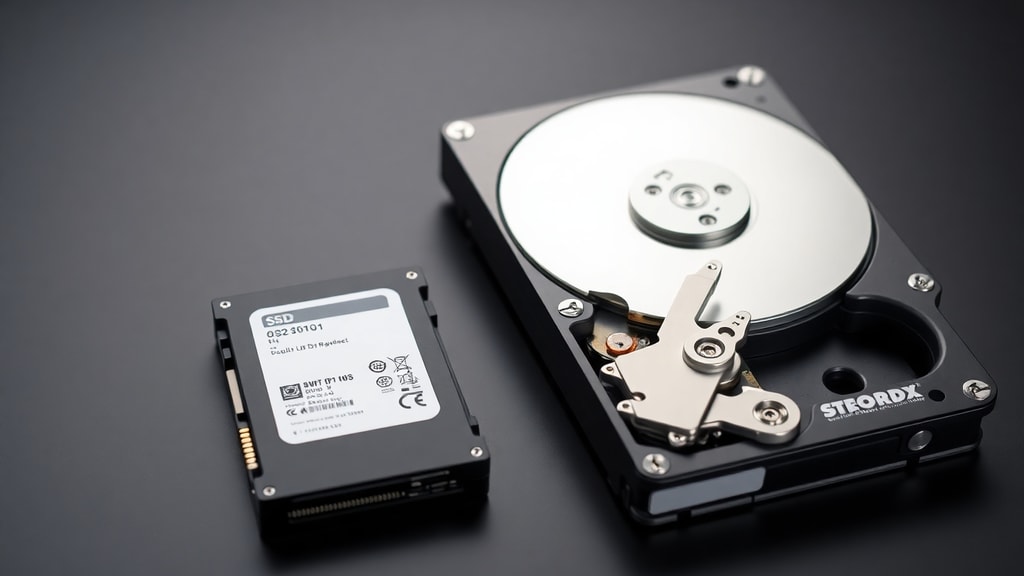
To understand the magic behind an SSD, you need to look at its internal components. An SSD is built from a collection of NAND flash memory cells arranged in a grid. Each cell can hold a certain number of bits of data, depending on the type of NAND technology used. Data is written to and read from these cells using electrical charges, without any physical movement. This electronic process is extremely fast compared to the mechanical operation of an HDD, where a read/write head must physically move to the correct location on a spinning platter. Because there is no spinning or seeking, SSDs can access any piece of data almost instantly. This is why your computer starts up in seconds when it has an SSD, and why applications open without any noticeable delay.
Key Advantages of SSDs
The benefits of using an SSD go far beyond just speed. The most obvious advantage is performance. An SSD can read and write data at speeds several times faster than the fastest consumer HDD. This translates into faster boot times, quicker file transfers, and smoother multitasking. Another huge advantage is durability. Since there are no fragile moving parts, an SSD can withstand shocks, drops, and vibrations much better than an HDD. This makes SSDs the ideal choice for laptops and portable devices that are frequently moved around. Additionally, SSDs operate silently. You will never hear the click or whir of a hard drive when using an SSD. They also consume less power, which can extend battery life in notebooks. For a deeper technical overview, you can read about SSDs on the IBM Think page.
Beyond these immediate benefits, SSDs offer improved reliability over time. Because there are no mechanical parts to wear out from friction, the failure rate due to physical fatigue is much lower. Modern SSDs use wear-leveling algorithms that spread write operations evenly across all memory cells, extending the drive's lifespan. Many users find that their SSD outlasts the rest of their computer. For a beginner-friendly explanation, the article from Avast on what an SSD is provides clear examples.

Types of SSDs and Form Factors
Not all SSDs are built the same. They come in different shapes, sizes, and connection interfaces. The most common form factors are 2.5-inch SATA SSDs, which look like smaller laptop hard drives and fit into standard drive bays. These use the SATA interface, which was originally designed for HDDs and therefore limits the maximum speed. Then there are M.2 SSDs, which are small sticks that plug directly into the motherboard. M.2 drives can use either the SATA protocol or the much faster NVMe protocol. NVMe SSDs are currently the fastest consumer storage devices available, with data transfer speeds many times greater than SATA SSDs. Another type is the PCIe add-in card, which is used for high-speed storage in desktop computers. Below is a table showing the main differences between the common SSD types.
| Form Factor | Interface / Protocol | Typical Speed (Read) | Best For |
|---|---|---|---|
| 2.5-inch | SATA III | 550 MB/s | Compatibility with older laptops and desktops |
| M.2 SATA | SATA III over M.2 connector | 550 MB/s | Thin laptops with limited space but SATA bottleneck |
| M.2 NVMe | PCIe 3.0 / 4.0 (NVMe) | 3,500 MB/s (PCIe 3.0) to 7,000 MB/s (PCIe 4.0) | High performance gaming, video editing, professional work |
| PCIe Add-in Card | PCIe 3.0 / 4.0 (NVMe or AHCI) | Similar to M.2 NVMe, sometimes higher | Workstations and servers with multiple drives |
SSD vs. HDD: A Comparison
When choosing storage, you often need to decide between an SSD and an HDD. Hard Disk Drives are older, cheaper per gigabyte, and offer larger capacities. But they are slow, noisy, fragile, and consume more power. SSDs are faster, more durable, silent, and energy efficient, but they cost more per gigabyte and typically come in smaller capacities for the same price. However, the cost gap has narrowed significantly in recent years, making SSDs the default choice for operating systems and frequently used applications. Many users combine both: an SSD for the OS and programs, and an HDD for bulk storage of files like movies and photos.
Here is a simple list of the main points to consider when choosing between SSD and HDD:
- Speed: SSDs are dramatically faster for read and write operations, making your computer feel snappier.
- Durability: With no moving parts, SSDs can handle drops and movement much better than HDDs.
- Noise: SSDs are completely silent, while HDDs produce audible spinning and clicking sounds.
- Power and heat: SSDs use less electricity and run cooler, which is better for laptops and the environment.
- Price per gigabyte: HDDs still offer lower cost per GB, especially for capacities above 2TB.
- Capacity: Large HDDs of 4TB to 20TB are easily available, while SSDs over 4TB are very expensive.
Choosing the Right SSD for Your Needs
If you decide to buy an SSD, you need to consider a few factors. First, check which interface your computer supports. Most modern motherboards have M.2 slots that support NVMe. If your computer is older, a SATA SSD might be the only option. Second, think about capacity. A 256GB SSD is enough for an operating system and a few essential programs, but 512GB or 1TB is more comfortable. For gaming or creative work, 1TB or 2TB is recommended. Third, consider the NAND type: TLC and QLC are common; TLC offers a good balance of speed and endurance, while QLC is cheaper but slower for heavy writes. For typical home use, both work fine. Finally, look at the warranty and the drive's TBW (Total Bytes Written) rating, which indicates its endurance. A higher TBW means the drive can handle more data written over its lifetime.
How to Install an SSD
Installing an SSD is straightforward. For a desktop, you simply mount the drive in an available bay or slot, connect the data cable to the motherboard and power from the power supply. For M.2 drives, you insert the drive into the slot at a slight angle and secure it with a screw. After installation, you need to initialize the drive in your operating system and then format it. Many users also choose to clone their existing HDD to the SSD using free software, so they don't have to reinstall everything. Once the SSD is installed, you will immediately notice a significant improvement in boot times and overall responsiveness.
Common Misconceptions About SSDs
Some people worry that SSDs wear out quickly. While it is true that NAND flash has a limited number of write cycles, modern SSDs can last for many years under normal use. The typical consumer writes far less data than the drive's endurance limit. Another misconception is that SSDs are too expensive. While they cost more per gigabyte than HDDs, the price has dropped dramatically. You can now buy a 1TB NVMe SSD for around the same price as a high-end gaming mouse. Also, some believe that all SSDs are the same. As shown in the table above, SATA and NVMe drives perform very differently. Choosing the wrong interface can leave performance on the table. Finally, people often think SSDs are unnecessary for gaming. In reality, an SSD drastically cuts game loading times and can reduce stuttering in open-world games where assets are streamed from storage in real time.
Future of SSD Technology
The development of SSDs is far from over. Manufacturers are working on new technologies like 3D NAND, which stacks memory cells vertically to increase capacity without increasing size. PCIe 5.0 and even PCIe 6.0 controllers are being developed to push speeds beyond 15 GB/s. Another upcoming technology is QLC and PLC (penta-level cell) NAND, which store more bits per cell to reduce costs, although they may sacrifice endurance. For enterprise use, SSDs with persistent memory and ultra-low latency are being designed for data centers. As costs continue to fall, SSDs will eventually replace HDDs in almost all consumer devices. Already, many ultrabooks and high-end laptops ship without any spinning drives.
References
IBM. What is an SSD? https://www.ibm.com/br-pt/think/topics/solid-state-drives
Avast. What is a Solid State Drive (SSD)? https://www.avast.com/pt-br/c-what-is-ssd
AWS. SSD vs. HDD. https://aws.amazon.com/pt/compare/the-difference-between-ssd-hard-drive/
Canaltech. What is SSD? https://canaltech.com.br/hardware/o-que-e-ssd/
Kinsta. What is SSD? https://kinsta.com/pt/blog/o-que-e-ssd/
Corsair. What is an SSD? https://www.corsair.com/pt/pt/explorer/diy-builder/storage/what-is-an-ssd/