Understanding Browser Geolocation on PC: A Comprehensive Guide
Browser geolocation on a PC allows websites to request your physical location, usually in the form of latitude and longitude coordinates. This feature is commonly used by mapping services, weather websites, e-commerce platforms, and local search engines to provide tailored content. Unlike mobile devices, which often have built-in GPS chips, PCs rely on a combination of network signals, Wi-Fi access points, and IP addresses to estimate your position. This article explains how browser geolocation works on desktop computers, how to manage permissions in Chrome, how to simulate location for testing, and what you need to know about privacy and security. By the end, you will have a clear understanding of how to use this technology responsibly and how to protect your personal data.
How Browser Geolocation Works on a PC
When you visit a website that wants to know your location, the browser uses the Geolocation API, a standardized web interface maintained by the World Wide Web Consortium. The API does not directly access hardware like a GPS receiver; instead, it gathers information from multiple sources to produce a best‑guess location. On a desktop computer, the three main methods are:
The browser sends a request to the operating system, which aggregates data from nearby Wi‑Fi networks, the IP address assigned by your internet service provider, and any available cellular or Bluetooth signals. The system then returns a set of coordinates, usually within a few hundred meters of your actual position. In some cases, if your PC is equipped with a dedicated GPS sensor, the accuracy can be much higher.
Methods Used to Determine Location
The following list outlines the primary techniques used by browser geolocation on a PC:
- Wi‑Fi Positioning: The browser scans for nearby Wi‑Fi access points and compares their unique identifiers against a database of known router locations. This method is often more accurate than IP‑based geolocation, especially in urban areas.
- IP Address Geolocation: Your public IP address is linked to a geographic region maintained by internet registries and ISPs. This technique is less precise, usually pinpointing a city or area rather than a specific building.
- GPS (rare on PCs): Some laptops and desktop computers include a dedicated GPS chip. When available, this provides the highest accuracy, similar to a smartphone.
- Bluetooth Beaconing: In some environments, Bluetooth low‑energy beacons can assist in determining a more precise location, though this is not yet widespread on PCs.
Each method has its own accuracy level and privacy implications. Wi‑Fi and IP‑based methods do not require explicit hardware, making them the default on most desktop systems. The browser combines these sources to generate a coordinates object that the website can then use.
Default Permission Behavior in Modern Browsers
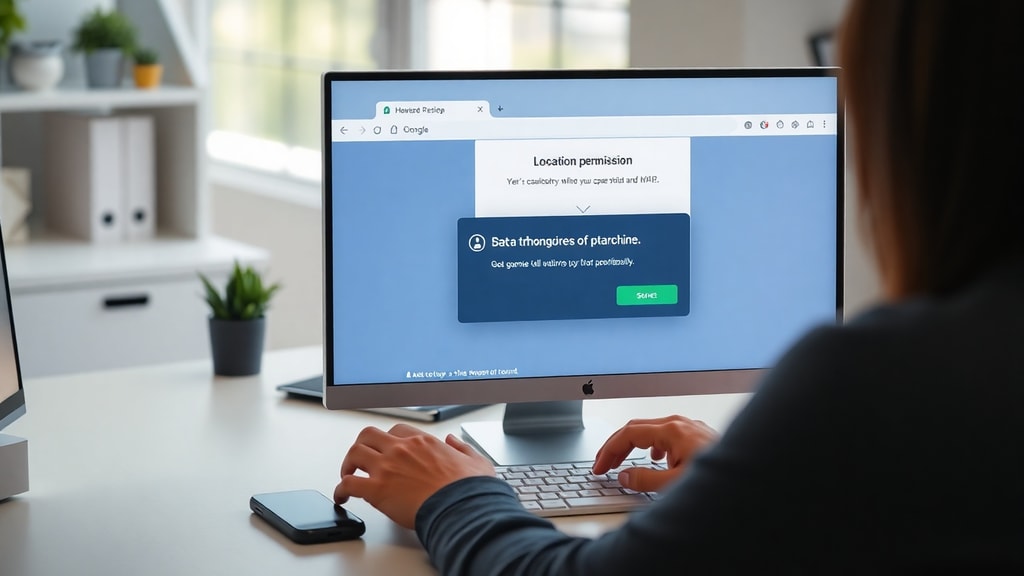
By default, all major browsers, including Chrome, Firefox, and Edge, block websites from accessing your location without your explicit consent. When a site requests geolocation, the browser displays a pop‑up prompt asking you to allow or deny the request. This permission is granted for the current session only, unless you choose to remember the decision. Chrome, for example, automatically sets the default permission to "Ask" for every new site. You can change this default behavior so that sites are always allowed or always blocked, but that is not recommended for privacy reasons. Instead, you should manage permissions on a per‑site basis.

Managing Location Permissions in Chrome
To review and change how Chrome handles geolocation, follow these steps:
Open Chrome and click the three‑dot menu in the top right corner. Select "Settings," then go to "Privacy and security" and click "Site Settings." Under "Permissions," choose "Location." Here you can see all websites that have been granted or denied location access. You can also change the default behavior for new sites. The table below summarises the available options:
| Setting | Behavior |
|---|---|
| Sites can ask for your location (recommended) | Chrome will prompt you each time a site requests location data. You can allow or block per request. |
| Block sites from seeing your location | No site can request your location; all requests are automatically denied. This may break some location‑dependent services. |
| Allow sites to see your location | All requests are automatically granted without a prompt. This is the least private option and should be used only in rare cases. |
Additionally, you can manage permissions for individual sites by clicking the lock icon in the address bar and adjusting the location setting there.
Simulating a Location for Testing with Chrome DevTools
Web developers and testers often need to simulate a different location without actually moving their PC. Chrome's Developer Tools include a built‑in geolocation emulator. To access it, press Ctrl+Shift+I (or Cmd+Option+I on Mac) to open DevTools. Click the three‑dot menu (Customize and control DevTools) and select "More tools," then "Sensors." In the Sensors panel, check "Emulate geolocation coordinates." You can enter any latitude and longitude values, or select a preset city. Once enabled, the browser will report that fake location to any website that uses the Geolocation API. This is extremely useful for testing localised features, such as showing different products or currencies based on region. You can also simulate location errors or disable the service entirely to see how your application behaves.
Privacy Considerations and How to Disable Location Services in Windows
Geolocation data can reveal a lot about your habits and whereabouts. Even though browsers ask for permission, some websites may use other methods, such as IP address, to estimate your location without triggering the prompt. For maximum privacy, you can disable the location service at the operating system level. On Windows 10 and Windows 11, go to Settings > Privacy & security > Location. Here you can turn off "Location services" entirely, which prevents any app, including your browser, from accessing location data. Alternatively, you can keep the service on but block individual apps or browsers from using it. Note that disabling location at the OS level will also affect other applications like maps or weather widgets.
It is also wise to regularly check which websites have permission to see your location. Clear permissions for sites you no longer trust. Additionally, consider using a privacy‑focused browser extension that spoofs your location or blocks geolocation requests altogether. One such extension referenced by the Chrome Web Store is My Location Guard, which lets you set a fixed fake location for all sites.
Accuracy and Real‑World Usage
The accuracy of PC geolocation varies widely. In a densely populated city with many Wi‑Fi networks, coordinates can be accurate to within 50 to 100 meters. In rural areas with fewer signals, accuracy may drop to a few kilometers. IP‑based geolocation is even less precise, often placing you in the correct city but sometimes misidentifying the country or region. For most practical purposes, such as showing local weather or redirecting to a regional version of a website, this level of precision is sufficient. However, for services that require exact street‑level accuracy, such as food delivery or ride‑hailing, a PC without GPS may not be ideal.
Use Cases for Browser Geolocation on a PC
Many popular websites rely on your location to improve the user experience. Google Maps uses it to centre the map on your current position. Weather sites like AccuWeather show forecasts for your nearest station. E‑commerce platforms such as Amazon display prices and availability based on your country. News sites may redirect you to a local edition. Even search engines use location to tailor results for nearby businesses. Without geolocation, you would have to manually enter your city or postal code for many of these features.
Another important use case is authentication and fraud prevention. Banks and online services sometimes check the geographic origin of a request to detect unusual activity. If a login attempt originates from a different continent, the system may flag it as suspicious. In these scenarios, the IP address is the primary source, but browser geolocation can provide additional verification.
Technical Details: The Geolocation API
Developers can integrate geolocation into their websites using JavaScript. The API is straightforward: a call to navigator.geolocation.getCurrentPosition() triggers the permission prompt and returns a position object containing latitude, longitude, and accuracy. A second method, watchPosition(), continuously monitors movement. The API also includes error handling for cases where the user denies permission or the location cannot be determined. For a complete reference, consult the MDN Web Docs on the Geolocation API. This resource provides detailed documentation, code examples, and browser compatibility tables.
Potential Risks and How to Mitigate Them
While useful, browser geolocation also presents privacy risks. Malicious websites could use your location to track your physical movement or infer your home address. If you grant permanent permission to a site you later stop trusting, your location history may be collected. To mitigate these risks, always use the "Ask" default setting and deny requests from sites that do not need your location. Disable location services entirely when not required. Additionally, use a VPN to mask your IP address, which prevents IP‑based geolocation. However, note that a VPN does not affect Wi‑Fi or GPS based location if those are enabled. For the most thorough protection, combine OS‑level location disabling with browser permission management.
Conclusion
Browser geolocation on a PC is a powerful feature that allows websites to deliver personalised experiences based on your physical location. Understanding how it works, how to control it in Chrome, and how to simulate it for development purposes gives you both convenience and control. By following best practices for privacy, such as reviewing permissions regularly and disabling location services when not needed, you can enjoy the benefits without compromising your personal data. As with any technology, awareness is the first step toward safe usage.
References
MDN Web Docs (Mozilla). "Using the Geolocation API." https://developer.mozilla.org/pt-BR/docs/Web/API/Geolocation_API (accessed April 2025).
Microsoft Support. "Location service and privacy in Windows." https://support.microsoft.com/pt-br/windows/servi%C3%A7o-de-localiza%C3%A7%C3%A3o-e-privacidade-do-windows-3a8eee0a-5b0b-dc07-eede-2a5ca1c49088 (accessed April 2025).
Google Chrome Help. "Manage your location permissions in Chrome." https://support.google.com/chrome/answer/102672 (accessed April 2025).
Chrome Web Store. "My Location Guard." https://chromewebstore.google.com/detail/my-location-guard/kcbmdejmlcdjmfdiaepfblnocimhlnfm (accessed April 2025).
Cisco PHPit. "Como modificar ou forjar geolocalização no navegador." https://www.phpit.com.br/artigos/como-modificar-ou-forjar-geolocalizacao-no-navegador.php (accessed April 2025).