Understanding Printer Driver Updates
Printer driver updates are essential for maintaining the performance, security, and compatibility of your printing equipment. A printer driver acts as a translator between your operating system and the printer hardware, converting print commands into a language the device can understand. When this software becomes outdated, you may experience slow print speeds, paper jams, poor color accuracy, or complete failure to print. Keeping your printer driver up to date ensures that you get the best possible output and that your device works smoothly with the latest operating system updates from Microsoft or Apple.
Many users neglect driver updates because they assume the printer will continue working as it did on day one. However, manufacturers release updates for several reasons. They fix bugs that cause crashes, improve compatibility with new software versions, and sometimes add new features such as support for larger paper sizes or faster processing. Security is another concern. Outdated drivers can be vulnerable to exploits that allow unauthorized access to your network. By staying current, you protect your data and prolong the life of your hardware.
Methods for Updating Printer Drivers
There are multiple ways to update your printer driver, and the best method often depends on your technical comfort level and the specific brand of your printer. The most reliable approach is to download the driver directly from the official manufacturer website. This guarantees that you get the exact version designed for your printer model and operating system. For example, if you own an HP LaserJet, visit the HP support page, enter your model number, and select your version of Windows or macOS. This method avoids the risk of installing incorrect or malicious software that can sometimes come from third-party sources.
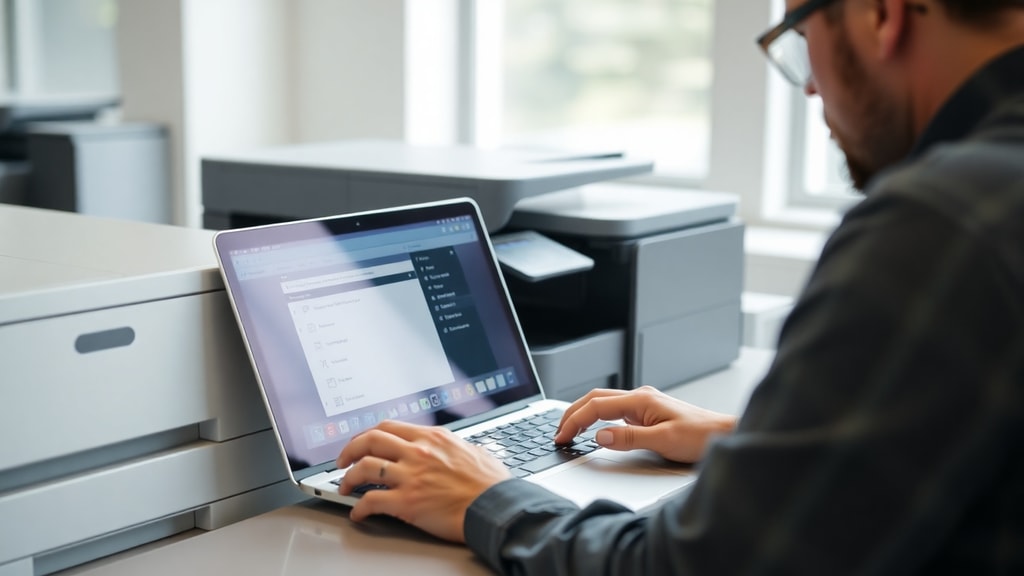
Windows users also have built-in options. The Device Manager tool allows you to update drivers with a few clicks. Press the Windows key, type Device Manager, and open it. Expand the category labeled Printers or Print queues. Right-click your printer and select Update driver. Then choose Search automatically for drivers. Windows will scan its database and install the latest compatible version if one is found. This approach is convenient because it does not require you to visit any website, but it may not always find the most recent driver available from the manufacturer.
Another alternative is through Windows Settings. Go to Settings, then Devices or Bluetooth and Devices, then Printers and Scanners. Click on your printer from the list, select Manage, and then choose Update driver. This method is similar to the Device Manager path but might feel more intuitive for users accustomed to the Settings interface. Regardless of which method you use, it is important to restart your computer after the installation to ensure the driver loads correctly.
Common Issues and Troubleshooting
Even after updating a driver, you might encounter problems. One frequent issue is that the printer stops responding immediately after the update. This can happen if the new driver conflicts with other software or if the installation process did not complete properly. A simple restart of the Print Spooler service can often resolve this. To do this, press Ctrl + Shift + Esc to open Task Manager. Click on the Services tab, find Spooler, right-click it, and select Restart. This action clears any stuck print jobs and reloads the driver resources.
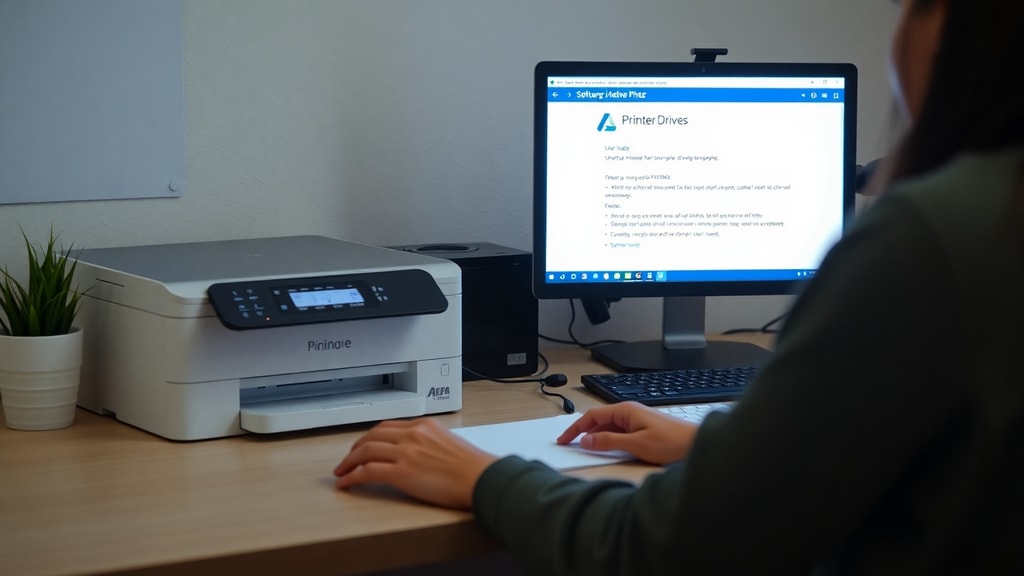
Another common problem is that the updated driver is not fully compatible with your specific printer model. This occurs when users accidentally download a driver meant for a similar but different model. Always double-check the model number printed on the front or back of your printer. If you installed the wrong driver, you can roll back to the previous version. Open Device Manager, right-click your printer, go to Properties, then the Driver tab, and select Roll Back Driver. Windows will revert to the last known good driver, which can save you from having to search for an older version manually.
Best Practices for Printer Driver Management
Adopting a routine for managing printer drivers will save you time and frustration. First, check for updates at least every few months, even if your printer seems to work fine. Set a reminder to visit the manufacturer support page or use Windows Update to see if new drivers are available. Second, always create a system restore point before installing a major driver update. This gives you a safety net if something goes wrong. Third, uninstall old driver versions that you no longer need. Leftover files can clutter your system and cause conflicts with newer drivers.
It is also wise to keep your printer firmware up to date. Firmware is the low-level software embedded in the printer hardware, and it controls functions like paper handling and network connectivity. While driver updates are managed on your computer, firmware updates are usually applied directly from the printer menu or through a utility provided by the manufacturer. Check your printer manual for instructions. Combining regular driver updates with firmware updates ensures that your printer performs at its peak.
List of Steps for a Successful Driver Update
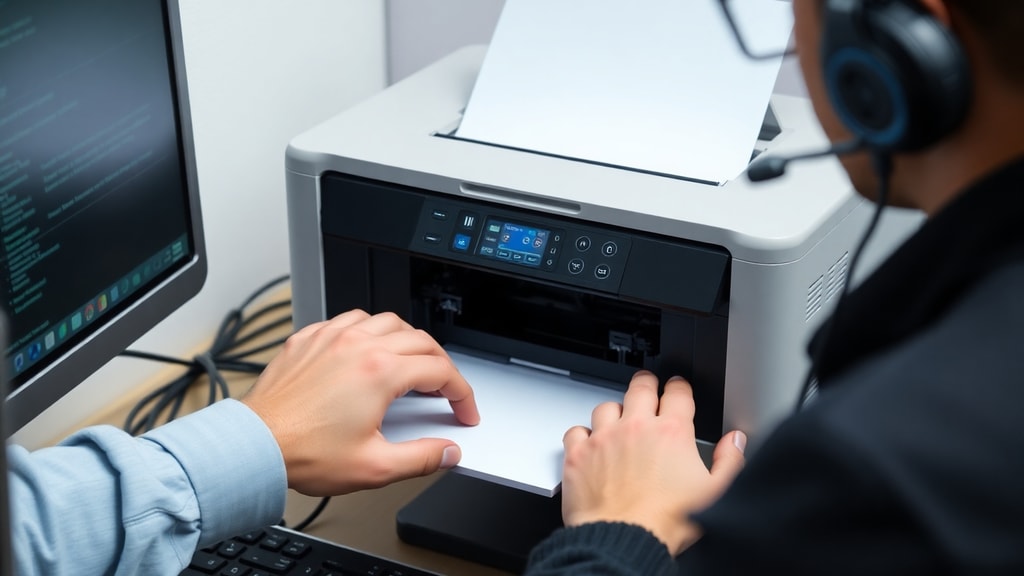
Follow these steps to update your printer driver without errors:
- Identify your printer model number and operating system version.
- Visit the official manufacturer website and locate the driver download section.
- Download the latest driver that matches your system specifications.
- Before installing, close all open applications to prevent conflicts.
- Run the installer as an administrator if prompted.
- Restart your computer after the installation completes.
- Print a test page to confirm the driver works correctly.
- If problems arise, use the rollback feature or reinstall the driver.
Table of Common Printer Driver Update Methods
The table below compares the main methods for updating printer drivers, highlighting their advantages and limitations.
| Method | Ease of Use | Reliability | Best For |
|---|---|---|---|
| Manufacturer Website | Medium | High | Users who want the exact driver for their model |
| Device Manager | Easy | Medium | Quick updates without browsing the web |
| Windows Settings | Easy | Medium | Users comfortable with the Settings menu |
| Third-Party Tools | Easy | Low | Only when manufacturer source is unavailable |
Security and Compatibility Considerations
Security should be a priority when updating printer drivers. Downloaded files from unofficial sources can contain malware or adware that compromises your system. Always verify the authenticity of the website. The official support pages of brands like HP, Canon, Epson, and Brother are trustworthy. Avoid using peer-to-peer sharing sites or free download aggregators. If a website asks for payment for a driver that is normally free, it is likely a scam. Printer drivers are typically provided at no cost by the manufacturer.
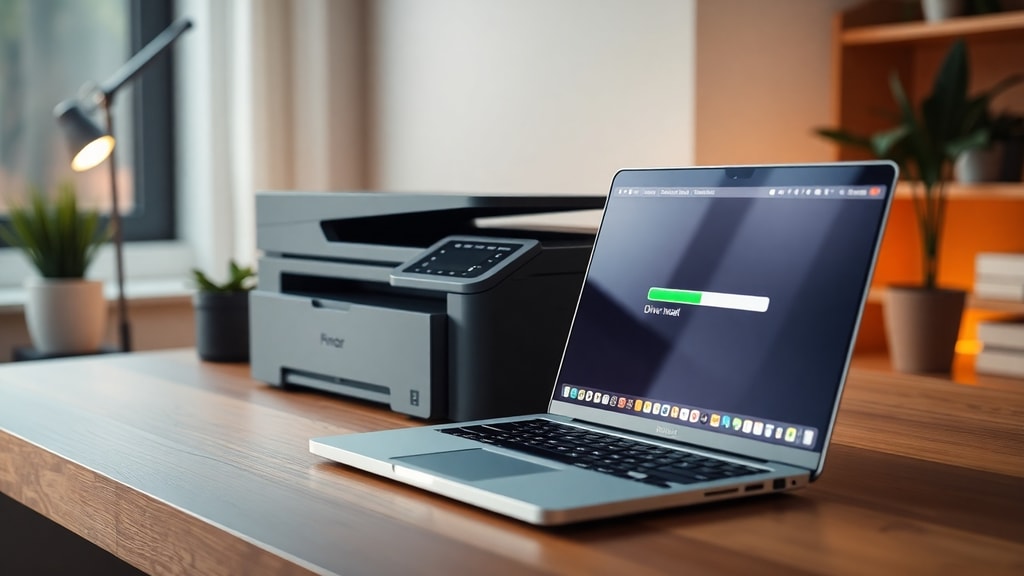
Compatibility is another critical factor. A driver designed for Windows 10 may not work correctly on Windows 11, even though both are similar. Always select the driver that matches your exact operating system version and architecture, whether 32-bit or 64-bit. Incorrect architecture can cause the driver to fail to install or lead to blue screen errors. If you are unsure which version you have, go to Settings, then System, then About, and look under System type. This information ensures that you download the right file.
When to Use Third-Party Driver Updaters
Third-party driver updater tools like Driver Booster or Driver Easy can scan your system and automatically download missing or outdated drivers. These programs are convenient for people who manage multiple devices and do not want to visit each manufacturer site individually. However, they come with risks. Some tools may install generic drivers that lack specific features for your printer model. Others may inject unwanted advertisements or slow down your computer. If you choose to use such a tool, research its reputation first and always create a backup before applying updates.
Microsoft also provides driver updates through Windows Update. This service periodically checks for new drivers certified by manufacturers and installs them automatically. While this is safer than random third-party tools, the drivers available through Windows Update may not be the very latest version. Manufacturers often release new drivers on their own sites first before submitting them to Microsoft for certification. Therefore, for critical updates or to fix a specific problem, the manufacturer website remains the best source.
Testing Your Printer After an Update
After installing a new driver, you should always verify that everything works as expected. The most straightforward test is to print a test page. In Windows, you can do this by going to Settings, then Printers and Scanners, clicking on your printer, selecting Manage, and then Print a test page. This action sends a simple print job that checks basic functionality. If the page prints without issues, your driver update was successful.
Beyond the test page, try printing a document with graphics and colored text to ensure color accuracy and sharpness. If you notice banding, streaks, or missing colors, the driver might not be fully compatible, or the printer settings need adjustment. Check the print quality settings in the driver properties and increase the resolution if necessary. Also, verify that all paper sizes and types you commonly use are available. If a problem persists, reinstall the driver from scratch by first uninstalling the current one through the Add or Remove Programs menu, then restarting your computer before installing the fresh download.
Conclusion
Printer driver updates are a simple yet powerful way to maintain your printer performance and security. By using the official manufacturer website as your primary source, you ensure compatibility and avoid malware. Windows built-in tools offer convenience for quick updates, while third-party tools should be used with caution. Always test your printer after an update and keep a record of your driver versions for future reference. With these practices, you can extend the life of your printer and enjoy consistent, high-quality output.
References
Microsoft Support. Download and install the latest printer drivers. https://support.microsoft.com/en-us/windows/hardware/printer/download-and-install-the-latest-printer-drivers.
CCleaner. How to update a printer driver on Windows 10. https://www.ccleaner.com/ccleaner/how-to-update-printer-driver.