What Is the Command Prompt?
The command prompt, known in Portuguese as prompt de comando and technically as cmd.exe, is the native command-line interpreter for the Microsoft Windows operating system. It allows users to execute text-based commands rather than relying on a graphical user interface. This tool provides direct communication with the system kernel, enabling a wide range of administrative tasks, file management operations, and troubleshooting procedures. The command prompt has been a staple of Windows since its early versions and remains a powerful utility for both novice and expert users.
How to Access the Command Prompt
Opening the command prompt is straightforward. The most common method is to press the Windows key and the R key simultaneously, type cmd in the Run dialog box, and press Enter. Alternatively, you can type cmd or command prompt in the Start menu search bar and click the application. For administrative tasks, right-click the result and select Run as administrator. This elevated mode grants access to system-level commands that require higher privileges. Another method is to navigate through the Start menu to Windows System and select Command Prompt. These methods work across all modern Windows versions, including Windows 10 and Windows 11.
Understanding the Command Prompt Interface
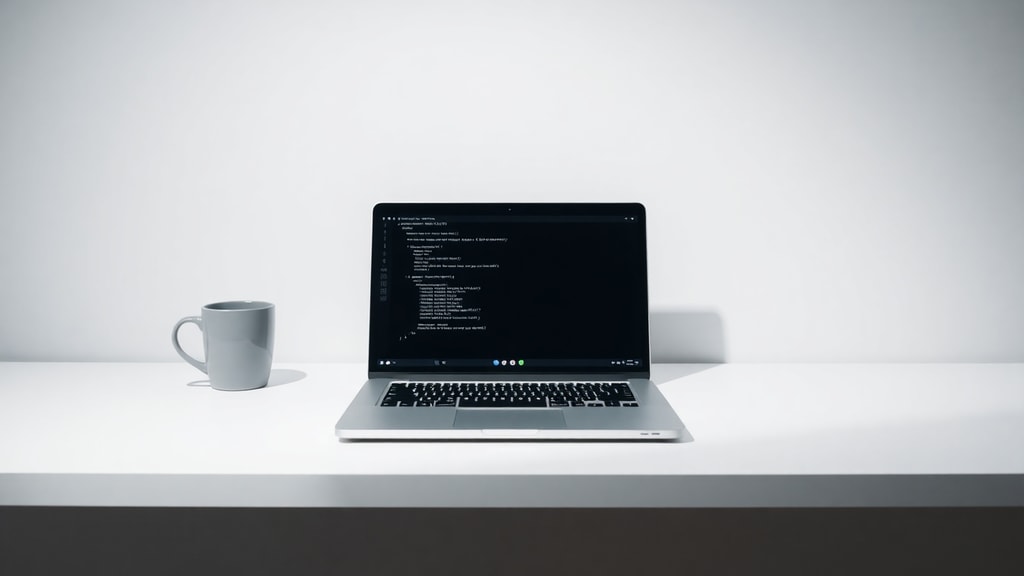
When you open the command prompt, you see a black window with white text. The interface displays a prompt line that typically shows the current directory path, such as C:\Users\YourName, followed by a blinking cursor. This cursor indicates where you type your commands. The prompt can also display the current drive letter and folder path, helping you orient yourself within the file system. The default appearance is minimalistic, but you can customize the font, window size, and colors through the properties menu. Despite its stark look, this interface provides a fast and efficient way to interact with your computer.

Essential Command Prompt Commands
To get the most out of the command prompt, you need to know some fundamental commands. Here is a list of essential commands that every user should learn:
- cd – Change directory. Use cd followed by a folder name to navigate into that folder. Use cd.. to go up one level.
- dir – List the contents of the current directory. It shows files and subfolders with details like size and date modified.
- mkdir – Create a new directory. For example, mkdir NewFolder creates a folder called NewFolder in the current location.
- del – Delete one or more files. Use with caution because files are not moved to the recycle bin.
- copy – Copy files from one location to another. You specify the source file and the destination.
- move – Move files from one location to another. It works similarly to copy but removes the original file.
- ren – Rename a file or folder. Type ren oldname newname to change the name.
- cls – Clear the screen. This removes all previous commands and output, giving you a clean workspace.
- exit – Close the command prompt window.
Mastering these commands will allow you to perform basic file operations without using the graphical interface. For more advanced tasks, you can combine commands using pipes and redirection operators.
Advanced Command Prompt Shortcuts and Tricks
Beyond basic commands, the command prompt offers several shortcuts to boost your productivity. Pressing the F7 key displays a history of all commands you have typed in the current session, and you can select any of them to run again. The F3 key repeats the last command. You can also use the Tab key to auto-complete file and folder names. For example, type cd and then press Tab repeatedly to cycle through available subdirectories. Another useful trick is using the arrow keys to recall previous commands: the up arrow shows the last command, and the down arrow moves forward. These shortcuts reduce typing errors and speed up your workflow. Additionally, you can create batch files with the .bat extension to automate a series of commands, which is especially useful for repetitive tasks like system backups or software installations.
Common Use Cases for the Command Prompt
IT professionals and advanced users rely on the command prompt for various practical purposes. System diagnostics often involve commands like ipconfig to view network configuration, ping to test connectivity, and chkdsk to check disk health. Administrators use sfc /scannow to repair system files and diskpart to manage disk partitions. The command prompt is also essential for running scripts and managing services. For instance, you can stop and start services with net stop and net start commands. These operations are often faster and more reliable than navigating through multiple GUI windows, especially when managing remote servers or performing bulk operations.
Command Prompt vs. PowerShell
Windows includes another command-line tool called PowerShell, which is more powerful and flexible than the traditional command prompt. PowerShell uses cmdlets and object-oriented output, making it suitable for complex automation and system administration. However, the command prompt remains relevant because it is lightweight, compatible with legacy scripts, and easier for beginners. Many commands work in both environments, but PowerShell often requires different syntax. For example, the dir command works in both, but PowerShell offers additional filtering capabilities. Users who need to run simple commands or maintain older scripts will continue to find the command prompt indispensable.
Historical Context and Evolution
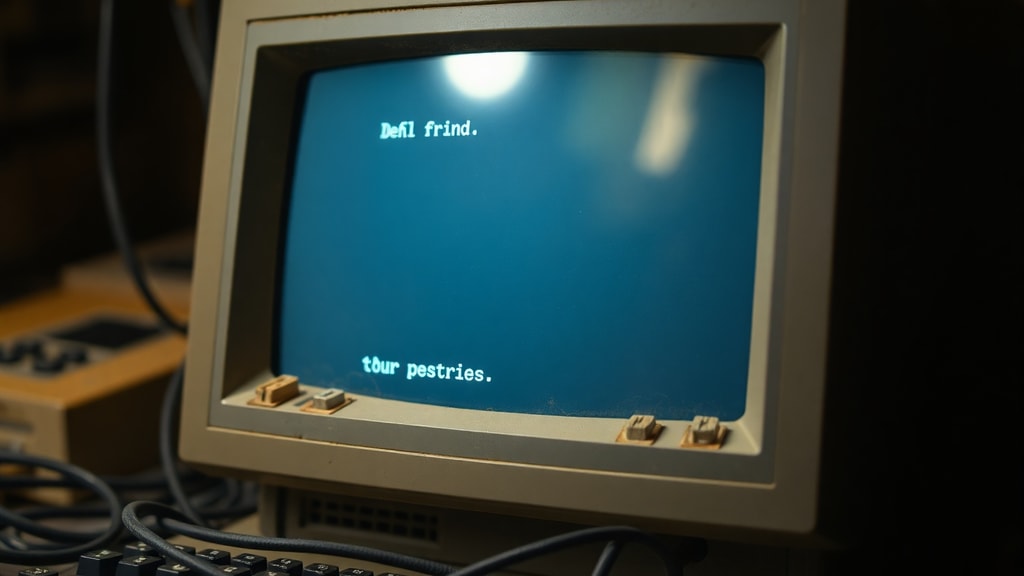
The command prompt originated from MS-DOS, the operating system that preceded Windows. Early versions of Windows ran on top of MS-DOS, and users interacted with the system primarily through text commands. When Windows 95 introduced a graphical interface, the command prompt remained as a compatibility feature. Over time, it evolved into cmd.exe, which supports both MS-DOS commands and new Windows-specific commands. The interface has changed little over the decades, but the underlying functionality has expanded. Today, the command prompt coexists with PowerShell and the Windows Terminal, which provides a modern interface for multiple command-line environments. Despite these newer options, the classic command prompt remains deeply embedded in Windows and is still taught in IT training courses.

Modern Relevance of the Command Prompt
In an age of sleek graphical interfaces, you might wonder why the command prompt matters. The answer lies in its efficiency and direct access to system functions. Many troubleshooting steps for Windows issues require specific command prompt commands. For example, resetting the network stack, repairing the boot configuration, or flushing the DNS cache all rely on command-line tools. Additionally, the command prompt is essential for scripting batch files, which can automate repetitive tasks without needing a full programming environment. IT professionals often use it for remote administration via Secure Shell or for integrating with other tools. While casual users may rarely open the command prompt, it remains a critical tool for maintaining and repairing Windows systems.
Customizing the Command Prompt
You can personalize the command prompt to better suit your needs. Right-click the title bar and select Properties to access customization options. You can change the font type and size, adjust the window layout, and modify the screen buffer size. The Colors tab lets you change the text and background colors, which can improve readability or reduce eye strain. You can also set the prompt text itself using the prompt command. For example, typing prompt $P$G displays the current drive and path followed by a greater-than sign, which is the default. If you want to customize the prompt to include the time or your username, you can use variables like $T for time and $U for user name. These customizations make the command prompt more personal and functional.
Table of Common Command Prompt Commands
Below is a table summarizing some of the most frequently used commands and their functions:
| Command | Function | Example |
|---|---|---|
| cd | Change directory | cd C:\Windows |
| dir | List directory contents | dir /p |
| mkdir | Create a new directory | mkdir Backup |
| del | Delete files | del *.tmp |
| copy | Copy files | copy file.txt D:\ |
| move | Move files | move file.txt D:\ |
| ren | Rename files | ren old.txt new.txt |
| cls | Clear the screen | cls |
| ipconfig | Display network configuration | ipconfig /all |
| ping | Test network connectivity | ping google.com |
This table provides a quick reference for basic command prompt operations. As you become more experienced, you can explore additional commands and their options to perform more advanced tasks.
Tips for Learning the Command Prompt
If you are new to the command prompt, start by practicing simple commands in a safe test environment. Create a folder dedicated to experimentation and use commands like cd, dir, and mkdir to move around. Use the help command to view documentation for any command. For example, typing help cd shows a brief explanation of how to use the cd command. You can also append /? to any command to see its syntax and options. Online tutorials and forums provide extensive examples, but hands-on practice is the best way to learn. As you grow more confident, try writing a batch file to automate a routine task like backing up documents. The command prompt is a skill that pays dividends for anyone who works with Windows systems.
Security Considerations When Using the Command Prompt
Because the command prompt has direct access to the system, you must use it responsibly. Running commands without understanding their effects can damage your operating system or delete important files. Always double-check the command and its arguments before pressing Enter. Avoid running commands from untrusted sources, as they may contain malicious instructions. When you need elevated privileges, use Run as administrator carefully. Additionally, be aware that some commands, like format and diskpart, can permanently erase data. It is recommended to back up important files before performing system-level operations. The command prompt is a powerful tool, and with that power comes the responsibility to use it wisely.
Conclusion: The Command Prompt as a Timeless Tool
The command prompt remains a fundamental component of the Windows operating system. Its simplicity and directness make it an invaluable tool for troubleshooting, automation, and system management. Whether you are a casual user looking to learn basic commands or an IT professional managing enterprise networks, the command prompt offers capabilities that graphical interfaces cannot match. By understanding its commands, shortcuts, and best practices, you can unlock a level of control that enhances your productivity and problem-solving skills. As technology evolves, the command prompt continues to adapt, proving that sometimes the oldest tools are the most reliable.
References
Microsoft Learn. "prompt | Microsoft Learn." Accessed 2025. https://learn.microsoft.com/es-es/windows-server/administration/windows-commands/prompt
Dell Support. "Informações sobre o prompt de comando do Windows." Accessed 2025. https://www.dell.com/support/kbdoc/pt-pt/000130703/informações-sobre-o-prompt-de-comando-do-windows-e-como-usar-sua-lista-de-comandos
Corsair. "O que é um prompt de comando?" Accessed 2025. https://www.corsair.com/br/pt/explorer/glossary/what-is-a-command-prompt/
Edu4Java. "Línea de comandos de Windows o prompt MS-DOS." Accessed 2025. http://www.edu4java.com/es/conceptos/linea-comandos-windows-prompt-ms-dos.html
Canaltech. "O que é um prompt de comando?" Accessed 2025. https://canaltech.com.br/utilitarios/o-que-e-um-prompt-de-comando/
UFSM. "Principais comandos do prompt do Windows - CMD." Accessed 2025. https://www.ufsm.br/app/uploads/sites/762/2021/05/Principais-comandos-do-prompt-do-Windows-CMD.pdf
Dev.to. "Profundizando en la Terminal." Accessed 2025. https://dev.to/tuxmontero/profundizando-en-la-terminal-entendiendo-el-prompt-y-la-anatomia