Introduction to Using the Nintendo Switch Pro Controller via USB Cable on PC
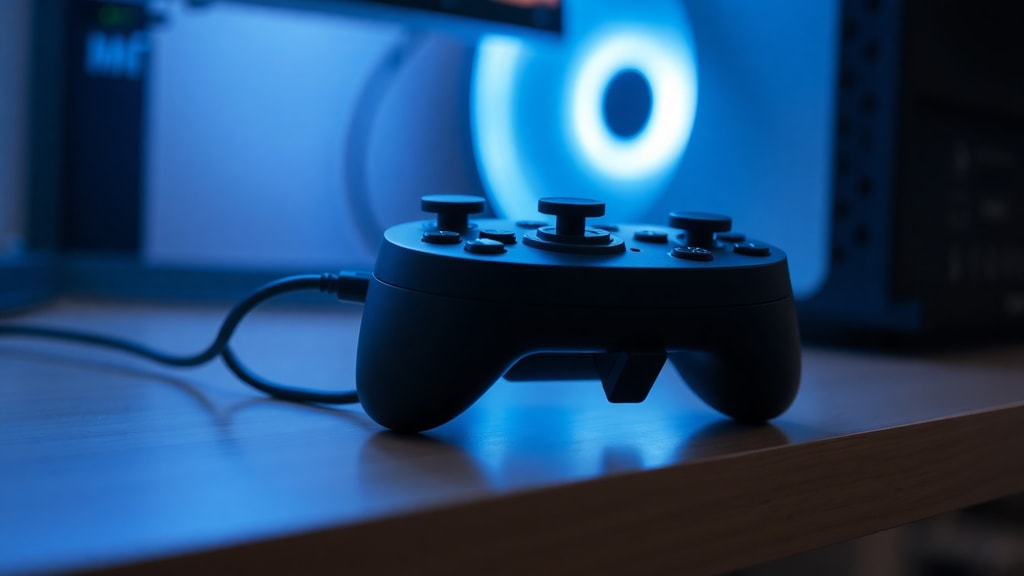
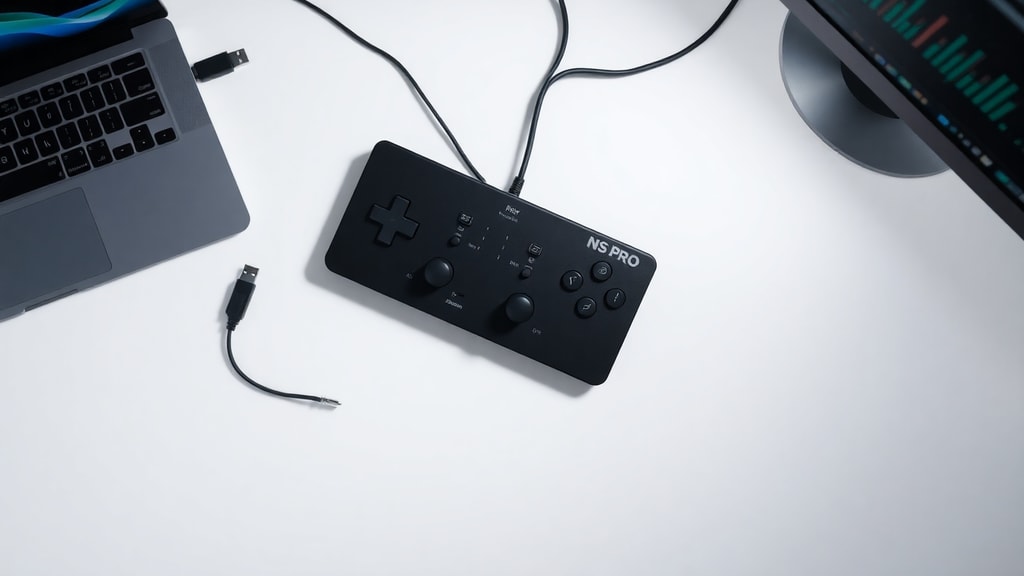
Connecting a Nintendo Switch Pro Controller to a Windows PC using a USB cable is a straightforward process that opens up a wide range of gaming possibilities. Many PC gamers prefer the Pro Controller for its ergonomic design, precise analog sticks, and responsive buttons. When connected via a standard USB-A to USB-C or USB-C to USB-C data cable, the controller is automatically recognized by Windows 10 and Windows 11 as Pro Controller within seconds. This immediate recognition also initiates charging of the internal battery, allowing for uninterrupted gameplay sessions. However, to fully leverage the controller in PC games, users need to understand the underlying input protocols and potential compatibility hurdles.
Automatic Recognition and Setup
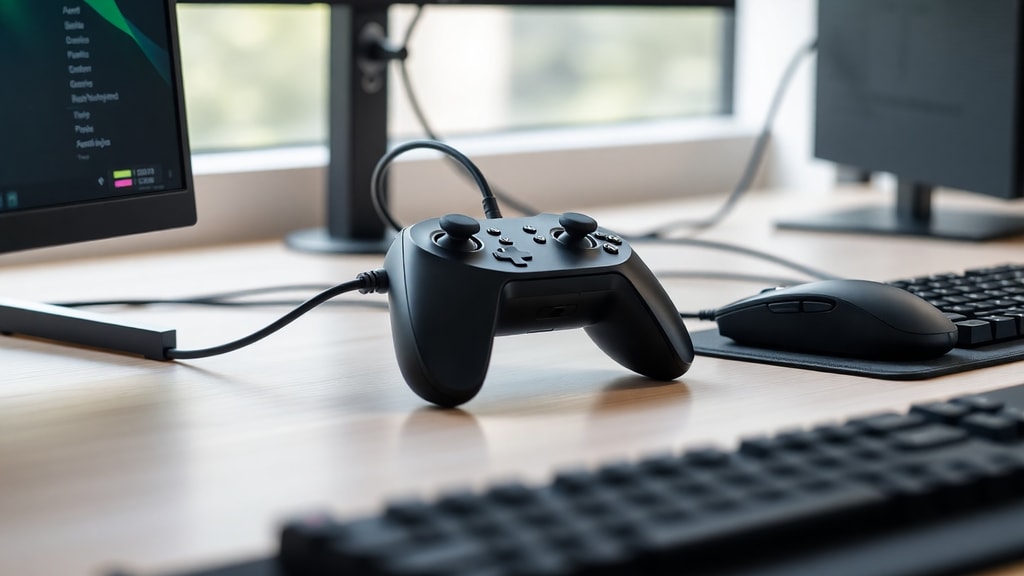
Upon plugging the Pro Controller into a PC using a compatible data cable, Windows automatically detects the device and installs basic drivers. The controller appears in the Devices and Printers section as Pro Controller without requiring additional manual setup. This automatic recognition works with both older and newer versions of the Nintendo Switch Pro Controller. The controller immediately begins charging through the USB connection, indicated by the orange LED on the top of the device. For most users, this plug-and-play functionality is sufficient for basic input in applications that support DirectInput, such as emulators or older games. However, many modern PC games rely on the XInput standard, which is native to Xbox controllers. This discrepancy creates a need for middleware to translate DirectInput signals into XInput.
According to a guide by PC Gamer, the Pro Controller is recognized immediately when connected to a Windows system via USB. The article notes that the controller also starts charging as soon as the cable is attached, making it a convenient option for both wired play and battery maintenance. This source provides reliable instructions for users seeking a straightforward connection method. You can read the full guide at PC Gamer.
Input Standards: DirectInput vs. XInput
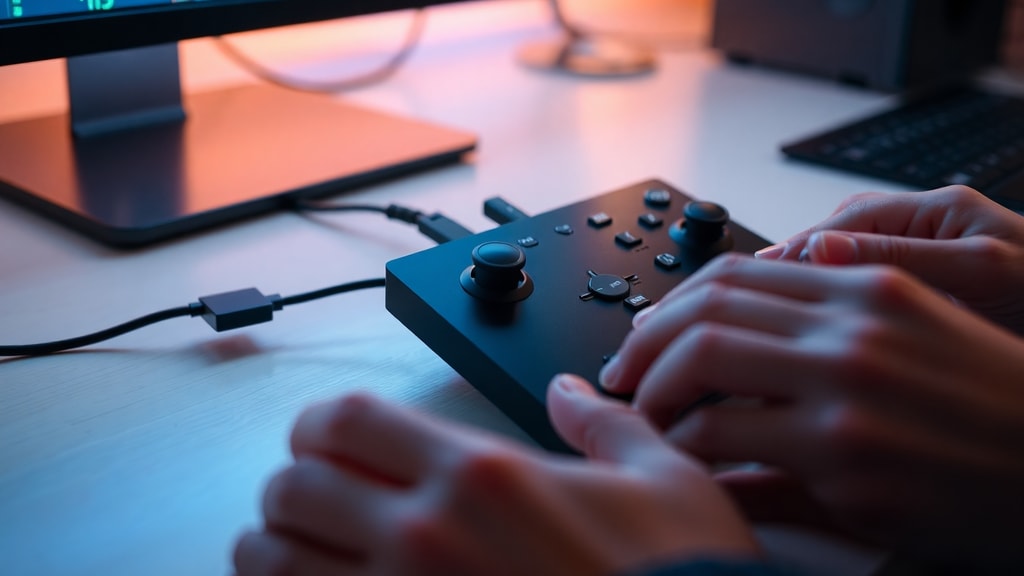
The Nintendo Switch Pro Controller communicates using the DirectInput standard, which is an older API for handling input from various devices. In contrast, the XInput standard was developed by Microsoft for Xbox controllers and is now the dominant input method for Windows games. This difference means that without proper translation, the Pro Controller may not be recognized by games that exclusively support XInput. When a game expects XInput, the Pro Controller might either not work at all or have incorrect button mappings, such as the A and B buttons being inverted. Understanding this distinction is crucial for troubleshooting compatibility issues.
Below is a table comparing the key characteristics of DirectInput and XInput in the context of using the Pro Controller on PC.
| Feature | DirectInput | XInput |
|---|---|---|
| Compatibility | Older games, emulators, and some indie titles | Most modern AAA games and Steam titles |
| Button Mapping | Layout as defined by the controller hardware | Standard Xbox layout with A/B/X/Y in specific positions |
| Vibration Support | Not standardized; may require extra drivers | Built-in and widely supported |
| Analog Triggers | Supported on some controllers | Full support with pressure sensitivity |
| Multiple Controllers | Limited; may require separate configurations | Native support for up to four controllers |
This table highlights why middleware is often necessary to bridge the gap between DirectInput and XInput. Without such software, many popular PC games will not register the Pro Controller inputs correctly. The PC Outerspace forum discussion confirms that the Pro Controller uses DirectInput, requiring additional steps for XInput-based games. For more details, refer to the forum post at PC Outerspace Forum.
Middleware Solutions for Compatibility
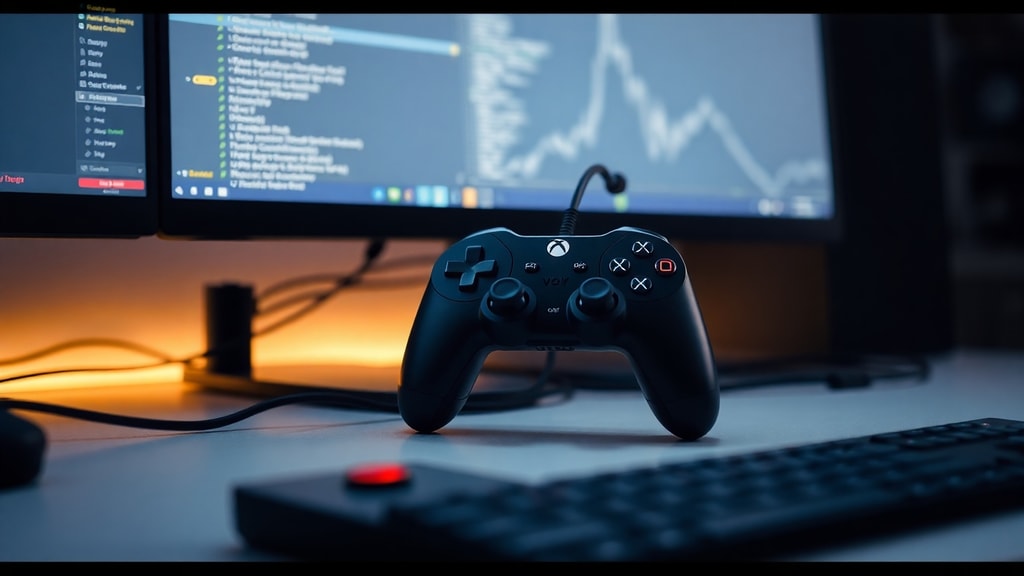
To make the Pro Controller fully compatible with games that require XInput, users can install middleware software such as BetterJoy. This application translates DirectInput signals into XInput, allowing the Pro Controller to be recognized as an Xbox controller in games and launchers. BetterJoy also offers customizable button mapping, gyroscopic control support, and the ability to use the controller wirelessly, though wired mode is most stable. Another popular alternative is the 8BitDo Ultimate Software, which provides similar translation capabilities. These tools are essential for gamers who want to use the Pro Controller in titles that only support Xbox controllers. The following list outlines the key features of BetterJoy for wired use.
- Automatic conversion of DirectInput to XInput for seamless game recognition
- Support for custom button remapping, including swapping AB and XY buttons
- Gyroscope emulation as right analog stick for mouse-like aiming
- Option to enable or disable vibration with adjustable intensity
- Compatibility with both USB and Bluetooth connections, with USB being more reliable
Many users consider BetterJoy the recommended tool for using the Pro Controller on PC. It is free, open-source, and regularly updated. After installing the software, users simply launch it before starting a game. The controller will then appear as an Xbox 360 or Xbox One controller in the game settings. This solution eliminates most compatibility issues and ensures a smooth gaming experience. For those who prefer a more integrated approach, Steam provides built-in support as described in the next section.
Steam Integration
Steam is one of the few platforms that natively supports the Nintendo Switch Pro Controller via cable. When the controller is connected, Steam automatically detects it and allows users to configure button layouts, gyroscopic controls, and custom profiles through the General Controller Settings menu. This integration means that gamers who play titles through Steam do not need additional middleware. Enabling Switch Pro Configuration Support in Steam Big Picture Mode or via the settings menu maps the controller correctly for most games. Steam also provides community-created control schemes that can be applied to individual games, offering flexibility for different genres. This feature is particularly useful for action games, RPGs, and platformers where the Pro Controllers ergonomics shine.
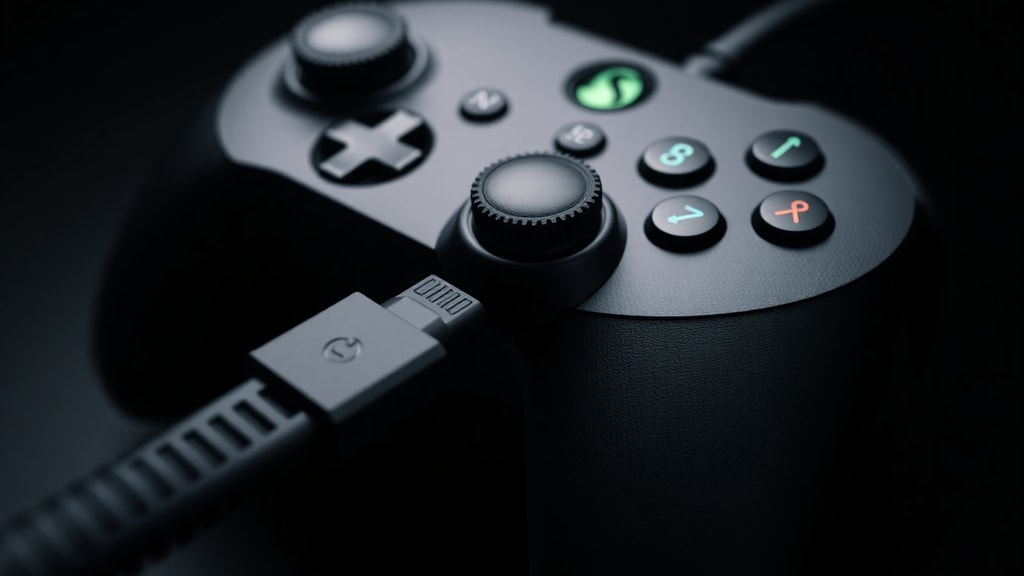
Using Steam with the Pro Controller is as simple as plugging in the USB cable and launching Steam. The software handles the DirectInput to XInput translation automatically in the background. This method works reliably for the vast majority of Steam games, including those that do not natively support DirectInput. For non-Steam games, users can add them to their Steam library and apply controller configurations through the same interface. This approach consolidates control management and reduces the need for third-party tools, though BetterJoy remains a fallback for games that do not function correctly even with Steam.
Troubleshooting Common Issues
While the Pro Controller is generally plug-and-play on Windows, some users may encounter issues such as the controller not being detected or buttons not responding correctly. The first step in troubleshooting is to ensure that the USB cable is a data cable, not a charging-only cable. Many cables sold for power delivery lack the data lines necessary for communication. If the controller still does not appear in Windows, running the built-in Hardware and Devices troubleshooter can help. This tool scans for driver issues and attempts to repair any detected problems. To run it, open the Command Prompt or Run dialog (Windows key + R) and type msdt.exe -id DeviceDiagnostic, then press Enter. The troubleshooter will guide through potential fixes, such as reinstalling the controller driver or restarting the device.
Another common problem is incorrect button mapping in games. This often occurs because the game expects XInput but receives DirectInput signals. Using BetterJoy or Steam integration resolves this issue by translating inputs. If the controller disconnects intermittently, check the USB port for damage or try a different port. Also, ensure that the controller firmware is up to date by connecting it to a Nintendo Switch console or using the official accessories update tool. For persistent problems, forums such as Reddit provide community solutions based on specific game combinations.
References
PC Gamer. How to use Nintendo Switch and Switch 2 Pro controllers on PC. Retrieved from https://www.pcgamer.com/how-to-use-a-nintendo-switch-pro-controller-on-pc/
PC Outerspace Forum. Controle Pro do Nintendo Switch funciona no PC. Retrieved from https://forum.outerspace.com.br/index.php?threads/controle-pro-do-nintendo-switch-funciona-no-pc.477586/
PC Gamer via YouTube transcript. How to Connect Switch Pro Controller to PC. Retrieved from https://www.youtube.com/watch?v=Iffhojl5XX0
PC Gamer via YouTube transcript. COMO USAR O PRO CONTROLLER DO NINTENDO SWITCH NO PC. Retrieved from https://www.youtube.com/watch?v=Wh2XX4y596M
PC Gamer via YouTube transcript. Como Colocar Pro Controller Switch no Windows 10 2022. Retrieved from https://www.youtube.com/watch?v=azEatrOEtvg
Reddit. CORRECAO caso voce tenha problemas para conectar seu... Retrieved from https://www.reddit.com