Why a Dedicated Mouse Boosts Notebook Productivity
Using a touchpad is convenient when you are on the go, but it often becomes a bottleneck during extended work sessions. Research from the Logitech Ergo Lab shows that an external mouse can increase productivity by up to 50 percent compared to a touchpad. The same study recorded 45 percent less muscle activity in the neck and shoulders when participants switched to a mouse. This means less strain and faster navigation, especially for tasks that require precision, such as editing spreadsheets, designing graphics, or selecting small text. A good mouse for your notebook is not just an accessory; it is a tool that directly affects how comfortable and efficient you can be at your desk.

Wireless Versus Wired: What Works Best for You
One of the first decisions when buying a mouse for a notebook is whether to go wireless or wired. Wireless mouses eliminate the cable clutter and give you more freedom of movement on your desk. They connect via Bluetooth or a small USB dongle. Many modern Bluetooth mouses pair instantly with Windows, macOS, and even Chromebooks, and they run on either internal rechargeable batteries or standard AA/AAA cells. Wired mouses, on the other hand, never need charging and have zero latency, making them a reliable choice for gaming or tasks where every millisecond counts. However, the cable can be annoying when you are moving the notebook around. For most notebook users, a wireless model offers the best balance of convenience and performance.

Optical or Laser: Understanding Sensor Technology
The sensor inside the mouse determines how it tracks movement on different surfaces. Optical mouses use an LED light and are generally more affordable and durable. They work well on most desk surfaces and mouse pads, but they can struggle on glossy or uneven surfaces. Laser mouses use a more sensitive infrared laser, which allows them to track on almost any surface, including glass. Laser sensors offer higher DPI, meaning more precise cursor movement if you work with high-resolution displays. The downside is that laser mouses tend to consume more battery power and are usually more expensive. If you often work from coffee shops or on varying surfaces, a laser mouse gives you more flexibility. For a standard office desk, an optical mouse is perfectly adequate.
Ergonomic Design Matters for Long Sessions
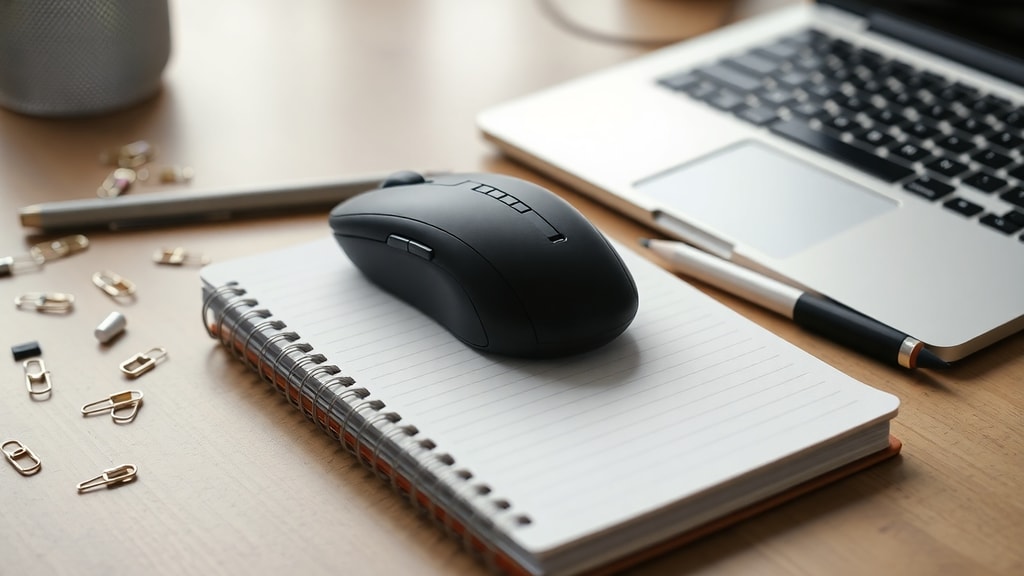
If you spend hours each day using a notebook, an ergonomic mouse can prevent discomfort and repetitive strain injuries. Ergonomic mouses are shaped to support your hand in a natural, relaxed position. Some models have a vertical grip that reduces forearm twisting, while others have a contoured shape with thumb rest. They are built robustly but are not necessarily heavy. The key is to find a mouse that fits your hand size and grip style. A good ergonomic mouse distributes pressure evenly and reduces tension in your fingers, wrist, and forearm. This is especially important when you pair the mouse with a notebook, because your posture is already compromised if the screen is too low. Investing in an ergonomic mouse is a smart long-term move for your health and productivity.

What to Look for When Buying a Mouse for Your Notebook
There are several factors to consider before making a purchase. Below is a checklist to help you evaluate different models.

- Connection type: Bluetooth, dongle, or wired. Bluetooth saves a USB port but may have slight lag; dongle offers stable connection; wired ensures zero delay.
- Sensor type: Optical or laser. Optical for standard surfaces, laser for glass or irregular surfaces.
- Ergonomics: Shape, size, weight, and grip style. Vertical mouses reduce wrist strain; ambidextrous designs work for left-handed users.
- Battery life: Rechargeable internal battery versus replaceable batteries. Consider how often you are willing to charge or swap batteries.
- DPI and adjustability: Higher DPI allows faster cursor movement. Some mouses have adjustable DPI buttons on the fly.
- Portability: Compact size and a travel case or a flat design that fits easily inside a laptop bag.
- Extra buttons: Programmable buttons for shortcuts can further improve workflow.
Comparative Table: Common Mouse Types for Notebooks
| Type | Best For | Pros | Cons | Typical Price Range |
|---|---|---|---|---|
| Wireless Bluetooth | Minimalist desks, travel | No dongle needed, clean setup | Slight latency, requires battery | $20 - $60 |
| Wireless with Dongle | Office work, general productivity | Stable connection, low power consumption | Uses USB port, can lose dongle | $15 - $50 |
| Wired USB | Gaming, reliability | No battery, zero lag, durable | Cable clutter, less portable | $10 - $40 |
| Ergonomic Vertical | Long work hours, wrist pain prevention | Natural hand position, reduces strain | Larger size, takes time to adapt | $25 - $80 |
| Laser | Precision work, any surface | Works on glass, high DPI accuracy | Higher cost, more battery drain | $30 - $100 |
Troubleshooting Touchpad Issues and Keeping Both Active
Sometimes the touchpad on your notebook stops working. Before you assume it is broken, try a few quick fixes. The most common cause is accidentally disabling the touchpad with a function key combination, often Fn + a specific F-key. Restarting the device can also resolve temporary glitches. If the problem persists, check your touchpad driver in Device Manager and update it. For Windows users, go to Settings, then Bluetooth and devices, and open the Touchpad section. There you will find the option to keep the touchpad active even when a mouse is connected. By default, some notebooks turn off the touchpad when they detect a USB or Bluetooth mouse, but you can disable that behavior. This is useful if you use gestures or prefer to switch between mouse and touchpad during a task. The same option is available on many Windows laptops under the name “Leave touchpad on when a mouse is connected.”
How to Choose the Best Mouse for Your Notebook
Choosing the right mouse depends on your primary use case. If you are a student or a professional who moves between the library, coffee shop, and home office, a compact Bluetooth mouse with long battery life is ideal. Look for a model that pairs with multiple devices and can switch between them easily. If you work with graphic design or video editing, a laser mouse with adjustable DPI and extra programmable buttons will save you time. Gamers should prioritize wired or high-performance wireless mouses with low latency and high polling rates. For those who spend eight or more hours a day at the computer, an ergonomic vertical mouse can make a noticeable difference in comfort. Always read reviews and, if possible, try the mouse in a store to feel its shape and weight.
Another important factor is the surface you use. If you often work on a glass desk or an uneven table, a laser mouse will perform better than an optical one. On a standard mouse pad, both work equally well. Consider the notebook’s port situation. If you have limited USB ports, a Bluetooth mouse frees up one port. If you already use a wireless keyboard or other peripherals, a mouse with a dongle might cause interference; in that case, Bluetooth is again a safer bet. Also check the operating system compatibility. Most mouses work on Windows, Mac, and Linux, but some advanced features (like gesture customization) may require vendor software that is not always available for all platforms.
Maintenance and Longevity of Notebook Mice
To get the most out of your mouse, keep the sensor clean and free of dust. For optical and laser mouses, a soft cloth and occasional compressed air can remove debris from the lens. If you use a wireless mouse with replaceable batteries, remove them if you plan to store the mouse for a long period. Rechargeable models should be charged regularly; letting the battery drain completely can shorten its lifespan. The glide pads on the bottom will eventually wear out, but replacement pads are inexpensive. With proper care, a good notebook mouse can last for several years.
References
Logitech. “Mouse vs. Touchpad.” Logitech Ergo Lab. https://www.logitech.com/pt-br/ergo/mouse-vs-touchpad.html
TechInsider. “Melhores Mouses para Notebook (2025).” https://techinsider.com.br/melhor-mouse-para-notebook/
Dell Support. “Touchpad Troubleshooting.” https://www.dell.com/support/contents/pt-br/article/product-support/self-support-knowledgebase/mouse-keyboard-touchpad/touchpad
Microsoft Support. “Touchpad Settings.” https://support.microsoft.com/