Introduction to Keyboard Functions
The keyboard remains the most fundamental input device for computers and many electronic devices. Despite the rise of touchscreens and voice commands, the keyboard offers unmatched speed and precision for text entry, command execution, and navigation. Understanding keyboard functions goes beyond simply knowing where the letters are. It involves mastering modifier keys, shortcut combinations, navigation keys, and specialized function keys that can transform how you interact with software. This article explores the full range of keyboard functions, from basic typing to advanced shortcuts, and explains how these keys work together to control a computer.
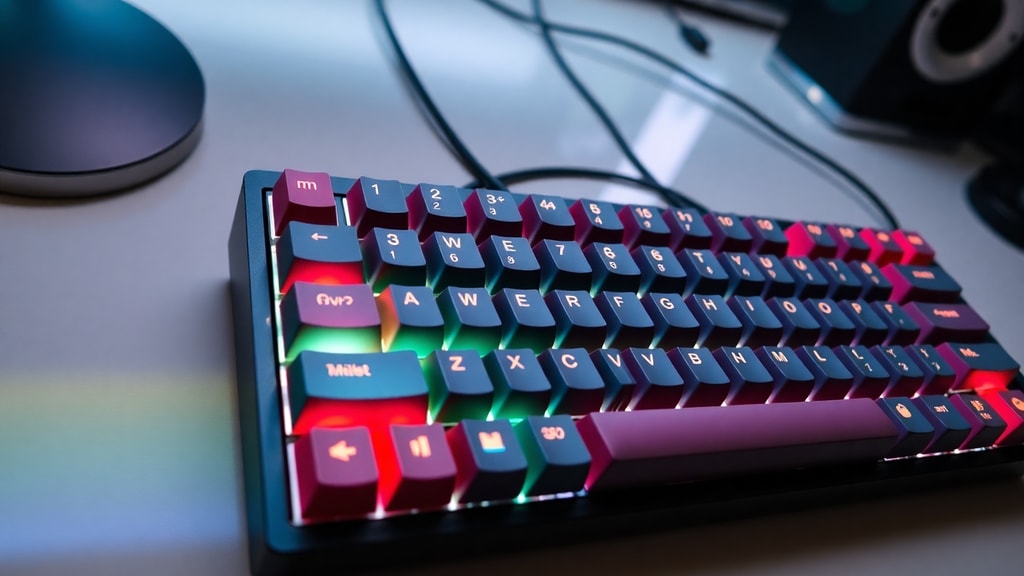
A typical keyboard layout is derived from the typewriter, but modern keyboards include many additional keys. The alphanumeric section contains letters, numbers, and punctuation. Around that block are modifier keys like Shift, Ctrl, and Alt, as well as navigation keys such as the arrow keys, Home, End, Page Up, and Page Down. The top row holds function keys F1 through F12, which serve context-specific purposes. Many keyboards also feature a numeric keypad, media control keys, and sometimes programmable macro keys. Each key press sends a scan code to the operating system, which interprets the input based on the active application and keyboard layout. This system is what makes the keyboard a versatile tool for everything from writing documents to controlling complex simulations.

Alphanumeric Keys and Text Entry
The core of any keyboard is the set of alphanumeric keys: letters A through Z and digits 0 through 9. These keys are arranged in the familiar QWERTY layout, named after the first six letters on the top row. While alternative layouts like Dvorak and Colemak exist, QWERTY remains dominant due to historical inertia and widespread adoption. Each key produces a character when pressed. To type uppercase letters, you hold the Shift key while pressing the letter key. Caps Lock toggles a mode where all letters are uppercase without holding Shift, though it does not affect numbers or symbols.
Symbols and punctuation are accessed by combining Shift with number keys (e.g., Shift+1 produces an exclamation mark) or through dedicated keys like the comma, period, and semicolon. The Spacebar inserts a blank space, while Backspace deletes the character to the left of the cursor. The Enter key sends a line break or confirms a command. These basic functions are consistent across nearly all operating systems and applications, making the keyboard a reliable tool for entering text and data. Efficient typists can achieve speeds of 60 to 100 words per minute using all ten fingers, relying on muscle memory rather than looking at the keys.
Navigation Keys and Cursor Control
Beyond typing individual characters, the keyboard allows users to move around documents, web pages, and interfaces with precision. The four arrow keys—up, down, left, and right—shift the cursor or selection one unit in that direction. Holding Ctrl while pressing an arrow key jumps the cursor to the next word or paragraph boundary. The Home key moves the cursor to the beginning of a line, and End moves it to the end. Page Up and Page Down scroll the view up or down by one screenful. These navigation keys are especially useful when editing text or browsing long documents without using a mouse.
In many applications, combining these keys with Shift selects text. For example, Shift+Right Arrow selects one character to the right, and Shift+Ctrl+Right Arrow selects one word. This allows for rapid editing without taking your hands off the keyboard. The Delete key removes the character to the right of the cursor, while Insert toggles between insert and overwrite modes. Although Insert is less commonly used today, it still exists on full keyboards. Mastery of navigation keys can significantly reduce reliance on a mouse and speed up tasks like coding, writing, and data entry.

Modifier Keys and System Control
Modifier keys are special keys that change the behavior of other keys when pressed simultaneously. The most common modifier is Shift, which produces uppercase letters and secondary symbols. Ctrl (Control) is used extensively in shortcuts, such as Ctrl+C for copy and Ctrl+V for paste. Alt (Alternate) modifies key functions in menus and windows; for example, Alt+F4 closes the active window. The Windows key (or Command key on macOS) opens the Start menu or launches system functions. These modifiers are the building blocks of keyboard shortcuts, which can execute commands much faster than navigating menus with a mouse.
Other important control keys include Enter, which confirms an action or starts a new line; Escape, which cancels the current operation or closes a dialog; and Tab, which moves focus to the next field or indents text. The Caps Lock key toggles uppercase typing, while Num Lock controls whether the numeric keypad inputs numbers or navigation. Scroll Lock is a legacy key rarely used today, but it once controlled screen scrolling in terminal applications. Understanding how these keys work together is essential for efficient computer use. For example, pressing Ctrl+Alt+Delete brings up a system security screen in Windows, and Alt+Tab switches between open applications.

- Common keyboard shortcuts for Windows:
- Ctrl+C – Copy selected text or item
- Ctrl+V – Paste from clipboard
- Ctrl+Z – Undo last action
- Ctrl+A – Select all
- Ctrl+S – Save current file
- Ctrl+P – Print
- Alt+Tab – Switch between open windows
- Win+D – Show desktop
- Win+E – Open File Explorer
- Win+L – Lock the computer
These shortcuts represent only a fraction of available combinations. Many applications, especially word processors, image editors, and integrated development environments (IDEs), offer dozens of customizable shortcuts. Learning even ten shortcuts can save minutes per day, adding up to hours of productivity over time.
Function Keys F1–F12: Uses and Variations
The row of function keys at the top of the keyboard, labeled F1 through F12, each have default actions that vary by operating system and active software. In many programs, F1 opens the help menu. F2 renames a selected file in Windows Explorer. F3 opens a search function in many applications. F4 combined with Alt closes the current window; in some programs, F4 alone repeats the last action. F5 refreshes the current window or web page. F6 cycles through screen elements in a browser or application. F7 typically triggers spell check in word processors. F8 enters the Windows startup menu during boot. F9 often updates fields or refreshes in Microsoft Word. F10 activates the menu bar. F11 toggles full-screen mode in browsers. F12 opens the Save As dialog in many programs or opens developer tools in browsers.
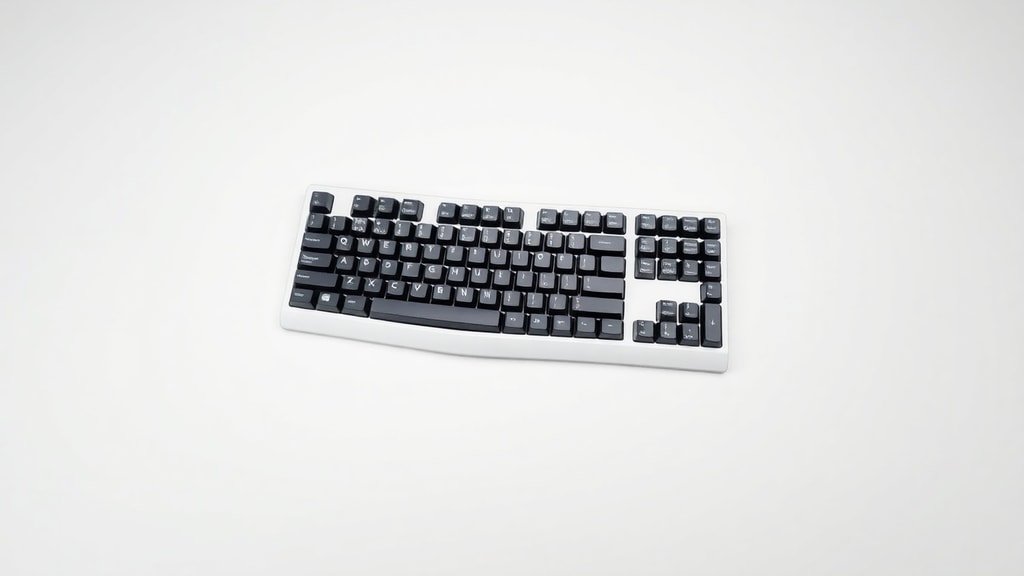
Because these functions can be reassigned, many keyboards include an Fn (Function) key that switches between the default function key behavior and media controls. For example, on a laptop, pressing Fn+F5 might adjust screen brightness instead of refreshing. This dual-role design saves space while retaining flexibility. The table below summarizes common F-key functions in a standard Windows environment, though users should verify with their specific software.
| Key | Common Function (Windows) |
|---|---|
| F1 | Open help menu |
| F2 | Rename selected item |
| F3 | Open search or find |
| F4 | Address bar list (Alt+F4 close window) |
| F5 | Refresh page or window |
| F6 | Cycle through screen elements |
| F7 | Spell check (in many apps) |
| F8 | Boot menu (Windows startup) |
| F9 | Update fields (Word) / Refresh (Outlook) |
| F10 | Activate menu bar |
| F11 | Toggle full screen |
| F12 | Save As / Developer tools (browser) |
Function keys are also heavily used in software development. IDEs like Visual Studio and Eclipse assign debugging and build actions to F5 (start debug), F9 (toggle breakpoint), and F10 (step over). In design software, F keys may toggle tool palettes. Because of this flexibility, many professionals remap function keys to fit their workflow.
Gaming and Multimedia Keys
Gamers rely on a different set of keyboard functions. The WASD cluster (W, A, S, D) controls movement in most first-person games, replacing arrow keys because they allow simultaneous access to nearby keys like Shift (sprint) and Space (jump). Many gaming keyboards include extra macro keys that can be programmed to execute complex sequences with a single press. These keyboards often feature mechanical switches for tactile feedback and faster actuation. Media control keys—play/pause, volume up/down, mute, and track skip—are now common on many keyboards, whether dedicated buttons or integrated into function keys via the Fn modifier.
Multimedia keyboards also include keys to launch calculator, email, web browser, or sleep mode. These convenience keys save time by bypassing the need to navigate menus. While not essential, they enhance the user experience for everyday tasks. The relevant fact from research confirms that WASD keys and media controls originate from specialized gaming and multimedia needs.
Operating System and Software Dependence
Keyboard functions are not universal. The same physical key can perform different actions depending on the operating system and the active application. For example, Ctrl+C copies on Windows and Linux, but on macOS the equivalent is Command+C. The Alt key on Windows often corresponds to Option on macOS. Function keys may have OS-specific default behaviors: on a Mac, F11 and F12 typically control volume by default, whereas on Windows they control full-screen and Save As. Furthermore, many applications override system defaults. In Adobe Photoshop, Ctrl+Z only undoes one step, while Ctrl+Alt+Z undoes multiple steps. In web browsers, Ctrl+T opens a new tab, but in terminal emulators, Ctrl+T might transpose characters.
Users who switch between operating systems often experience confusion until they learn the new shortcuts. Some keyboards are designed for dual-platform use, with keycaps printed for both Windows and macOS. To avoid frustration, it is helpful to check application documentation or customize shortcuts in system settings. The second contextual link here provides additional details on how keyboard shortcuts differ between operating systems. (Link: Wikipedia - Computer keyboard)
References
GeeksforGeeks – What is a Keyboard? https://www.geeksforgeeks.org/computer-science-fundamentals/what-is-a-keyboard/
Computer Hope – What is a Keyboard? https://www.computerhope.com/jargon/k/keyboard.htm
Wikipedia – Computer keyboard https://en.wikipedia.org/wiki/Computer_keyboard
Bachchantop – Keyboard: A Complete Guide https://thebachchantop.com/2025/03/12/keyboard-a-complete-guide/
Nelson Miller – 7 Fun Facts About Keyboards https://nelson-miller.com/7-fun-facts-about-keyboards/
Scribd – The Keyboard and Its Functions https://es.scribd.com/document/922072582/The-Keyboard-and-Its-Functions
Study.com – What is a Computer Keyboard? https://study.com/academy/lesson/what-is-a-computer-keyboard-parts-layout-functions.html