Understanding Microphone Detection Problems
Microphone detection failures can be frustrating, especially when you need to join a video call, record a podcast, or use voice commands. The issue can stem from software settings, outdated drivers, hardware malfunctions, or application permissions. Fortunately, most problems can be resolved in a few minutes without technical expertise. This article walks you through the most effective steps to fix microphone detection fast, covering Windows settings, driver management, physical checks, and browser configurations. Each step is based on official support resources and real-world testing.
Check System Permissions in Windows
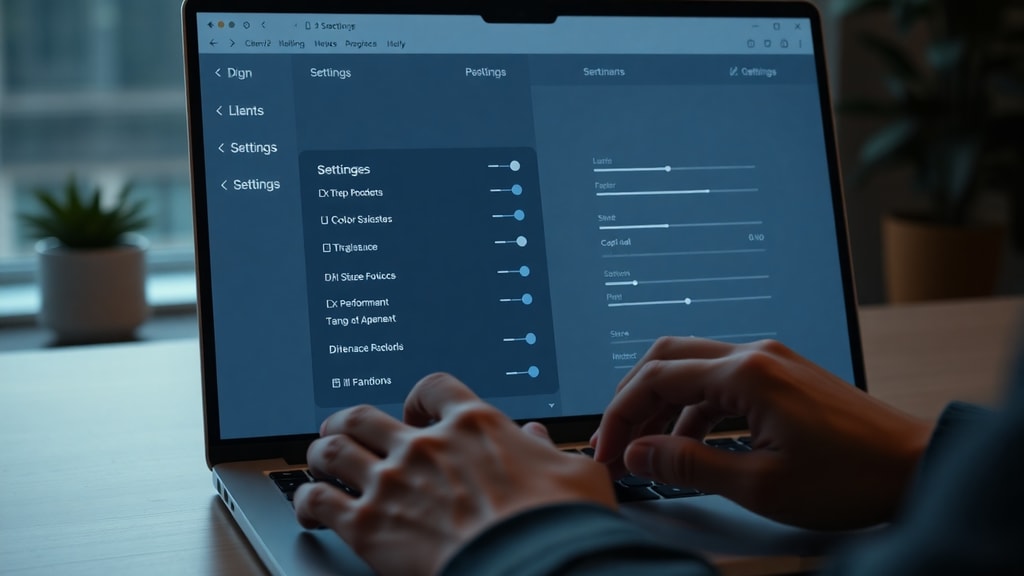
Modern Windows versions enforce strict privacy controls that can block microphone access even when the device is physically connected. To verify, open Settings and navigate to Privacy & security then Microphone. Ensure the toggle for Microphone access is turned on. Also check Let apps access your microphone is enabled. Scroll through the list of apps to confirm that the program you want to use (such as Zoom, Discord, or your browser) has permission switched on. If the microphone is listed as disabled or not present, this is often the root cause. For a detailed guide, refer to Microsoft Support’s fix for microphone problems. After making changes, restart the application or reboot your computer to apply them.
Enable the Microphone in Sound Settings
Sometimes the microphone is detected by Windows but remains disabled in the sound control panel. Follow these steps to enable and adjust it:
- Open Control Panel and select Hardware and Sound then Sound.
- Click the Recording tab. You will see a list of connected microphones.
- If your microphone is listed but grayed out, right‑click it and choose Enable.
- Right‑click again and select Properties. Go to the Levels tab and increase the volume slider to around 80‑100. Also ensure the microphone boost slider (if present) is set appropriately, typically 0 dB to start.
- On the Advanced tab, try different default formats (e.g., 16 bit, 44100 Hz) if audio quality is poor.
After enabling, speak into the microphone – the green bars next to the device should move. If they do not, the issue may be elsewhere. This method is recommended by Dell’s guide on persistent microphone issues.
Update or Roll Back Audio Drivers
Outdated, corrupted, or incorrectly installed drivers are frequent causes of detection failure. Access Device Manager (right‑click the Start button) and expand Audio inputs and outputs. Locate your microphone (often labeled as Microphone Array or External Microphone). Right‑click it and choose Update driver then Search automatically for drivers. Windows will look for the best available version. If a recent driver update caused the problem, you can revert it by right‑clicking the device, selecting Properties, then Driver tab, and clicking Roll Back Driver if that option is active. Restart your PC after making changes. Below is a comparison of actions and their typical outcomes.
| Action | When to Use | Expected Result |
|---|---|---|
| Update driver | Microphone stopped working after a Windows update or newly connected device | Latest driver restores detection and function |
| Roll back driver | Microphone worked before a driver update you installed recently | Reverts to previous stable version |
| Uninstall device | Driver is corrupted or conflicts exist | Windows re‑installs driver on reboot |
If you choose to uninstall, make sure to check Delete the driver software for this device before confirming. Then restart.
Disable Audio Enhancements
Audio enhancements – noise suppression, echo cancellation, or equalization – can interfere with microphone detection and performance. To disable them, go back to the microphone’s Properties window (via Control Panel > Sound > Recording tab). Select the Enhancements tab and check the box Disable all enhancements. If that tab is missing, your audio driver may not support it, but check under the Advanced tab for a similar option. Apply the changes and test the microphone again. Many issues reported in forums are resolved solely by turning off these enhancements. This aligns with advice from Dell Support’s knowledge base on microphone troubleshooting.
Run Hardware Diagnostics
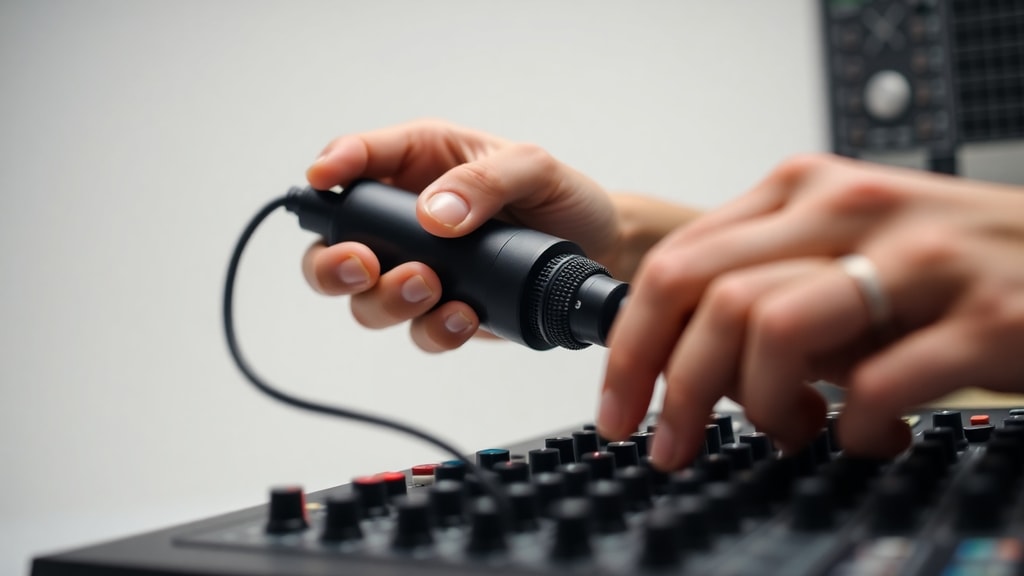
If software tweaks fail, the problem may be physical. Most PC manufacturers provide built‑in diagnostic tools to test internal microphones and audio ports. For Dell computers, open SupportAssist and run a full hardware scan under the Audio or Microphone category. HP users can use HP Support Assistant or the BIOS hardware test (press Esc or F2 during startup). Lenovo and ASUS have similar utilities. These tests check the microphone jack, internal microphones, and associated circuitry. If the diagnostic reports a hardware failure, you may need to contact support or replace the component. Even external USB microphones can be tested by plugging them into another computer to rule out a fault in the microphone itself.
Verify Browser Permissions
Web applications like Google Meet, Zoom (web), or voice recorders require explicit permission to access your microphone. When using a browser, you will usually see a pop‑up asking for access. If you accidentally clicked block, the browser will continue to deny permission. To fix, click the padlock icon (or the microphone icon) in the address bar next to the URL. In the permissions list, set Microphone to Allow. Then reload the page. On Chrome, you can also go to Settings > Privacy and security > Site Settings > Microphone to manage permissions globally and per site. For Microsoft Edge, the process is similar. This step is frequently overlooked, especially after browser updates that reset permissions.
Additional Quick Checks
The following list summarizes simple checks that solve many detection problems in seconds:
- Ensure the microphone is firmly plugged into the correct port (pink or headset combination jack).
- If using a USB microphone, try a different USB port and avoid hubs.
- Check the physical mute switch on the microphone or headset cable.
- In Windows, open Settings > System > Sound and confirm the correct input device is selected under Choose your input device.
- Run the built‑in Get Help app and type “microphone troubleshooting” to launch an automated troubleshooter.
- Temporarily disable third‑party antivirus or privacy software that may block microphone access.
- On laptops, check if there is a function key (e.g., F4, F6) that toggles the microphone on/off.
References
This guide incorporates information from the following trusted sources. For further reading and official troubleshooting procedures, consult them directly.
Microsoft Support. “Fix microphone problems.” Accessed May 2025. https://support.microsoft.com/
TechTudo. “PC não reconhece microfone do headset.” Accessed May 2025. https://www.techtudo.com.br/
YouTube (TechWithB). “Microfone não funciona no Windows 11.” Accessed May 2025. https://www.youtube.com/
Dell Support. “Como corrigir problemas persistentes de microfone e gravação de áudio.” Accessed May 2025. https://www.dell.com/
Dell Support. “Diagnóstico de hardware – áudio e alto‑falantes.” Accessed May 2025. https://www.dell.com/