Understanding USB Drivers and Their Importance in Windows 11
USB drivers are essential software components that allow your Windows 11 operating system to communicate with USB devices such as keyboards, mice, external hard drives, printers, and flash drives. Without properly functioning drivers, these devices may not work at all, or they might operate with reduced performance. Keeping your USB drivers updated ensures stability, security, and compatibility with the latest hardware and software updates from Microsoft. Outdated or corrupted drivers can cause connection drops, slow data transfer speeds, or even system crashes. Therefore, knowing how to update USB drivers on Windows 11 is a valuable skill for any user who relies on USB peripherals for work or entertainment.
Method 1: Using Device Manager to Update USB Drivers
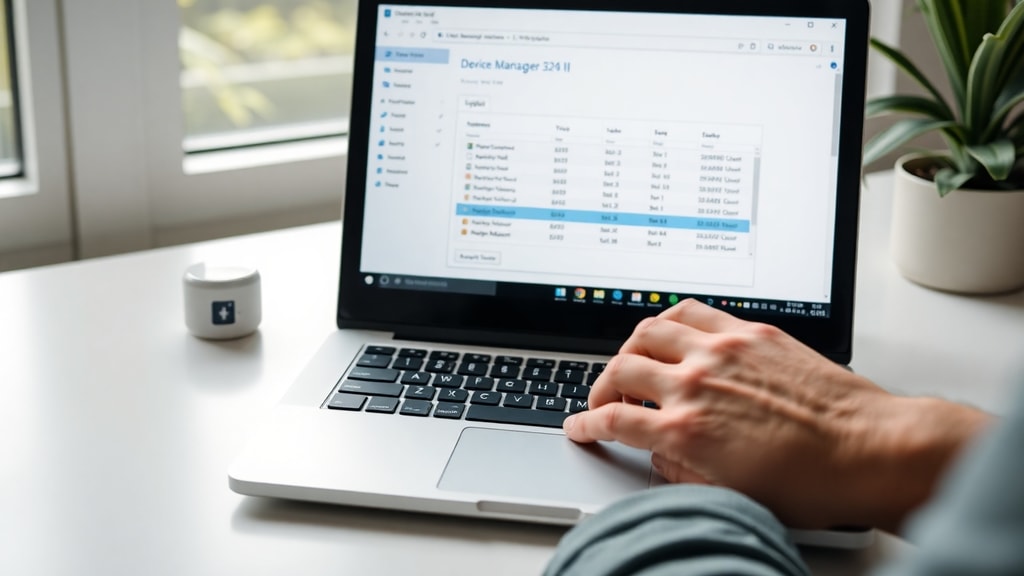
The Device Manager is a built-in Windows tool that gives you direct control over all hardware components, including USB controllers. To access it, press the Windows key and the X key simultaneously, then select Device Manager from the menu that appears. Once the window opens, scroll down and expand the section labeled Universal Serial Bus controllers. Here you will see a list of items such as USB Root Hub, Generic USB Hub, and USB Composite Device. Right-click on any device you want to update and choose Update driver from the context menu. A new window will appear with two options. The first option is Search automatically for drivers, which instructs Windows to look online for the most recent driver version. This is the simplest method and works well for most users. If Windows finds a newer driver, it will download and install it automatically. If it reports that the best drivers are already installed, you can still try the second option.
Method 2: Manual Driver Update When Automatic Search Fails
Sometimes the automatic search does not find a suitable driver, especially if the device is older or from a less common manufacturer. In that case, you can choose the second option in the Update driver wizard: Browse my computer for drivers. This allows you to point Windows to a driver file you have already downloaded from the internet. Before using this method, you need to obtain the correct driver file. Visit the website of your computer manufacturer or the USB device manufacturer, locate the support or downloads section, and search for the driver specific to your device model and Windows 11. Download the file, usually in a compressed format like ZIP, and extract it to a folder you can easily find. Then, in the Browse my computer for drivers window, click Browse, navigate to that folder, and click Next. Windows will install the driver from the specified location. This method gives you more control and is useful when the automatic search fails to deliver results.
Method 3: Updating USB Drivers Through Windows Update
Windows Update is not only for operating system patches but also for driver updates. Microsoft often includes driver updates in the optional updates section. To check for USB driver updates here, open Settings by pressing Windows key and I together. Go to Windows Update on the left sidebar, then click on Advanced options. Under Additional options, find Optional updates and click on it. Windows will scan for available updates, including driver updates. If any USB drivers are listed, check the box next to them and click Download and install. This method is convenient because it uses Microsoft's trusted servers and ensures compatibility with your system. However, not all USB drivers appear here, so you may need to combine this method with others for complete coverage.

Method 4: Downloading Drivers Directly from Manufacturer Websites
For the most reliable and up-to-date drivers, especially for specialized USB devices like external sound cards, gaming controllers, or docking stations, visiting the manufacturer's website is the best approach. Start by identifying the exact model of your USB device. This information is usually printed on the device itself or available in the device properties within Device Manager. Once you have the model number, go to the official website of the manufacturer, such as Dell, HP, Logitech, or Seagate. Navigate to the support or drivers section, enter your device model, and select Windows 11 as the operating system. Download the latest driver package, which is often an executable file. Double-click the downloaded file and follow the on-screen instructions to install it. After installation, restart your computer to ensure the driver is fully integrated. This method guarantees you get the driver specifically designed for your hardware and Windows 11, minimizing compatibility issues.
Common USB Driver Issues and Troubleshooting Tips
Even after updating, you might encounter problems such as a USB device not recognized, slow performance, or intermittent disconnections. Here are some common issues and their solutions. First, try plugging the USB device into a different port. Sometimes a specific port may have a hardware fault. Second, check for physical damage to the USB cable or connector. Third, run the Windows USB Troubleshooter by going to Settings, System, Troubleshoot, Other troubleshooters, and selecting USB. Fourth, uninstall the USB driver from Device Manager and restart your computer. Windows will automatically reinstall the driver upon reboot. Fifth, disable USB selective suspend setting in Power Options to prevent Windows from cutting power to USB ports to save energy. To do this, go to Control Panel, Power Options, Change plan settings, Change advanced power settings, expand USB settings, and set USB selective suspend setting to Disabled. These steps resolve most common USB driver issues without requiring advanced technical knowledge.
List of Steps to Update USB Drivers Using Device Manager
For quick reference, here is a concise list of steps to update USB drivers using the Device Manager method:
Press Windows key + X and select Device Manager.
Expand Universal Serial Bus controllers.
Right-click on the USB device you want to update.
Select Update driver.
Choose Search automatically for drivers.
If that fails, choose Browse my computer for drivers and navigate to a downloaded driver file.
Follow the on-screen instructions to complete the update.
Restart your computer if prompted.
Comparison of USB Driver Update Methods
The table below compares the four main methods for updating USB drivers on Windows 11, highlighting their ease of use, reliability, and when to use each.
Method | Ease of Use | Reliability | Best For
Device Manager Automatic | Very Easy | Moderate | Quick updates for common devices
Device Manager Manual | Moderate | High | When automatic search fails
Windows Update Optional | Easy | High | System-wide driver updates
Manufacturer Website | Moderate | Very High | Specialized or new devices
How to Check Your Current USB Driver Version
Before updating, it is helpful to know the current version of your USB driver. This allows you to verify whether an update is actually needed. In Device Manager, right-click on a USB controller and select Properties. Go to the Driver tab. Here you will see the driver provider, driver date, driver version, and digital signer. Compare this information with the latest version available on the manufacturer's website or through Windows Update. If the driver date is more than a year old, or if you are experiencing issues, an update is likely beneficial. You can also click on Driver Details to see the specific files associated with the driver. This information is useful for troubleshooting and for confirming that an update was successful after installation.
Precautions Before Updating USB Drivers
While updating drivers is generally safe, it is wise to take a few precautions to avoid potential problems. First, create a system restore point before making any driver changes. To do this, type Create a restore point in the Windows search bar, open the System Properties window, click Create, and follow the prompts. If a new driver causes issues, you can revert to the previous state. Second, only download drivers from official sources. Third-party driver update tools may offer convenience, but they can sometimes install incorrect or malicious software. Stick to Microsoft's official channels or the device manufacturer's website. Third, if you are updating a critical USB controller like the one for your keyboard or mouse, ensure you have a backup input method, such as a touchscreen or a second mouse, in case the update temporarily disables the device. Following these precautions minimizes risk and ensures a smooth update process.
When to Seek Professional Help
Most USB driver updates can be performed by any user with basic computer skills. However, there are situations where professional assistance may be necessary. If you have tried all the methods described above and your USB device still does not work, the problem might be hardware-related rather than driver-related. A faulty USB port, a damaged cable, or a defective device may require replacement. Additionally, if your computer is part of a corporate network managed by an IT department, driver updates may be controlled by group policies, and you should contact your IT support team. For users who are uncomfortable with technical procedures, visiting a local computer repair shop or contacting the device manufacturer's support line can save time and prevent accidental system damage. Remember that updating drivers is just one aspect of maintaining a healthy Windows 11 system, and regular maintenance includes checking for updates, scanning for malware, and keeping backups.
References
Microsoft Support. Update drivers through Device Manager in Windows. https://support.microsoft.com/en-us/windows/update-drivers-through-device-manager-in-windows
Microsoft Support. Automatically get recommended and updated hardware drivers. https://support.microsoft.com/en-us/windows/automatically-get-recommended-and-updated-hardware-drivers
EaseUS. How to Update Drivers on Windows 11: Download USB Drivers. https://www.easeus.com/resource/update-drivers-windows-11.html
IObit. Update USB drivers: Instructions for Windows 11/10/8/7. https://www.iobit.com/en-blog/update-usb-drivers.php