Introduction
Many users need to send text messages from a computer using a SIM card embedded in a hardware modem or a laptop with a SIM slot. This approach is common for automated notifications, emergency alerts, or when a mobile phone is not available. The process involves selecting the right hardware, connecting it to the computer, and using either command-line tools or dedicated applications to compose and send SMS. This article explains both methods in detail, providing step-by-step guidance for Windows users.
Hardware Requirements
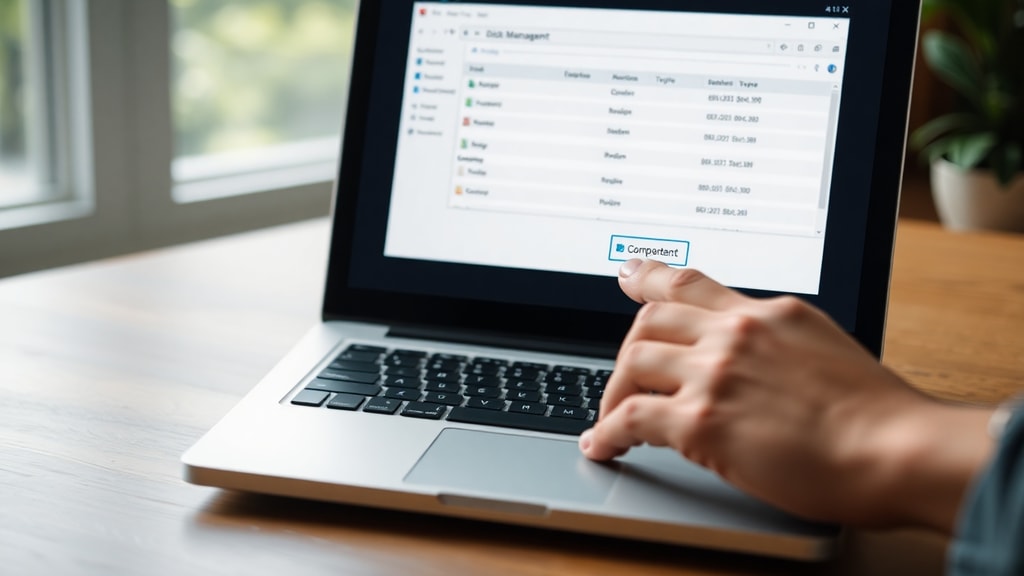
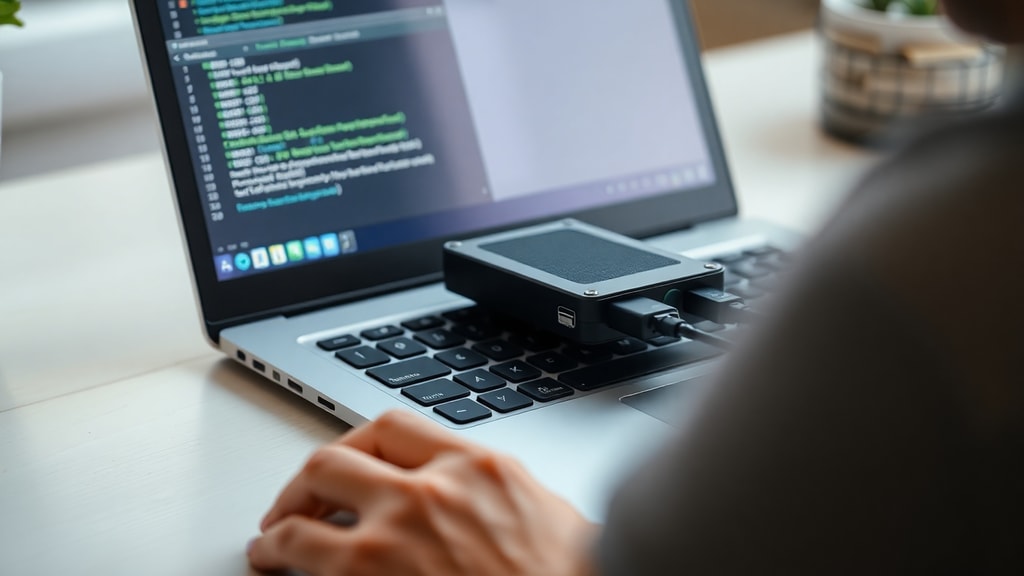
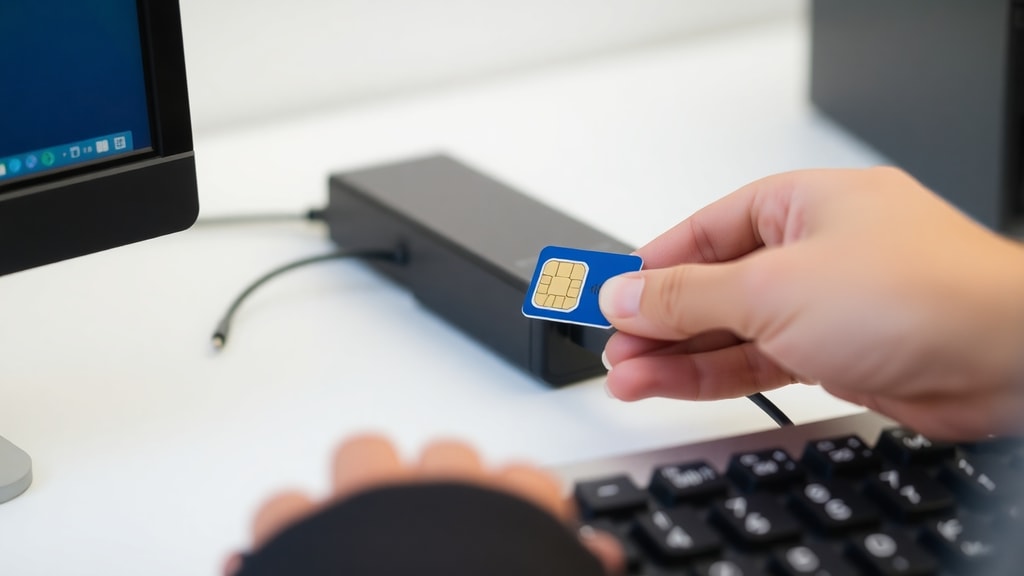
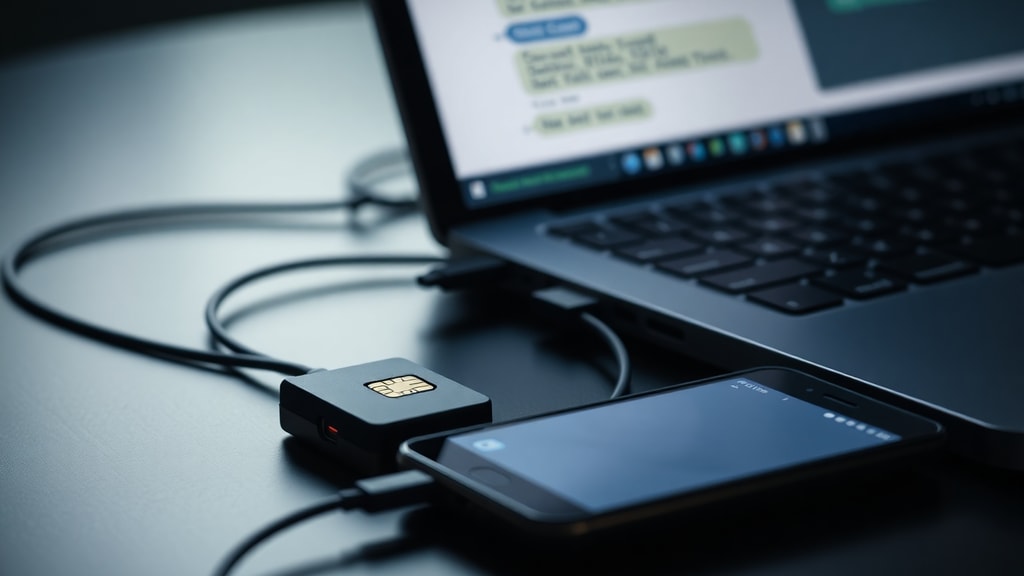
The core component for sending SMS from a computer is a GSM modem or a laptop with a built-in SIM card slot. GSM modems are external USB dongles that accept standard SIM cards. Popular models include the Huawei E1550 and the iRZ TU32. These devices act as a bridge between your computer and the mobile network, handling the transmission of SMS messages over GSM. For laptops with an embedded SIM slot, such as some business-class models from Lenovo or Dell, you can insert the SIM directly without an external modem. In both cases, you must ensure the modem is recognized by the operating system. For Windows, open Device Manager and look for the modem under the "Modems" section. If the modem is not listed, install the appropriate drivers from the manufacturer's website. A useful reference is the Microsoft Support article on sending and receiving SMS which covers basic troubleshooting.

Identifying the COM Port
Once the modem is installed, you need to know which COM port it uses. This is essential for communicating with the modem via serial commands. In Windows, open Device Manager, expand the "Ports (COM & LPT)" section, and look for an entry that includes your modem model or a generic "USB Serial Port" description. The assigned port number appears in parentheses, for example COM27. If you see multiple COM ports, try the one that is only present when the modem is connected. Right-click on the modem in Device Manager, select Properties, then the "Modem" tab to view the port. Write down this port number because you will use it in all subsequent software steps.
Using AT Commands via Terminal
The most direct method to send SMS from a computer is by using AT commands. This requires a terminal emulator program such as PuTTY, HyperTerminal, or the command-line tool Gammu. The process consists of a few simple steps:
- Open your terminal software and select the correct COM port (e.g., COM27) with a baud rate of 9600 or 115200, depending on your modem.
- Type AT and press Enter. If the modem responds with "OK", the connection is working.
- Set the SMS text mode by sending the command AT+CMGF=1. Wait for an "OK" response.
- Initiate sending with AT+CMGS="PHONE_NUMBER" (replace with the recipient's number in international format, e.g., +380501234567).
- After pressing Enter, you will see a ">" prompt. Type your message (up to 160 characters for a single SMS).
- Finish the message by pressing Ctrl+Z (or sending the hex code 1A). The modem will then send the SMS and return "OK" or an error code.
This method gives you full control but requires manual input for each message. It is suitable for testing or when you need to send only a few texts. For batch operations, scripts can be written to automate the commands. The iRZ TU32 modem guide provides a detailed AT command reference for SMS.
Using Dedicated Software
If you prefer a graphical interface without typing commands, several software applications can manage SMS through a connected modem. Programs like DDBase GSM Manager, SimpleSMS, or the Messages for Web feature from Google simplify the process. With these tools, you select the modem, enter the phone number, type the message, and click Send. DDBase is designed for business environments and can handle large volumes. SimpleSMS is a lightweight utility for occasional use. Google Messages for Web allows you to sync messages from your Android phone if you want to use the phone's SIM rather than a separate modem. Most dedicated software also includes features like contact lists, send history, and scheduled messaging.

Comparison of Methods
The following table summarizes the key differences between the two primary approaches:
| Method | Ease of Use | Automation Potential | Hardware Need |
|---|---|---|---|
| AT Commands | Requires technical knowledge | High (via scripts) | Modem + terminal |
| Dedicated Software | User-friendly GUI | Moderate (built-in scheduling) | Modem + software |
Choose AT commands when you need full control and plan to integrate SMS into a custom application. Dedicated software is better for everyday personal or business use where simplicity matters.
Troubleshooting Common Issues
Problems often arise from incorrect COM port selection, missing drivers, or insufficient power supply. If the modem does not respond to AT commands, verify that no other program is using the port. Close any software that might have seized the modem. Also check the SIM card: it must be inserted correctly, not be PIN-locked, and have credit for sending messages. Some modems require entering the SIM PIN via the terminal before they can send SMS. To remove PIN lock, insert the SIM into a phone and disable the PIN request. For USB modems, try a different USB port or use a powered USB hub to avoid voltage drops.
Conclusion
Sending SMS from a SIM card inserted into a computer is a reliable way to communicate when a phone is not available or when automated bulk messaging is needed. The two main methods, AT commands and dedicated software, each serve different user profiles. By following the hardware setup and port identification steps, anyone can start sending texts from their computer. The resources provided in this article will help you resolve common issues and optimize your SMS workflow.

References
Microsoft Support. "Sending and Receiving SMS on Computer." https://support.microsoft.com/ru-ru/topic/отправка-и-получение-sms-на-компьютере-43189e43-8121-35f6-7930-db095bf938a4
iRZ FAQ. "How to Send and Read SMS Using iRZ TU32 Modem." https://faq.radiofid.ru/knowledge-bases/2/articles/470-kak-otpravit-i-prochitat-sms-s-pomoschyu-modema-irz-tu32
DDBase GSM Manager. https://www.mforum.ru/t4/forum/llrm26
Google Messages for Web. https://usvinternet.ru/poluchat-sms