Understanding the Print Spooler and Why It Needs Restarting
The print spooler is a critical Windows service that manages all print jobs sent to your printer. It acts as an intermediary between your computer and the printer, queuing documents and sending them in the correct order. When this service malfunctions, you may encounter issues such as printers not responding, print jobs stuck in the queue, or error messages indicating that the spooler has stopped working. Restarting the print spooler is often the first and most effective troubleshooting step to resolve these problems. This process clears the print queue, resets the service, and allows Windows to re-establish communication with your printer hardware. Understanding how to properly restart the spooler can save you time and frustration, especially when you need to print important documents urgently.
Method 1: Restarting via the Services GUI
The most straightforward way to restart the print spooler is through the Services management console. This graphical interface provides a clear view of all system services and their current status. To access it, press the Windows key and type services.msc, then press Enter. In the Services window, scroll down until you find the entry labeled Print Spooler. Right-click on it and select Restart from the context menu. If the Restart option is grayed out, you can first select Stop, wait a few seconds, then right-click again and select Start. This method is recommended for most users because it provides visual confirmation that the service has stopped and started successfully. You can also double-check that the Startup Type is set to Automatic, which ensures the spooler starts every time you boot your computer.
Method 2: Using Command Prompt as Administrator
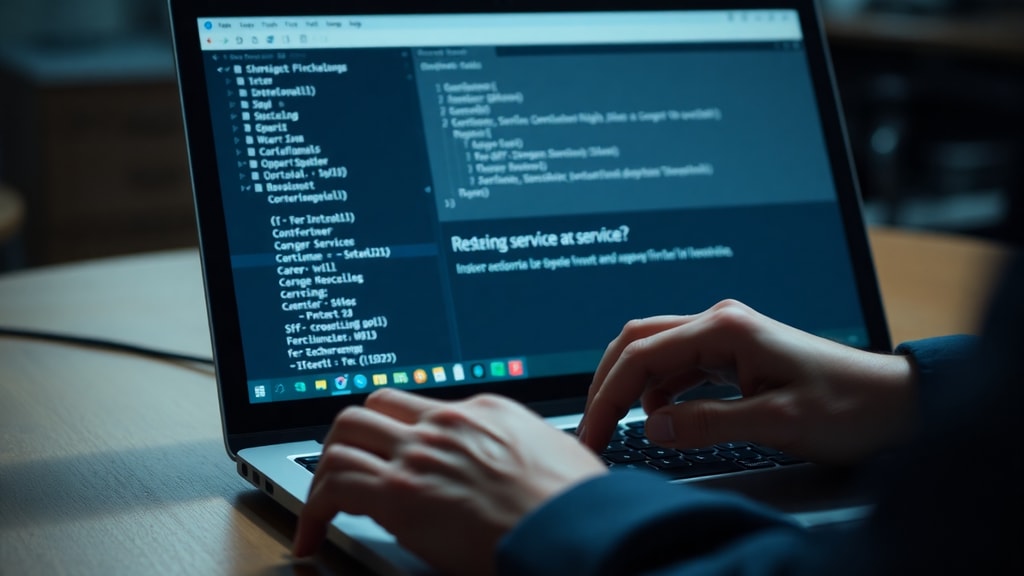
For users who prefer command-line tools or need to restart the spooler remotely, the Command Prompt offers a quick and efficient alternative. Open the Start menu, type cmd, right-click on Command Prompt, and select Run as administrator. In the elevated command window, type net stop spooler and press Enter. This command immediately halts the print spooler service. After a brief pause, type net start spooler and press Enter to restart it. You should see messages confirming that the service has stopped and started successfully. This method is particularly useful when the graphical interface is unresponsive or when you are managing multiple computers. It also allows you to script the restart process for automated maintenance tasks.
Method 3: Restarting with PowerShell
PowerShell provides an even more powerful way to manage the print spooler, especially for advanced users and system administrators. Open PowerShell as an administrator by right-clicking the Start button and selecting Windows PowerShell (Admin) or Terminal (Admin). Type the command Restart-Service -Name spooler and press Enter. This single command stops and restarts the service in one step, making it the fastest method available. If you encounter any errors, you can first check the service status with Get-Service -Name spooler. PowerShell also allows you to force a restart even if the service appears stuck, using the -Force parameter. This method is ideal for scripting and integration into larger maintenance routines.
Common Issues When Restarting the Spooler
Sometimes restarting the print spooler does not go as planned. You may receive an error message saying that the service cannot be stopped or that access is denied. This often happens when a print job is stuck in a corrupted state or when another program is holding a lock on the spooler files. In such cases, you need to take additional steps to clear the print queue manually. First, open the Services console and stop the Print Spooler service. Then, navigate to the folder C:\Windows\system32\spool\PRINTERS. Delete all files inside this folder. These files represent pending print jobs that may be corrupted. After deleting them, restart the spooler service. This manual cleanup often resolves stubborn issues that a simple restart cannot fix.
Ensuring the Spooler Starts Automatically
After restarting the print spooler, it is important to verify that its startup type is set to Automatic. If this setting is incorrect, the spooler may not start when you turn on your computer, leading to printing problems every time you boot. To check this, open the Services console, right-click on Print Spooler, and select Properties. In the General tab, look for the Startup type dropdown menu. Ensure it is set to Automatic. If it is set to Manual or Disabled, change it to Automatic and click Apply. Then click Start if the service is not already running. This simple configuration ensures that your printer is always ready to receive print jobs without manual intervention.
Troubleshooting Persistent Spooler Failures
If the print spooler continues to fail or crash repeatedly, there may be a deeper issue with your printer driver or system files. Start by checking for Windows updates, as Microsoft frequently releases patches that address spooler vulnerabilities and stability issues. Next, consider removing and reinstalling your printer driver. Go to Settings, then Bluetooth and devices, then Printers and scanners. Select your printer, click Remove device, and confirm. Then download the latest driver from your printer manufacturer's website and install it. In rare cases, a system file corruption may be the cause. Run the System File Checker tool by opening Command Prompt as administrator and typing sfc /scannow. This tool repairs corrupted system files that may affect the spooler service.
List of Quick Steps to Restart the Print Spooler
For quick reference, here is a summary of the three main methods to restart the print spooler in Windows:
- Services GUI: Open services.msc, find Print Spooler, right-click, and select Restart.
- Command Prompt: Run as admin, type net stop spooler, then net start spooler.
- PowerShell: Run as admin, type Restart-Service -Name spooler.
Comparison of Restart Methods
The following table compares the three methods for restarting the print spooler, highlighting their key features and best use cases:
| Method | Steps Required | Best For | Speed |
|---|---|---|---|
| Services GUI | Open services.msc, right-click, select Restart | Beginners and visual users | Moderate |
| Command Prompt | Run as admin, type two commands | Remote management and scripting | Fast |
| PowerShell | Run as admin, type one command | Advanced users and automation | Fastest |
Additional Tips for Maintaining a Healthy Print Spooler
To prevent future spooler issues, adopt a few proactive maintenance habits. Regularly clear your print queue by canceling any stuck jobs before they accumulate. Avoid sending very large print jobs that may overwhelm the spooler, especially on older computers. Keep your printer drivers up to date by visiting the manufacturer's website periodically. If you use network printers, ensure your network connection is stable and that the printer is powered on before sending jobs. Finally, consider disabling the spooler for printers that you rarely use, as this reduces the chance of conflicts. By following these tips, you can minimize the frequency of spooler problems and enjoy reliable printing.
When to Seek Professional Help
If you have tried all the methods described above and the print spooler still fails, it may be time to seek professional assistance. Persistent spooler crashes can indicate hardware issues with your printer, a failing hard drive, or even malware infection. Contact your printer manufacturer's support team for driver-specific troubleshooting. Alternatively, consult a qualified IT technician who can perform advanced diagnostics. In some cases, a system restore to a point before the problems began can resolve the issue. Remember that the print spooler is a core Windows service, and problems with it can sometimes signal broader system instability that requires expert attention.
References
Microsoft Support. Corrigir erros de falha do serviço de spooler de impressão no Windows. https://support.microsoft.com/pt-br/windows/corrigir-erros-de-falha-do-servi%C3%A7o-de-spooler-de-impress%C3%A3o-no-windows-bb0de80a-8c4a-4938-a36a-f89a859113f0
Microsoft Learn. Problemas de impressão causados pela não execução do serviço Spooler de Impressão. https://learn.microsoft.com/pt-br/troubleshoot/windows-server/printing/print-spooler-service-not-running