What Is the Clipboard and Why You Need to Open It
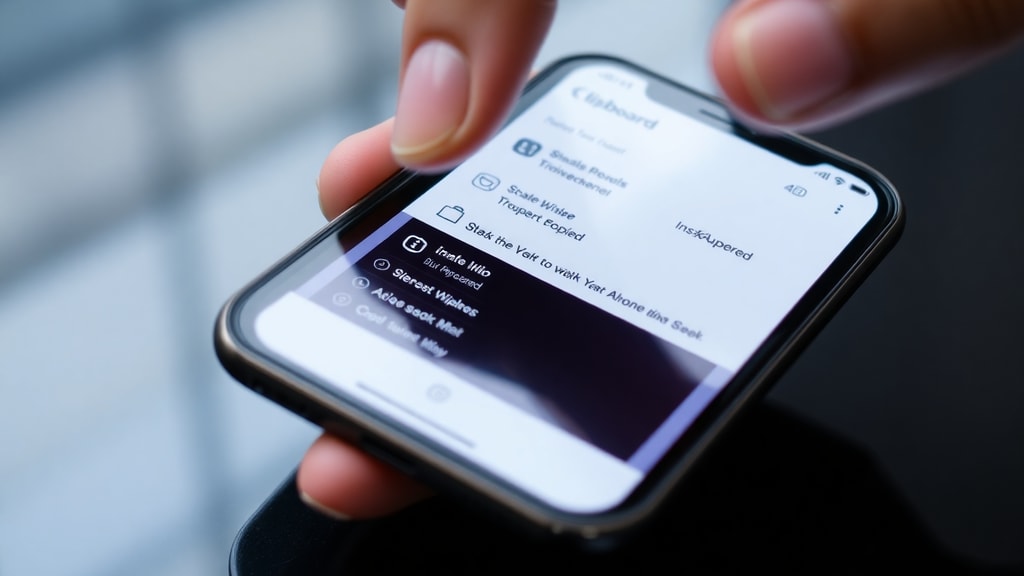
The clipboard is a temporary storage area that holds data you copy or cut from one location and intend to paste somewhere else. It works in the background on every device, from Windows PCs and Macs to Android phones and even office software. Opening the clipboard allows you to view, manage, and retrieve items you have copied recently. This is especially useful when you accidentally overwrite a copied piece of text or need to reuse an item you copied hours ago. Knowing how to open the clipboard on any device saves time and reduces frustration. Whether you are working on a document, chatting on your phone, or navigating your computer, accessing the clipboard lets you take full control of your copied content.
How to Open the Clipboard on Windows 10 and Windows 11
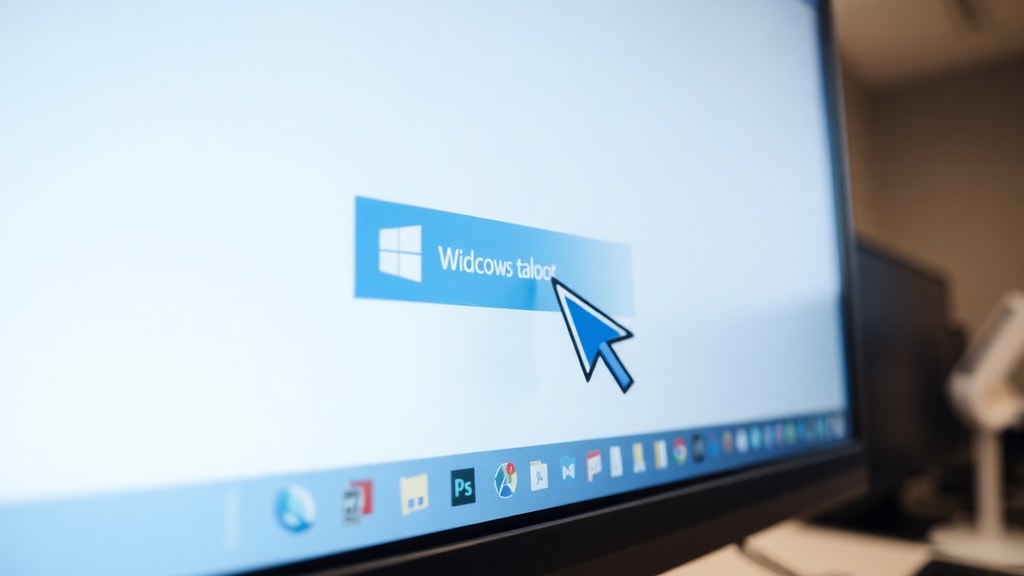
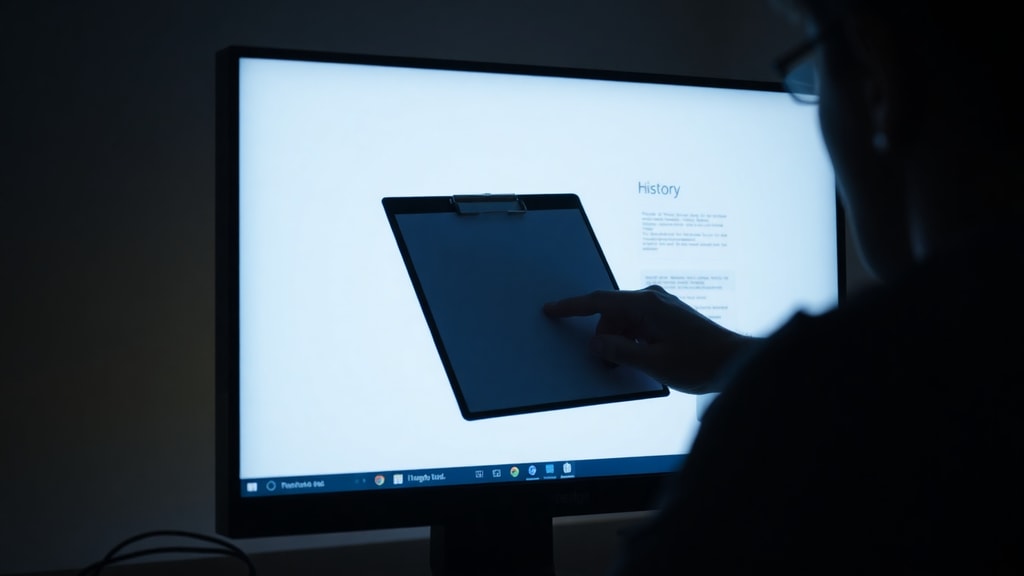
Microsoft introduced a clipboard history feature starting with Windows 10 that makes it easy to see and manage multiple copied items. To open the clipboard on a Windows PC, press the Windows key + V on your keyboard. A small window will appear showing a list of items you have copied recently, including text, images, and links. If you press this combination and nothing happens, the clipboard history feature may be turned off. In that case, Windows will prompt you to click “Ativar” (Enable) to activate it. Once enabled, you can select any item from the history to paste it, or you can pin frequently used items so they do not get deleted. You can also clear the entire clipboard history from the same menu. For more detailed guidance, refer to the official Microsoft Support page on using the clipboard.
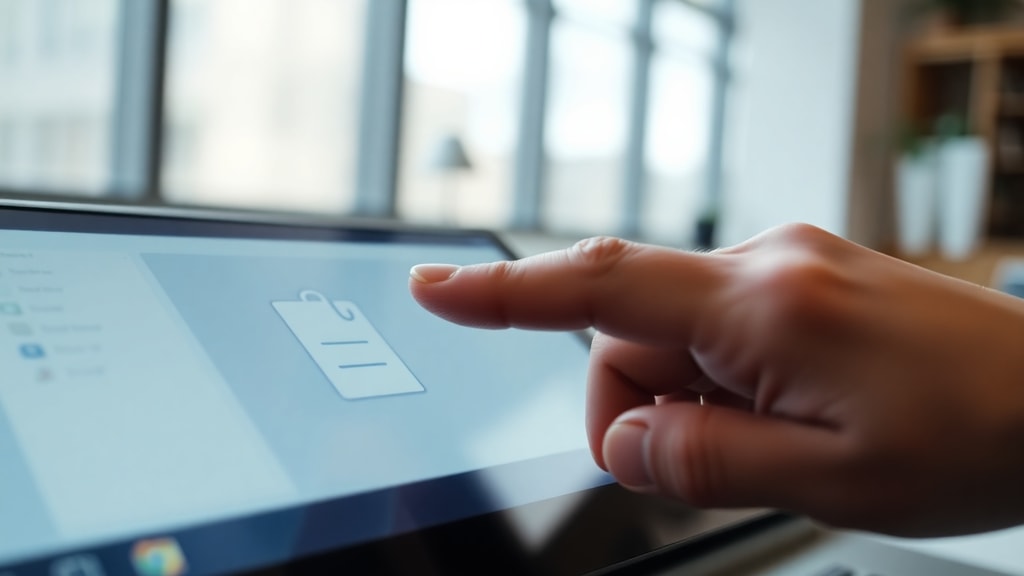
On Windows 10 and 11, the clipboard history can store up to 25 items by default. It supports text, HTML, and images under 4 MB. The feature syncs across devices if you sign in with the same Microsoft account, allowing you to paste copied content from your PC onto your laptop or even your phone. To open the clipboard on older Windows versions that do not support history, you can still view the current clipboard content using a built-in tool called Clipboard Viewer, although it is not available in newer versions. The Windows key + V shortcut remains the primary method for accessing the clipboard on modern systems.
How to Open the Clipboard on Mac
On a Mac, opening the clipboard is straightforward but limited to showing only the most recently copied item. To do this, make sure the Finder application is active. Then click on the Edit menu in the menu bar at the top of the screen and select Show Clipboard. A small window will appear displaying the last item you copied, whether it is text, an image, or a file. Unlike Windows, macOS does not have a built-in clipboard history feature. If you need to access multiple pasted items, you will have to rely on third-party clipboard managers. These apps can record a history of everything you copy and let you browse through it with a simple shortcut. Many users prefer apps like Paste or CopyClip for this purpose. The native Show Clipboard option is useful for a quick check, but it does not allow you to manage multiple entries or pin items.

How to Open the Clipboard on Android Devices
Android devices handle the clipboard differently depending on the keyboard app you use. Most phones come with a default keyboard, but many users switch to Gboard or Samsung Keyboard. Below is a list of common methods to open the clipboard on Android:
- Samsung Galaxy devices (Samsung Keyboard): Open any app that brings up the keyboard, such as Messages or Notes. Tap the menu icon (three dots or a gear icon) located on the keyboard toolbar. From the menu, select Área de Transferência (Clipboard). If this option is missing, you may need to enable it in the keyboard settings under “Clipboard.” Once open, you will see a history of your copied text and images.
- Gboard (Google Keyboard): Open the keyboard, then tap the personalization icon (a small square with a pencil or a gear) at the top left of the keyboard toolbar. Select Área de Transferência from the menu. If it is disabled, tap the toggle switch to Ativar (enable). Gboard’s clipboard can store up to 20 items, and you can pin important ones so they are not automatically deleted.
- Other Android keyboards: Many third-party keyboards offer clipboard access through a toolbar button or a dedicated clipboard key. Look for an icon that resembles a clipboard or a stack of papers, often hidden behind a plus sign or menu.
If you are using a stock Android keyboard without a dedicated clipboard manager, you can still paste the last copied item by long-pressing on a text field and selecting Paste. However, to view clipboard history, you might need to install a separate clipboard app. For more troubleshooting advice, check the Google Support discussion on clipboard access issues.
How to Open the Clipboard in Microsoft Office Apps
Microsoft Office applications like Word, Excel, and Outlook have their own clipboard tool that goes beyond the system clipboard. It can store up to 24 items and allows you to paste them individually or all at once. To open the Office clipboard, navigate to the Home tab on the ribbon. In the top-left corner, look for the small arrow icon in the Clipboard group. Clicking this dialog launcher opens a task pane on the left side of the screen. In Outlook, while composing a message, go to the Message tab and click the same Clipboard dialog launcher. The pane shows each copied item with a preview. You can click any item to paste it, or click “Paste All” to insert every item in order. This feature is especially useful when you are gathering content from multiple sources and need to reorganize them later. The Office clipboard also clears itself when you close the application, so you do not have to worry about clutter.
Common Issues and Troubleshooting
Sometimes opening the clipboard may not work as expected. The table below lists frequent problems and their solutions across different devices.
| Device | Problem | Solution |
|---|---|---|
| Windows | Windows key + V does nothing | Enable clipboard history in Settings > System > Clipboard. Toggle “Clipboard history” on. |
| Mac | Show Clipboard shows no content | Make sure you have copied something recently. The Mac clipboard only shows the last item. |
| Android (Samsung) | Clipboard option not visible on keyboard | Go to Keyboard settings, enable “Clipboard” or “Clipboard history.” On some models, you need to tap the three dots and then the gear icon. |
| Android (Gboard) | Clipboard toggle is grayed out | Update Gboard from the Play Store. If still not working, clear the app cache in Settings > Apps > Gboard > Storage. |
| Office apps | Clipboard pane does not appear | Click the dialog launcher icon again. If the pane is hidden, go to View and make sure “Task Pane” is checked. |
Beyond these issues, remember that clipboard history may be disabled by your IT administrator on managed devices. On Android, some manufacturers hide clipboard options under advanced keyboard settings. Always check your device’s keyboard app documentation for the exact steps. With the information provided in this article, you should be able to open the clipboard on almost any device and take advantage of its full capabilities.
References
Microsoft Support. “Usando a área de transferência.” Accessed June 2025. https://support.microsoft.com/pt-br/windows/usando-a-%C3%A1rea-de-transfer%C3%AAncia-30375039-ce71-9fe4-5b30-21b7aab6b13f
TechTudo. “Área de transferência do Windows 10: como acessar e limpar no PC.” Accessed June 2025. https://www.techtudo.com.br/dicas-e-tutoriais/2021/06/area-de-transferencia-do-windows-10-como-acessar-e-limpar-no-pc.ghtml
Google Support. “Não consigo acessar a área de transferência (Samsung A25).” Accessed June 2025. https://support.google.com/accounts/thread/346882396/nao-consigo-acessar-a-srea-de-transferencia?hl=pt-BR
Wondershare MobileTrans. “Área de Transferência do celular e PC.” Accessed June 2025. https://mobiletrans.wondershare.com/br/android-tips/area-de-transferencia.html
Microsoft Office Support. “Copiar e colar usando a Área de Transferência do Office.” Accessed June 2025. https://support.microsoft.com/pt-br/office/copiar-e-colar-usando-a-%C3%A1rea-de-transfer%C3%AAncia-do-office-714a72af