Understanding the 100 Mbps Cap on Your Second Router
You have connected a second router to your main network, expecting blazing fast speeds, but your wired connection is stuck at or below 100 Mbps. This is a common frustration, especially when you know your internet plan offers much more. The good news is that this limitation is almost always caused by a hardware or configuration issue that can be fixed. Achieving 100 Mbps or higher – ideally Gigabit speeds of 1000 Mbps – over a wired Ethernet connection depends on three main factors: the ports on your routers, the cable connecting them, and the settings within each device. In this guide, we will walk through each step to ensure your second router delivers full bandwidth through its LAN ports.
Verify Your Routers Have Gigabit Ethernet Ports
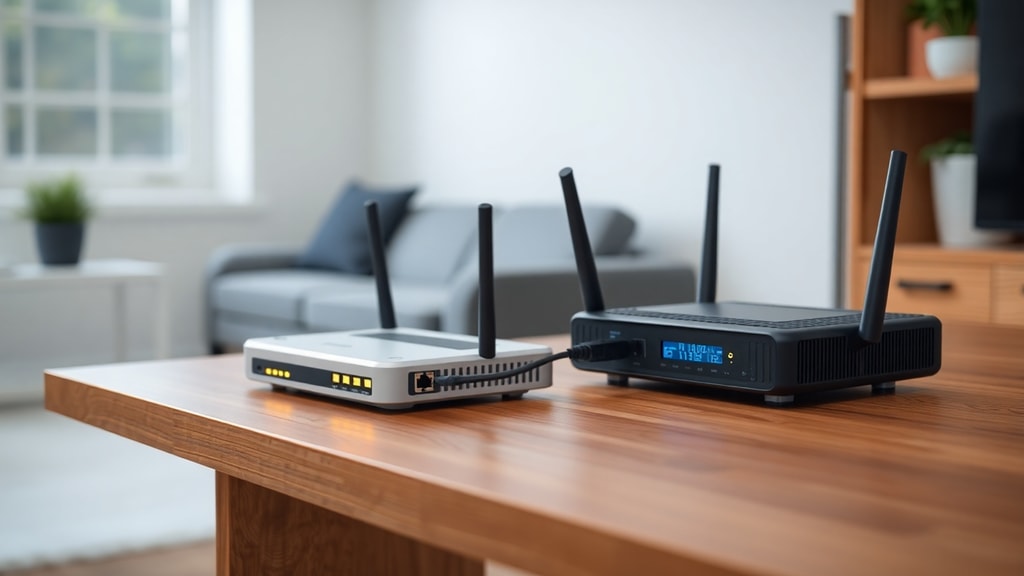
The very first thing to check is the hardware itself. Many older routers, and even some budget models, come with Fast Ethernet ports that are physically limited to 100 Mbps. Look at the specifications label on the router or the port itself. If you see “10/100” or “Fast Ethernet” next to the LAN or WAN ports, those ports cannot exceed 100 Mbps no matter what cable or configuration you use. To get 100+ Mbps, both the main router and the second router must have ports labeled “10/100/1000” or “Gigabit Ethernet”. If the second router has only 10/100 ports, you will need to replace it with a Gigabit-capable model. Remember, even if your internet speed is 500 Mbps, a single 100 Mbps port will bottleneck the entire connection to 100 Mbps.
Use the Correct Ethernet Cable Category
Once you confirm both routers have Gigabit ports, the next suspect is the Ethernet cable. Not all cables are created equal. For reliable speeds above 100 Mbps, you need at least Cat5e (Category 5 enhanced) or Cat6 cable. Cat5 cables (without the “e”) are only rated for 100 Mbps and will cap your connection. Cat5e and Cat6 can handle Gigabit Ethernet and even higher speeds. If you are using a long run, Cat6 offers better interference protection. Connect the two routers using a known good Cat5e or Cat6 cable. Avoid using cables that are coiled, pinched, or damaged. Even a kinked cable can cause signal degradation and force the connection down to 100 Mbps.
The Critical Role of All 8 Wires
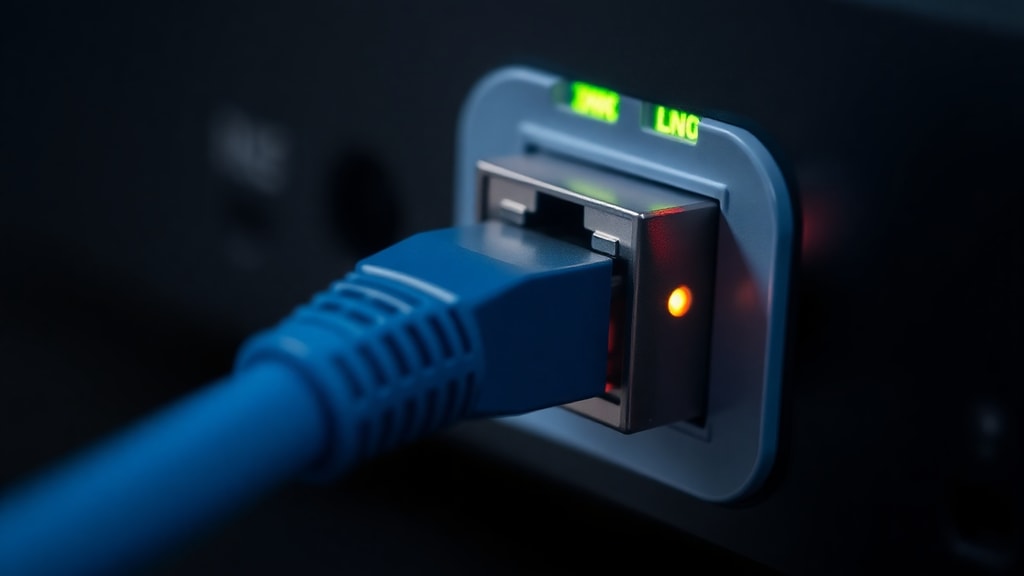
This is a surprisingly common issue that many people overlook. Gigabit Ethernet requires all four twisted pairs of wires (eight wires total) inside the cable to be properly terminated at both ends. If even one wire is broken, not making contact, or incorrectly crimped, the connection will drop to Fast Ethernet mode, using only two pairs and limiting speed to 100 Mbps. This can happen if you made your own cables, used a cheap pre-made cable, or if a cable was crushed by a piece of furniture. The easiest way to test this is to swap the cable with one that you know works at Gigabit speeds. If the speed jumps to 1000 Mbps, the original cable is faulty. You can also use a cable tester to check continuity on all eight wires. Many Reddit users in the home networking community have solved their speed cap exactly this way – by replacing a cable that had a broken wire. See the discussion on Second router capped to 100mbps for more real-world troubleshooting stories.
Configure the Second Router Correctly
How you set up the second router can affect the wired speed, though it usually doesn’t cause a 100 Mbps cap unless there is a misconfiguration that creates a bottleneck. You have two main options: run it as a second router (with its own subnet) or as an access point / switch. If you are using it as a second router, make sure the WAN port on the second router is connected to a LAN port on the main router, and that the second router’s WAN IP address is set to obtain automatically (DHCP). If you are using it as an access point (AP mode), you should connect the main router’s LAN port to one of the second router’s LAN ports (not the WAN port), and disable DHCP on the second router to avoid IP conflicts. While these configuration choices do not directly limit the physical speed, a faulty WAN port on the second router could be a cause. Try connecting the cable to a different LAN port on the second router to see if the speed changes.
Force Gigabit Speed in Network Adapter Settings
Sometimes the problem is not the cable or ports but the auto-negotiation process. When two devices try to negotiate the fastest speed, they might fall back to 100 Mbps if there is a minor signal issue or driver glitch. You can force the port speed to 1 Gbps Full Duplex on both ends. On the second router, if it has a management interface (such as a built-in web interface for advanced settings), look for an option to set the LAN port speed to “1000 Mbps Full Duplex” or “1 Gbps”. If that is not available, you can force the speed on the device connected to the second router’s LAN port (like your computer). In Windows, go to Network Settings, find the Ethernet adapter, click Configure, go to the Advanced tab, select “Speed & Duplex”, and choose “1 Gbps Full Duplex”. On a Mac, you can set it in the Network pane under Ethernet, selecting “Manually” and choosing 1000baseT. Microsoft’s official support article Minha internet a cabo limita nos 100mbps (translated as “My cable internet is limited to 100mbps”) explains how forcing 1 Gbps Full Duplex can resolve negotiation errors. Be aware that if the cable or port is truly faulty, forcing Gigabit may cause packet loss or disconnections. If that happens, revert to auto-negotiation and investigate the cable.
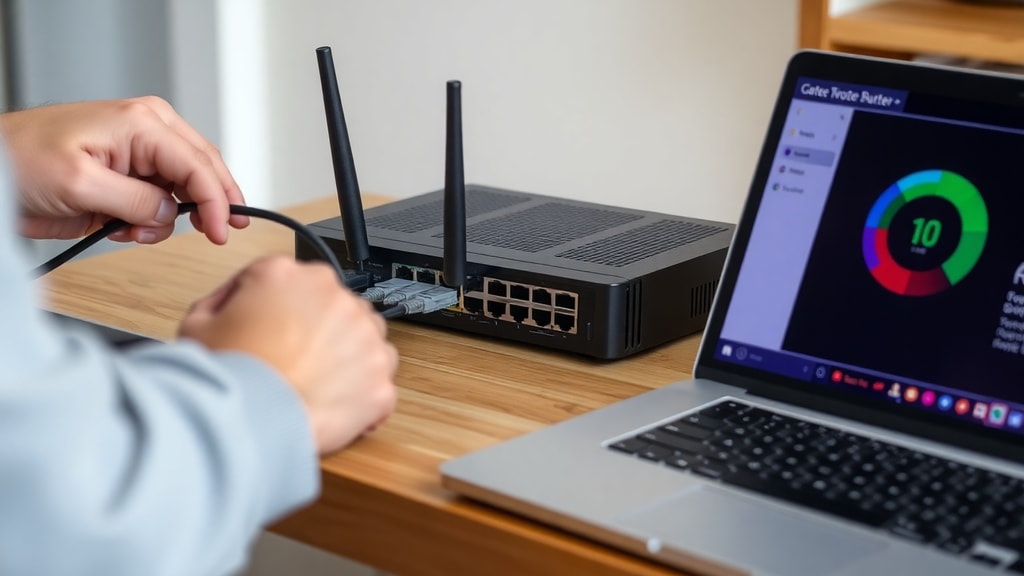
Table: Quick Troubleshooting Checklist for 100+ Mbps via Cable
Use this table to systematically check each possible cause:
| Item to Check | What to Look For | Action Required |
|---|---|---|
| Router ports | Label says 10/100/1000 or Gigabit | Replace any router with 10/100 ports |
| Ethernet cable | Cat5e or Cat6, not damaged | Swap with a known good cable |
| All 8 wires | Cable tester shows all pairs connected | Re‑crimp or replace cable |
| Port auto‑negotiation | Speed shows 100 Mbps in status | Force 1 Gbps Full Duplex |
| Router configuration | Second router in AP mode or correct DHCP | Disable DHCP if using LAN‑to‑LAN |
| Driver/update | Network adapter driver outdated | Update driver from manufacturer |
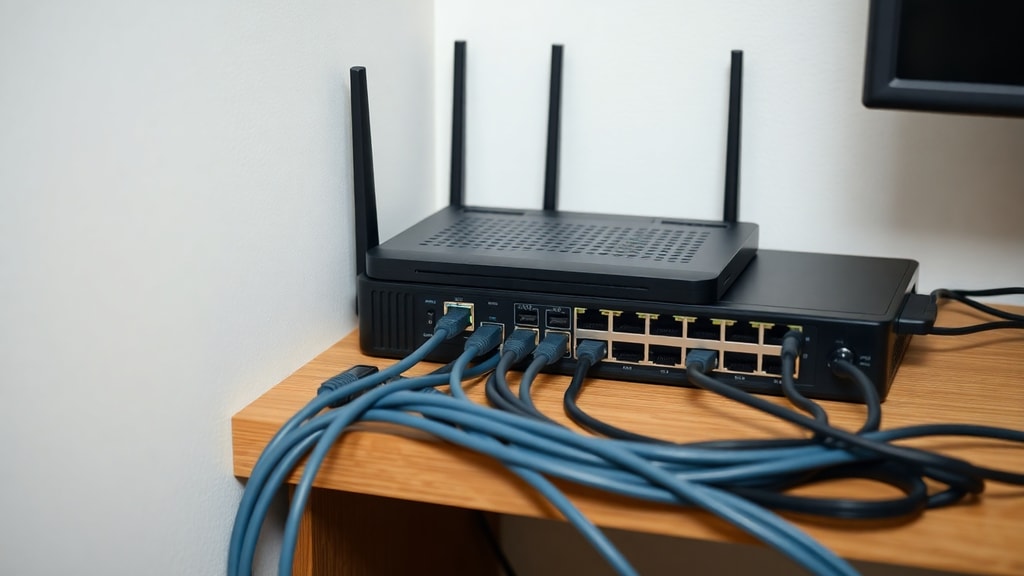
List: Five Steps to Ensure Your Second Router Exceeds 100 Mbps
Follow this checklist in order to isolate and fix the problem:
- Inspect the hardware labels – verify both routers have Gigabit Ethernet ports (10/100/1000).
- Replace the Ethernet cable with a certified Cat5e or Cat6 cable, no longer than 100 meters.
- Test a different port on the second router – use a LAN port instead of the WAN port if possible.
- Force 1 Gbps Full Duplex on the PC or device connected to the second router’s LAN port.
- Update network drivers for your computer’s Ethernet adapter and check for router firmware updates.
Additional Factors That Can Limit Wired Speed
Even after verifying all physical components, other factors can cap your wired speed. The simplest is the quality of the Ethernet termination. If you are using patch panels or wall jacks, any poor punch-down can cause a single wire to fail. Also, be aware that some routers have a “green” power-saving mode that can reduce link speed or negotiate incorrectly; disable any eco-mode features on the router’s LAN ports. If you are using Powerline adapters to extend the network before the second router, those often top out below 100 Mbps as well. For the direct Ethernet connection between routers, avoid using any intermediate adapters.
Another hidden cause is the cable’s internal construction. Some thin “flat” Ethernet cables are not properly twisted and can struggle with Gigabit speeds, especially over longer distances. Stick to round, stranded Cat6 cables for reliable performance. Finally, check if the second router’s LAN ports are actually Gigabit on all ports. Some cheaper routers have one Gigabit WAN port but only 10/100 LAN ports – a deceptive cost-cutting measure.
Conclusion
Unlocking the full potential of your second router’s wired connection is a straightforward process when you systematically test each layer. Always start with the most common culprit: the cable and its internal wiring. If all eight wires are intact and the cable is at least Cat5e, move on to forcing the speed manually. In the vast majority of cases, one of these steps will push your speed above 100 Mbps. Remember that your internet plan speed is irrelevant if your internal network hardware cannot handle it. With the steps outlined here, you can create a robust Gigabit home network that supports streaming, gaming, and large file transfers without that frustrating cap.
References
For further reading and community support, consult the following sources:
- Reddit r/HomeNetworking – “Second router capped to 100mbps” discussion. https://www.reddit.com/r/HomeNetworking/comments/o1fbd4/second_router_capped_to_100mbps/
- Microsoft Learn – “Minha internet a cabo limita nos 100mbps” official guide on forcing 1 Gbps Full Duplex. https://learn.microsoft.com/pt-br/answers/questions/3810221/minha-internet-a-cabo-limita-nos-100mbps
- Office of Bits Blog – “Crie uma Rede Gigabit de Alta Velocidade em Casa” detailed checklist. https://blog.oficinadosbits.com.br/faca-voce-mesmo-crie-uma-rede-gigabit-de-alta-velocidade-em-casa/
- WikiHow – “Como Conectar Dois Roteadores” step-by-step guide. https://pt.wikihow.com/Conectar-Dois-Roteadores