Understanding Why You Might Need to Disable a Keyboard Key
Keyboards are essential tools for daily computer use, but sometimes a single key can become a problem. A stuck, broken, or overly sensitive key can interrupt your workflow, cause accidental inputs, or even make typing impossible. You might also want to disable a key for personal preference, such as turning off the Caps Lock key if you never use it, or disabling a key that triggers unwanted shortcuts in games. Whatever the reason, knowing how to disable a keyboard key easily can save you time and frustration. This article covers several methods for Windows and Mac, from simple software tools to advanced registry edits, and provides clear steps to achieve your goal.
The good news is that you do not need to replace your keyboard or buy new hardware. Software solutions allow you to remap or disable any key on your keyboard. These methods work on both laptop and desktop keyboards. Some of them are free, require no technical skills, and can be reversed at any time. By the end of this article, you will have a complete understanding of how to disable a keyboard key using the most reliable tools available.
Method 1: Using AutoHotkey on Windows
AutoHotkey is a powerful scripting language for Windows that lets you automate almost any action. It is also one of the most lightweight and flexible ways to disable a key. You can create a simple script that tells the system to ignore a specific key. For example, to disable the Caps Lock key, you write CapsLock::return. This script intercepts the Caps Lock signal and does nothing with it. You can do the same for any key using its name, as listed in the AutoHotkey documentation.
To start, download and install AutoHotkey from its official website. After installation, create a new text file and rename it with a .ahk extension, for example, disablekeys.ahk. Right-click the file and choose Edit Script. In the editor, type the key name followed by ::return. For a complete list of key names, check the AutoHotkey KeyList. After saving the file, double-click it to run the script. The key will be disabled immediately. This method works without restarting your computer and can be stopped by right-clicking the AutoHotkey icon in the system tray and selecting Exit. It is ideal for temporary or permanent disabling of one or more keys.
One advantage of AutoHotkey is that you can create more complex scripts if needed. For instance, you can disable multiple keys at once or create toggle switches. The only requirement is that the script runs in the background. If you want the script to start automatically with Windows, place a shortcut to it in the Startup folder. AutoHotkey is highly recommended for Windows users because it is free, open-source, and gives you complete control. However, it does require a few minutes to learn the syntax. The official documentation provides examples for every key on a standard keyboard.
Method 2: Using SharpKeys for a Simple GUI Solution
SharpKeys is a free Windows program that provides a graphical interface for remapping or disabling keys. It works by editing the Windows registry, but it does all the complex work for you. The process is straightforward: download SharpKeys, install it, and open the program. Click Add to create a new mapping. On the left side, select the key you want to disable. On the right side, choose Turn Key Off, which maps the key to an undefined function. After applying, you must restart your computer for the change to take effect.
SharpKeys supports almost every key on a standard keyboard, including function keys, multimedia keys, and special laptop keys. You can disable a single key or several keys in one session. The program also allows you to restore the default settings at any time by deleting the mapping. This is useful if you accidentally disable the wrong key or if you want to revert changes after replacing a keyboard. SharpKeys is particularly helpful for people who are not comfortable editing the registry manually. It is safe and widely used by technicians and casual users alike.
One limitation is that SharpKeys requires a restart to apply changes. However, the process is quick and reliable. The program is compatible with Windows 7 through Windows 11. You can download it from trusted sources like Uptodown or the official SharpKeys page. After restarting, the selected key will be completely disabled. If you later need to enable it again, simply open SharpKeys, delete the mapping, and restart your PC. This method is perfect if you prefer a visual tool and do not want to code.
Method 3: Using KeyTweak for Detailed Control
KeyTweak is another Windows utility that gives you granular control over your keyboard. It works similarly to SharpKeys but offers a slightly different interface. After downloading and installing KeyTweak, you will see a virtual keyboard layout. Click the key you want to disable, and it will be highlighted. In the Controls section on the right, select Disable Key. Then click Apply and restart your computer. This method is intuitive because you can visually confirm which key you are disabling. KeyTweak also allows you to remap keys to other functions, but for disabling, the dedicated option is straightforward.
KeyTweak is suitable for users who need to disable several keys at once. You can select multiple keys before applying, which saves time. The program also shows the current mapping of each key, so you can verify that the change was made correctly. One downside is that KeyTweak has not been updated in several years, but it still works on modern Windows versions. It is also a good choice for older laptops where keyboard drivers are limited. As with SharpKeys, a restart is required for the changes to take effect.
KeyTweak is available on WebTech360 and other software repositories. It is free and does not include ads or bloatware. If you prefer a more hands-on approach but want a visual interface, KeyTweak is an excellent alternative. It gives you a clear overview of your keyboard layout and makes disabling a key as simple as a few clicks.
Method 4: Using Microsoft PowerToys Keyboard Manager
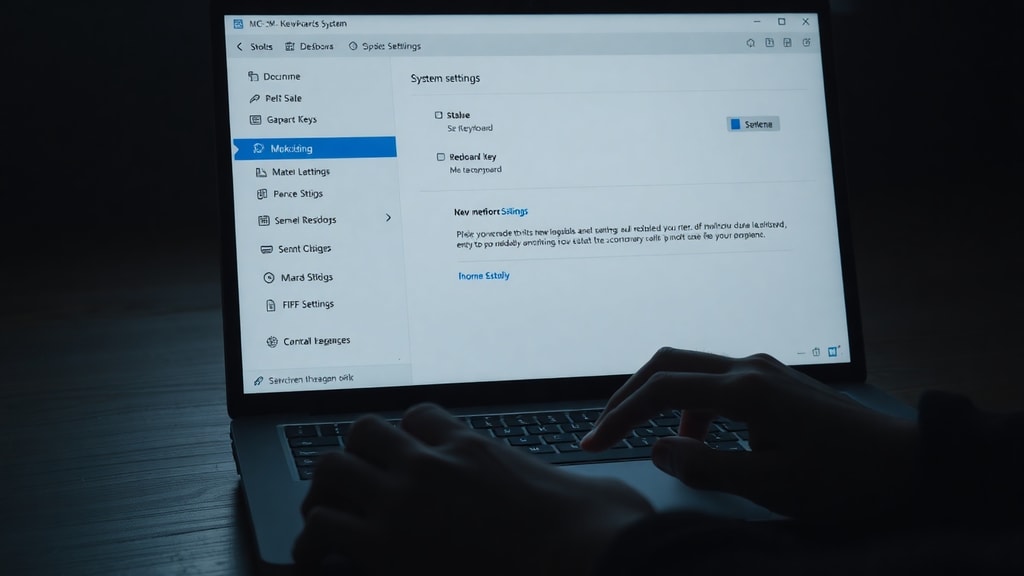
Microsoft PowerToys is a set of utilities for power users, and it includes a Keyboard Manager module. This tool is officially supported by Microsoft and is completely safe. To disable a key, install PowerToys from the Microsoft Store or GitHub. Open PowerToys and navigate to Keyboard Manager in the left menu. Enable the feature, then click Remap a Key. In the window that opens, under Select, press the key you want to disable. Under Send, choose Disabled or map it to an undefined function. Click OK and then Apply. The change takes effect immediately, with no restart required.

The advantage of PowerToys is that it is actively developed, free, and integrates well with Windows. You can disable any key, including modifier keys like Ctrl, Alt, or Shift. It also works with function keys and media keys. The interface is clean and easy to use. If you later want to re-enable the key, you can simply delete the remapping. PowerToys also offers a Remap Shortcuts feature for customizing key combinations. This tool is ideal for Windows 10 and Windows 11 users who want a modern solution with ongoing support.
One limitation is that Keyboard Manager works at the user level, so it applies only to your account. If you have multiple users on the same computer, each one would need to set up their own mappings. However, for personal use, this is not a problem. PowerToys is highly recommended if you distrust third-party tools and prefer a Microsoft-approved utility. It also provides other useful features like FancyZones and PowerRename, which can enhance your overall productivity.
Method 5: Editing the Windows Registry Manually
If you prefer a method that does not require installing any software, you can edit the Windows registry manually. This approach uses a Scancode Map value to tell the system to ignore a specific key. It is more technical, but it works on all Windows versions. Before proceeding, create a backup of your registry by exporting the current settings. Then open Regedit by pressing Windows+R and typing regedit. Navigate to HKEY_LOCAL_MACHINE\SYSTEM\CurrentControlSet\Control\Keyboard Layout. Right-click in the right pane, choose New, and select Binary Value. Name it Scancode Map. Then enter the binary data that corresponds to the key you want to disable.
The binary data format requires specific hex values. For example, to disable the Caps Lock key, the data is: 00 00 00 00 00 00 00 00 02 00 00 00 00 00 3A 00 00 00 00 00. The 3A is the scancode for Caps Lock. You can find scancode lists online for other keys. After entering the data, close Regedit and restart your computer. The key will be disabled. To revert, delete the Scancode Map value and restart. This method is permanent until you remove the registry entry. It is useful for system administrators who need to disable keys on multiple machines or for users who want a software-free solution.
Editing the registry carries risks if you make a mistake. An incorrect value can cause keyboard errors or system instability. Therefore, this method is recommended only for experienced users. However, if done correctly, it is reliable and does not consume system resources. It also works before Windows fully loads, meaning the key is disabled even at the login screen. For a safer alternative, use SharpKeys or PowerToys instead, as they automate the registry editing process.
Method 6: Disabling Keys on Mac with Karabiner-Elements
Mac users have a dedicated tool called Karabiner-Elements. This free open-source software allows you to customize your keyboard extensively. To disable a key, install Karabiner-Elements from its official website. Open the app and go to the Simple Modifications tab. Click Add Item. In the From key dropdown, select the key you want to disable, for example, Caps Lock. In the To key dropdown, select No Action or None. The change is applied instantly. You can disable multiple keys by adding more items. This method works on both built-in Mac keyboards and external ones.
Karabiner-Elements is highly reliable and supports complex modifications if you need them. It is compatible with macOS Ventura and newer versions. The interface is straightforward, and the app includes a search function to find your key quickly. If you want to re-enable a key, simply delete the corresponding item. The app also allows you to create profiles for different keyboards, which is useful if you use a laptop and a desktop keyboard at different times. Karabiner-Elements is the standard recommendation for Mac users who need to disable a key.
One thing to note is that Karabiner-Elements requires accessibility permissions to function. macOS will prompt you to grant these permissions in System Settings. After that, the tool works seamlessly. It does not require a restart, and changes take effect immediately. This method is safe and reversible. If you want a simple way to disable a specific key on your Mac, Karabiner-Elements is the best choice.

Comparison of Methods
| Method | Platform | Restart Required | Ease of Use | Permanent |
|---|---|---|---|---|
| AutoHotkey | Windows | No | Moderate | While script runs |
| SharpKeys | Windows | Yes | Easy | Until reverted |
| KeyTweak | Windows | Yes | Easy | Until reverted |
| PowerToys | Windows | No | Easy | Until reverted |
| Registry Edit | Windows | Yes | Hard | Until deleted |
| Karabiner-Elements | Mac | No | Easy | Until reverted |
General Tips for Disabling a Keyboard Key
Before applying any method, test the key to confirm it is indeed problematic. Sometimes a key can be fixed by cleaning it with compressed air or removing a stuck particle. If the key works physically but causes accidental inputs, software disabling is the best solution. Always back up your registry if you plan to edit it manually. For temporary situations, such as during a gaming session, AutoHotkey or PowerToys are ideal because you can stop them quickly. For permanent situations, such as a broken key on a laptop, SharpKeys or Karabiner-Elements provide a set-and-forget solution.
It is also important to note that disabling a key does not affect other keys. Your keyboard will continue to function normally. If you disable a modifier key like Shift or Ctrl, be careful because it might interfere with keyboard shortcuts. In such cases, consider remapping the key to a less-used function instead of disabling it completely. For example, you could map Caps Lock to a media key or a macro. Most of the tools mentioned above support remapping as well. This flexibility allows you to customize your keyboard layout to suit your needs.
If you are using a laptop, be aware that some laptop-specific keys, such as brightness controls or volume buttons, are not always handled the same way as standard keys. Tools like AutoHotkey or Karabiner-Elements may not recognize them. In that case, check the manufacturer's software for your laptop. Many brands provide their own keyboard customization utilities. For external keyboards, all the methods above work well. The key is to choose the method that matches your technical comfort level and your specific operating system.
References
AutoHotkey documentation provides a complete list of key names and syntax for scripting. The official site is at https://www.autohotkey.com/docs/KeyList.htm. Microsoft Answers also covers how to disable keys using AutoHotkey, available at https://learn.microsoft.com/pt-br/answers/questions/3994998/como-desativar-uma-tecla-espec-fica-apenas-no-tecl. SharpKeys can be downloaded from Uptodown and Ryan's blog, which explains how to use it to disable keys. KeyTweak is described in detail on WebTech360, along with step-by-step instructions. Microsoft PowerToys Keyboard Manager is documented on the Windows Office site. The registry editing method is outlined on Saber Tecnologias, along with the Karabiner-Elements guide for Mac users. These sources provide additional details and troubleshooting tips.