Why Knowing Your Monitor Size Matters
Understanding the exact size of your monitor is more than a trivial piece of information. It helps you choose the right desk setup, decide between a single or multi‑monitor configuration, and ensure that any new stand or wall mount you buy fits properly. In addition, knowing your screen dimensions allows you to compare sizes when shopping for a second display or to calculate the correct viewing distance for comfortable work or gaming. Many people assume the size is written on the box or the back label, but over time labels fade, boxes get recycled, and the only reliable way may be to measure it yourself. This article will walk you through several straightforward methods to determine your monitor size, from a simple physical measurement to checking system settings on your computer. You will also learn how to convert those measurements into the standard inch unit used by most manufacturers.
Method 1: Physical Measurement Using a Tape Measure
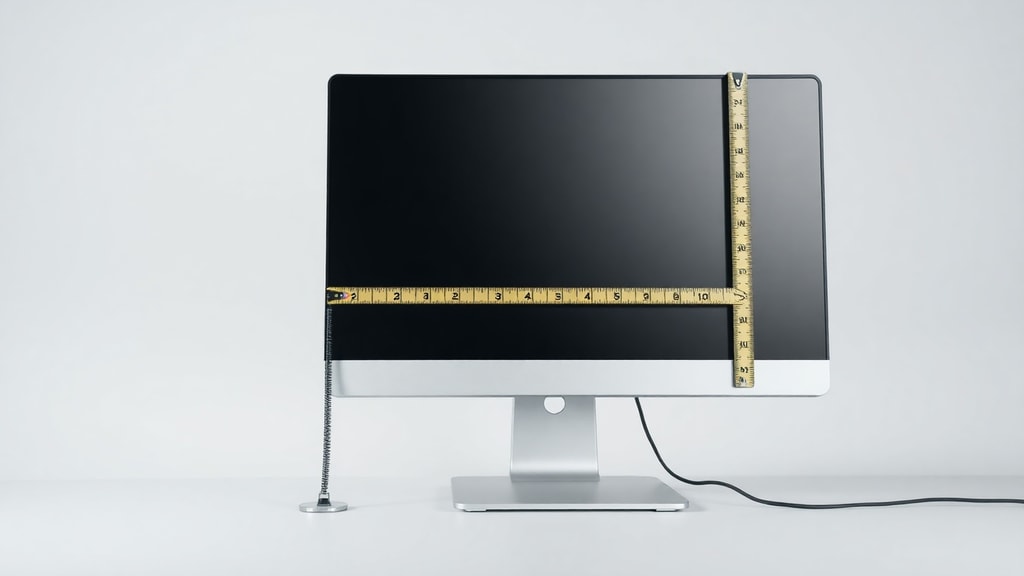
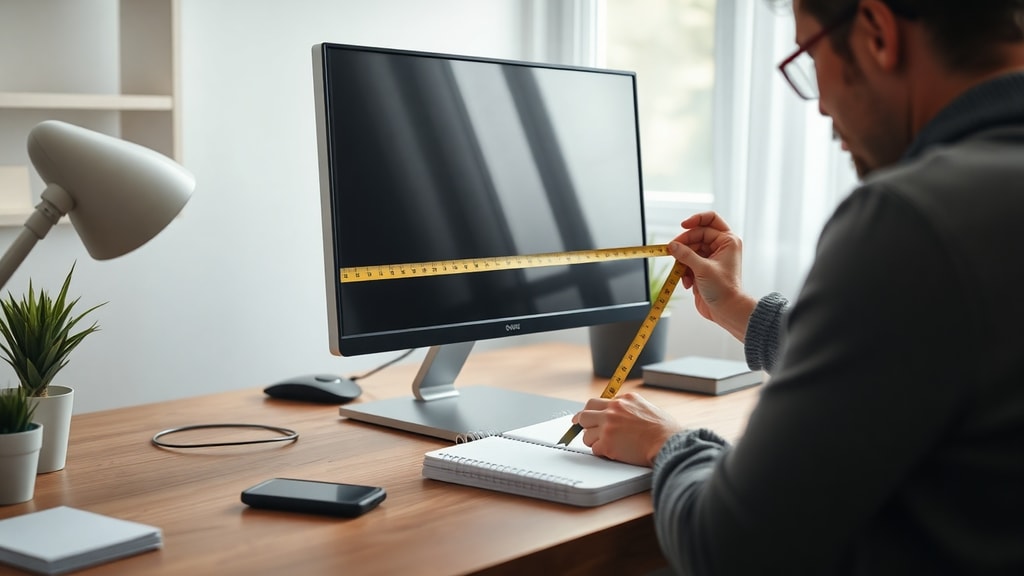
The most accurate way to check your monitor size is to measure the screen itself. Start by taking a flexible tape measure or a ruler long enough to span the screen diagonally. Place the end of the tape at the top‑left corner of the actual display area – not the plastic bezel or frame. Then stretch it to the bottom‑right corner. For a typical widescreen monitor, this diagonal line will be the longest dimension of the viewable area. If you are using a ruler, you may need to mark the distance and then measure the mark. Ensure the tape is straight and wrinkle‑free for the most precise result.
Once you have the measurement in centimeters, you can convert it to inches. Since monitor sizes are almost always advertised in inches, divide the number of centimeters by 2.54. For example, a measurement of 48.3 cm divided by 2.54 equals about 19 inches. That number corresponds to the standard monitor size you would see on a product page. Remember that the measurement does not include the bezel – only the glass or LCD area. If you measure from the outer edges of the frame, you will get a slightly larger number that does not represent the actual screen size. For a step‑by‑step visual guide, refer to this WikiHow article on measuring a monitor.

Method 2: Using Windows Settings
If you do not have a tape measure handy, your operating system may report the screen size indirectly. On Windows 10 or Windows 11, right‑click an empty area of your desktop and select Display settings. The window that opens shows the resolution, for example 1920 × 1080, but not the physical size. However, you can often find the monitor model number by clicking Advanced display settings, then Display adapter properties. A dialog box will appear with a tab that lists the monitor name and sometimes the serial number. From there, you can search online for that model to find its exact diagonal size. Many manufacturers list the size in the product specifications that come up in the search results. Note that Windows does not directly display the diagonal measurement in the standard interface, but the combination of resolution and model information gives you enough data to locate the size.
Another workaround is to check the monitor’s on‑screen display (OSD) menu. Press the physical button(s) on your monitor (usually located on the front bezel or underneath) to open the OSD. Some monitors, especially newer ones, show information such as the model name and resolution. While the OSD rarely shows the diagonal size, the model name is enough for an online search. This method is particularly useful when the monitor label is missing or faded.
Method 3: Checking Mac System Settings
On a Mac, the process is similar but the information is presented more directly. Click the Apple menu in the top‑left corner, then select System Settings. In the sidebar, click Displays. You will see the current resolution and a list of connected monitors. For each monitor, the display’s name often includes the size. For instance, it might read “LG 27UL850” – the number “27” in the model name usually indicates the diagonal size in inches. If the name does not include a number, click the “Show all displays” button or open the Displays pane for more details. The system will show the display’s resolution and the model identifier. As with Windows, you can then search the model identifier online to confirm the precise diagonal measurement. This is a reliable method because Apple systems often expose the display’s internal EDID data, which contains the physical size information.
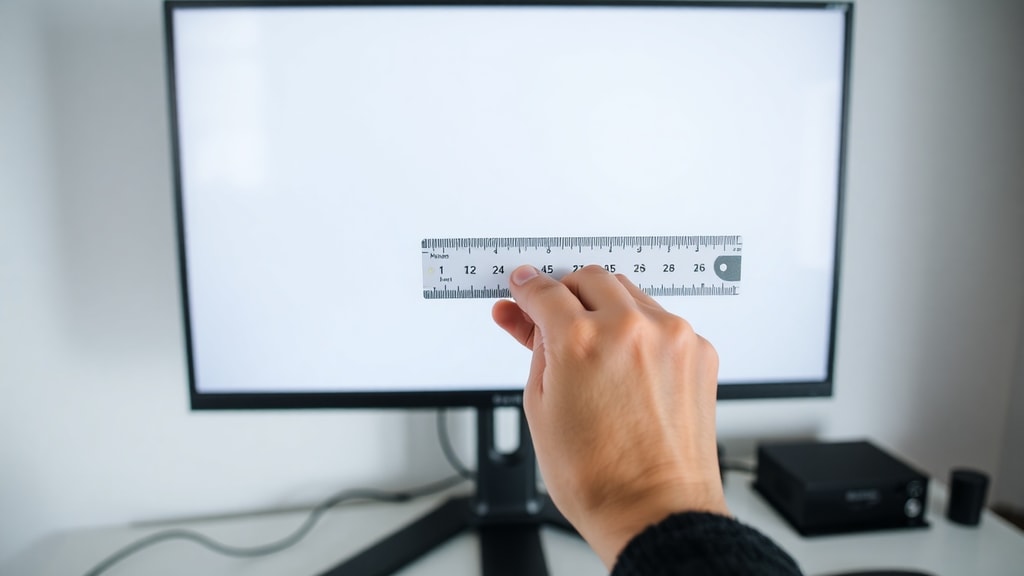
For older macOS versions (before Ventura), the path was System Preferences → Displays. The same principle applies: look for the model name or identifier. In some cases, you can also find a “Scaled” option that lists the resolution; though it does not give inches directly, the model name is your key. If you cannot see the size, you can use free utilities like System Information (found in Applications/Utilities) to get the exact display model.
Method 4: Searching the Model Number Online
Every monitor has a sticker on the back or bottom edge that lists the brand, model number, and often the serial number. If you can physically access the back of your monitor, take a photo or write down the model number. Then go to the manufacturer’s website or a trusted tech database and search for that model. The product page will list the screen size, often as the first specification. For example, a search for “Dell S2421HN” returns a 23.8‑inch display. Even if the monitor is outdated, you can usually find its specifications on archive sites or user forums. This method is highly accurate because it relies on the official product information.
Alternatively, use a general search engine like Google. Type the model number and “screen size” or “specifications.” Many e‑commerce sites that once sold the monitor also list the dimensions in the product description. Just be cautious with third‑party seller pages, as they sometimes copy incorrect information. Prefer manufacturer pages or well‑known retailers. If you have trouble finding the model number, look for a QR code on the label that may link directly to the support page. This is a quick, zero‑measurement way to get the exact size.
Method 5: Using Online Tools and Virtual Benchmarks
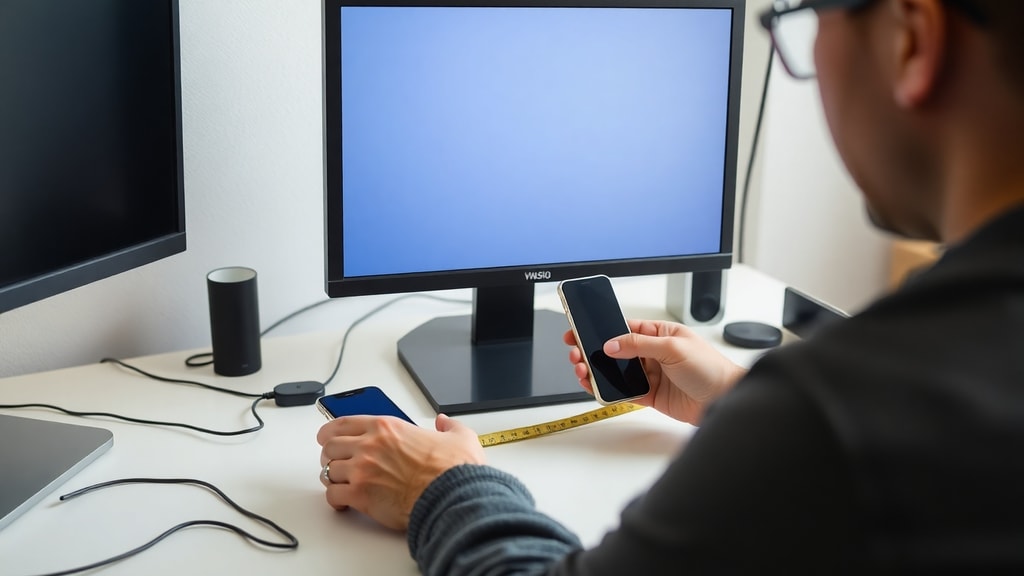
If you do not have a tape measure and cannot locate the model number, you can use online tools that estimate screen size by comparing your display to a virtual object. One example is a website that shows a credit card or a known‑size rectangle. You place a real credit card against your screen and adjust a virtual slider until the on‑screen image matches the size of the physical card. The tool then calculates the diagonal size based on that comparison. Sites like PiliApp offer such features. While not as precise as a direct measurement, these tools give a close approximation, especially for standard aspect ratios. You can get an estimate within half an inch on most monitors. For a list of available tools, check this Canaltech article on how to know how many inches a monitor has.
These virtual benchmark methods work best when you have a known reference object, such as a credit card (which is 8.56 cm × 5.40 cm). The tool will ask you to match the width or height of the on‑screen object to the real card. Once aligned, it extrapolates the diagonal. Keep in mind that screen bezels and curved monitors can introduce slight errors. Still, for most users, this is a convenient way to check size without moving the monitor or searching for labels.
Comparison of Methods
To help you decide which method suits your situation, here is a table summarizing the key aspects of each approach.
| Method | Accuracy | Ease of Use | Tools Required |
|---|---|---|---|
| Physical tape measure | Very high (±1 mm) | Easy if you have a tape | Tape measure or ruler |
| Windows settings + online search | High (depends on model data) | Moderate – need to search | Computer, internet |
| Mac system settings | High (model name often includes size) | Easy | Mac computer |
| Online model number search | Very high (official specs) | Easy if you find the sticker | None |
| Online virtual tool (credit card) | Moderate (±0.5 inch) | Easy | Credit card, internet |
As you can see, the most accurate options involve a physical measurement or direct lookup from the manufacturer. The easiest options are the Mac system settings (if the model name includes the size) or the online tool, which requires no extra hardware.
Common Pitfalls and Tips
While measuring or searching, avoid these common mistakes:
- Measuring the bezel instead of the screen area – always measure only the glass or LCD part.
- Measuring horizontally or vertically instead of diagonally; monitor size is always the diagonal.
- Confusing resolution (e.g., 1920×1080) with physical size. A 24‑inch and a 27‑inch monitor can have the same resolution.
- Forgetting that curved monitors are still measured diagonally along the curve, not from corner to corner in a straight line. Some manufacturers specify the diagonal as if the screen were flat, so a curved monitor may measure slightly larger if you follow the curve.
- Assuming the model number always includes the size. Some monitors have names like “UltraSharp U2415” where “24” stands for 24 inches, but others like “P2715Q” denote 27 inches. However, not all follow this rule (e.g., “S2719DC” is 27 inches, but “S2719D” might be the same – check the specs).
- Using an online tool with a small reference object that is not held exactly flush against the screen; parallax can cause errors.
If you are using a tape measure, ensure the tape is not twisted and that you read the value at eye level. For the online model search, double‑check the source – prefer the manufacturer’s official support page or a reliable retailer like Amazon or Best Buy. In case of doubt, cross‑reference with a second method, such as measuring the width and height and then calculating the diagonal using the Pythagorean theorem. For example, if you measure the width as 20.9 inches and the height as 11.8 inches, the diagonal is the square root of (20.9² + 11.8²) = roughly 24 inches. This calculation assumes the correct aspect ratio, so it can serve as a verification.
Conclusion
Checking your monitor size does not require specialized equipment or technical knowledge. Whether you prefer a hands‑on approach with a tape measure, a software‑based method using your computer’s settings, or a quick online search of the model number, you can get an accurate answer in minutes. The table above gives you a quick overview to choose the best method for your situation. Remember to measure diagonally and exclude the bezel for the correct screen size. With these simple steps, you will never have to wonder about your monitor’s dimensions again. Now you can confidently shop for the perfect second monitor, order a monitor arm, or simply settle a bet with a friend.
References
WikiHow – Medir o Tamanho de um Monitor. Available at: https://pt.wikihow.com/Medir-o-Tamanho-de-um-Monitor. (Accessed May 2025).
Portal Insights – Como descobrir a resolução da minha tela?. Available at: https://www.portalinsights.com.br/perguntas-frequentes/como-descobrir-a-resolucao-da-minha-tela. (Accessed May 2025).
Cidesp – Como Saber o Tamanho do Meu Monitor. Available at: https://cidesp.com.br/blog/como-saber-o-tamanho-do-meu-monitor. (Accessed May 2025).
TechnologyHumans – Como medir uma tela de computador. Available at: https://pt.technologyhumans.com/22438914-how-to-measure-a-computer-screen. (Accessed May 2025).
Canaltech – Como saber quantas polegadas tem um monitor. Available at: https://canaltech.com.br/smartphone/como-saber-quantas-polegadas-tem-um-monitor-219104/. (Accessed May 2025).