Why Change Your App Icons?
Personalizing your smartphone goes beyond wallpapers and ringtones. The icons on your home screen represent the apps you use daily, and customizing them can make your device feel uniquely yours. Changing an app icon is a simple way to refresh the look of your phone, organize your applications by style, or create a consistent visual theme. Whether you want a minimalist monochrome set, a retro pixel look, or just to replace a boring default icon with something more expressive, the process is easier than most people think. This article will guide you through the various methods available on Android and iOS, explain the tools you need, and help you choose the best approach for your needs.
Methods for Android
Android offers several ways to alter app icons, ranging from built‑in options on some devices to powerful third‑party applications. The method you choose depends on how much control you want and whether you prefer to change icons one by one or apply a full design pack.
One popular approach is to use dedicated icon changer apps such as X Icon Changer or Icon Pack Studio. These tools allow you to replace the icon of a specific app without installing a complete launcher. You simply pick the app, select a new image from your gallery or a built‑in library, and the tool creates a shortcut with the new icon. This method is straightforward and works on almost any Android device running a recent version. As explained by Canaltech, these apps are ideal for users who only want to customize a few icons instead of overhauling the entire system.
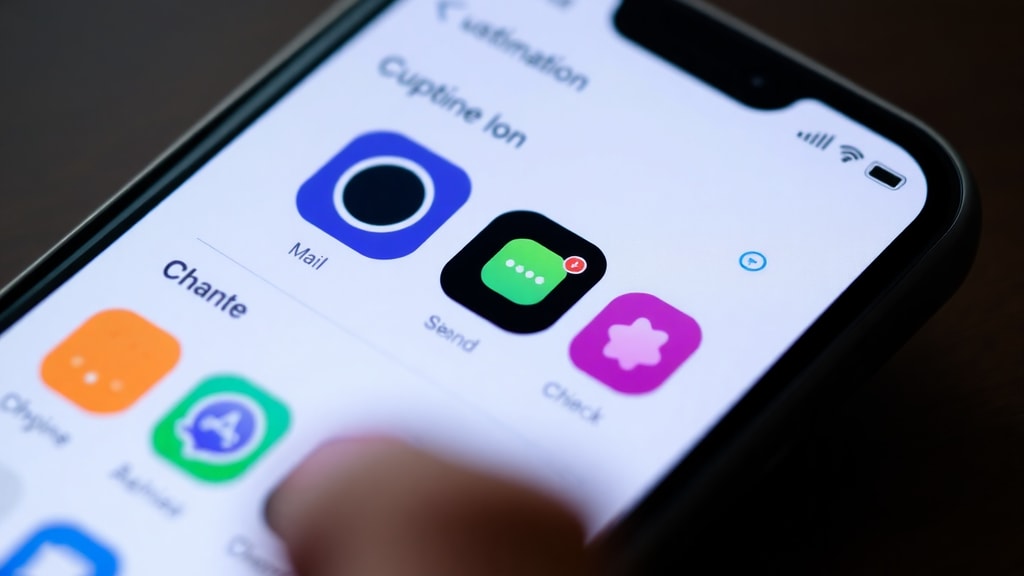
Another powerful method is to use a custom launcher. Launchers like Nova Launcher, Microsoft Launcher, or Action Launcher give you deep control over the home screen layout, including the ability to edit any app icon. In Nova Launcher, for example, you long‑press an app shortcut, select Edit, then tap the icon to choose a new image from your gallery or from an installed icon pack. This method is particularly recommended by Android developers themselves, as shown in the official Android codelab, which walks through changing an app icon programmatically. For everyday users, launchers provide a rich customization experience and often include performance improvements.
If you own a Samsung Galaxy device, you might not need any extra apps. Samsung’s One UI includes a native theme engine accessible via Settings > Themes. Under the Icons tab, you can browse free and paid icon packs that instantly alter the look of all your installed apps. This is the most convenient method for Samsung users because it requires no downloads beyond the theme itself, and the changes apply system‑wide without affecting performance. TechTudo highlights this feature in their guide on how to change app icons on Android, noting that Samsung’s integration is both smooth and reliable.
Finally, you can browse the Google Play Store for “icon packs” or “pacote de ícones”. Thousands of packs are available, many of which are compatible with popular launchers. After installing an icon pack, you apply it through your launcher’s settings. Some icon packs also come with their own changers for non‑launcher environments. This approach gives you the widest selection of artistic styles, from flat and colorful to three‑dimensional and animated.
Methods for iOS
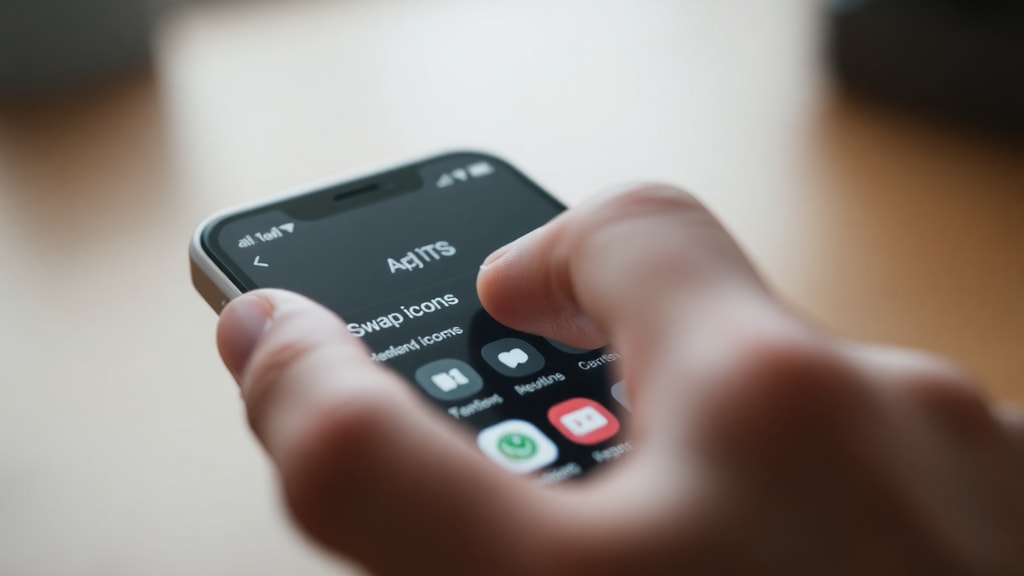
On iOS, changing app icons has become more accessible since the introduction of the Shortcuts app. While Apple does not allow direct icon replacement, you can create a shortcut that launches an app and then add that shortcut to your home screen with a custom icon. To do this, open the Shortcuts app, tap the plus sign, add an Open App action, select the target app, then tap the share button and choose Add to Home Screen. You can then tap the icon preview to choose a photo from your library. The new shortcut appears on your home screen with your selected image, and tapping it opens the intended app.
Another option is to use third‑party apps like Icon Themer or Widgetsmith, which automate the process of creating custom shortcuts. These apps provide built‑in icon collections and let you batch‑replace icons for multiple apps at once. However, be aware that these shortcuts introduce a slight delay when launching apps, because the Shortcuts app runs the automation before passing control to the actual app. This is a minor trade‑off for the level of customization iOS users can achieve. The App Store story on icon themes mentions that searching for “icon pack” in the App Store leads to many such utilities, though they all rely on the Shortcuts system under the hood.
It is important to note that iOS does not support system‑wide icon changes. Each custom icon is essentially a bookmark with a new picture. This means that badges and notifications may not appear on the shortcut’s icon unless you enable them in the Shortcut settings. Nonetheless, for users who want a cohesive home screen aesthetic, the Shortcuts method is the most practical and widely used.
Step‑by‑Step Guide for Android
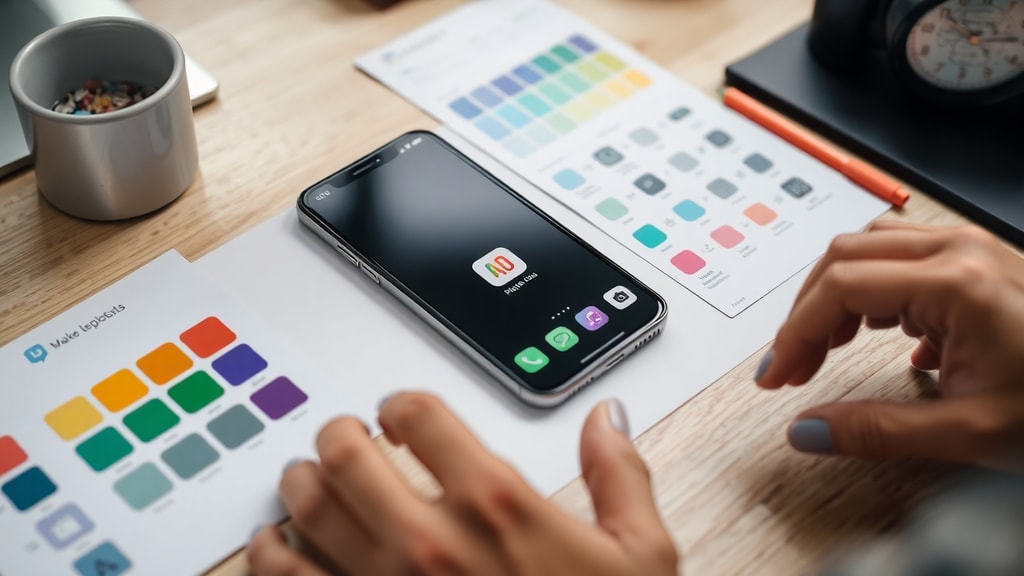
To help you get started immediately, here is a simple step‑by‑step process using a launcher (Nova Launcher) and an icon pack. This method works on most Android devices and provides full flexibility.
- Install a launcher like Nova Launcher from the Google Play Store. Set it as your default home screen app when prompted.
- Open the launcher’s settings by long‑pressing a blank area on your home screen and selecting Settings (or via the app drawer).
- Look for the Icon Style or Icon Theme option. Tap it and choose an installed icon pack from the list. If you haven’t installed any, download a free pack like Viral or Whicons from the Play Store.
- To change an individual app icon, long‑press the app shortcut on your home screen. A menu will appear; tap Edit. Then tap the icon preview to select a new image. You can choose from the icon pack’s collection or from your own photos.
- Confirm the change and press Save. The new icon will appear instantly. Repeat for any other apps you wish to customize.
For devices without a custom launcher, you can use an icon changer app like X Icon Changer. Simply download it, choose the app whose icon you want to modify, pick an image, and it will create a new shortcut with your custom icon. This method does not alter the original app’s icon in the app drawer, only the home screen shortcut.
Comparison Table of Methods
The table below summarizes the most common approaches for changing app icons on Android and iOS, including their complexity and customization level.
| Method | Platform | Complexity | Customization |
|---|---|---|---|
| Custom Launcher (e.g., Nova) | Android | Medium (requires installing and setting up launcher) | High – change individual icons or entire packs |
| Icon Changer App (e.g., X Icon Changer) | Android | Low – simple process, no launcher needed | Medium – only for home screen shortcuts |
| Native Theme (Samsung One UI) | Android (Samsung) | Low – built into settings | Medium – applies full icon pack, limited individual edits |
| Shortcuts App (iOS) | iOS | Medium – requires creating shortcuts | Medium – only for home screen shortcuts, slight launch delay |
Tips for Choosing the Right Icon Pack
With thousands of icon packs available, picking the right one can be overwhelming. Start by considering the overall style of your home screen. If you prefer a clean, uniform look, choose a pack with consistent shapes and colors. For a more playful setup, look for packs with irregular shapes or themed illustrations. Many icon packs also include matching wallpapers to complete the design.
Check compatibility with your launcher. Most launchers support adaptive icons, but some older icon packs may require a specific version. Read the description on Google Play to confirm compatibility. Also, pay attention to the number of icons included – a good pack will cover the most common apps (like Phone, Messages, Camera, Settings) and offer alternates for less common apps. Some packs allow you to request missing icons through an app.
Performance is usually not an issue, but very large icon packs can slow down the launcher’s loading time on older devices. Stick with packs that are updated regularly and have positive reviews. Finally, don’t be afraid to mix and match. You can use one pack for most apps and another for a few favorites, creating a unique collage effect.
References
This article drew on the following authoritative sources for its information on changing app icons. These resources provide additional details and visual guides for both Android and iOS users.
Canaltech. “Como mudar os ícones do Android | 4 dicas para personalizar.” Canaltech, 2023. Accessed at: https://canaltech.com.br/android/aprenda-como-trocar-os-icones-dos-aplicativos-em-seu-android/
Android Developers. “Change the app icon.” Google Codelabs, 2023. Accessed at: https://developer.android.com/codelabs/basic-android-kotlin-compose-training-change-app-icon?hl=es-419
TechTudo. “Como mudar ícone dos apps no Android e personalizar a aparência.” TechTudo, 2023. Accessed at: https://www.techtudo.com.br/dicas-e-tutoriais/2023/08/como-mudar-icone-dos-apps-no-android-e-personalizar-a-aparencia-edapps.ghtml
WikiHow. “4 Formas de Mudar Ícones de Aplicativos.” WikiHow, 2023. Accessed at: https://pt.wikihow.com/Mudar-%C3%8Dcones-de-Aplicativos