Introduction to PC Password Management
Managing passwords on a personal computer is a task many people underestimate. With the growing number of online services, social media accounts, banking platforms, and work applications, remembering each unique password manually becomes impractical. Weak or reused passwords are a primary cause of security breaches. This article provides a comprehensive guide to PC password management, covering built‑in tools, dedicated password managers, encryption standards, and best practices. Whether you use Windows, macOS, or a Linux distribution, securing your digital identity starts with a solid password management strategy. By the end of this guide, you will understand how to protect your credentials with encryption, two‑factor authentication, and the right software for your needs.
Why Secure Password Management Is Essential
Passwords are the keys to our digital lives. A compromised password can lead to identity theft, financial loss, and unauthorised access to sensitive data. Cyberattacks such as credential stuffing and phishing rely on users reusing the same password across multiple sites. According to cybersecurity research, a large percentage of data breaches involve weak or stolen passwords. Secure PC password management relies on encrypting saved passwords using modern algorithms like AES‑256 to protect data both on your device and during transmission over the internet. Using a dedicated password manager or a built‑in browser solution ensures that each account has a strong, unique password without requiring you to remember them all. This approach drastically reduces the risk of a single breach exposing all your accounts.
Built‑in Password Managers in Windows and Browsers
For many users, the easiest way to start managing passwords is through tools already integrated into the operating system or web browser. Microsoft Password Manager, built into Microsoft Edge and Windows, allows users to view, edit, and auto‑fill passwords when logged in with a personal Microsoft account. This tool syncs across devices and offers basic encryption. However, it lacks advanced features like secure sharing or multi‑factor authentication (MFA) beyond what the browser provides. Similarly, Google Chrome Password Manager stores passwords securely with a master password and supports 2FA, auto‑fill, and sync across devices. It also includes a password checkup feature that flags compromised credentials. Both built‑in options are free and convenient, but they are limited to their respective ecosystems and may not offer the same level of control as dedicated password managers.
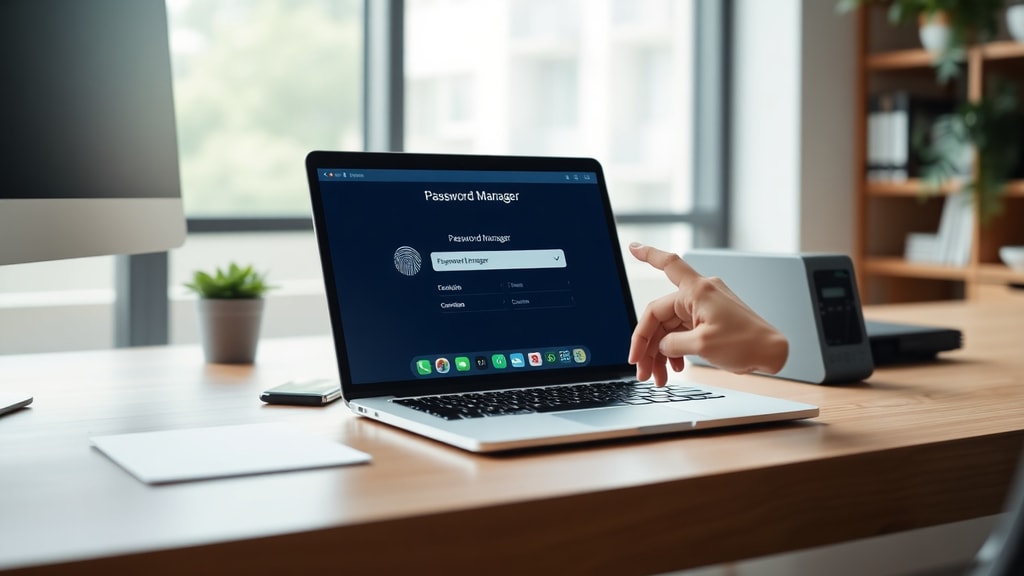
Dedicated Password Management Software for PC
When you need more robust features, dedicated password managers are the next step. These applications are designed specifically for credential storage, encryption, and multi‑platform access. Below are some of the most reputable options available for PC users.
Zoho Vault is a free, secure PC password manager with SSO, MFA, and data encryption for individuals and teams. It offers a clean interface, browser extensions, and the ability to share passwords securely within a group. The free tier is generous enough for personal use, making it an excellent starting point for those new to password managers.
1Password is a premium service that offers encrypted password management for individuals and families with strong 2FA, regular updates, and secure sharing. It uses a unique secret key combined with your master password to create an extra layer of security. 1Password also includes a travel mode that removes sensitive vaults when crossing borders.

LastPass provides PC password management with SSO, MFA, and cloud vaults for secure storage and access. Although its free plan has become more limited in recent years, LastPass remains a popular choice for those who want a well‑established ecosystem. It auto‑fills credentials, generates strong passwords, and stores notes and other sensitive documents.
Encryption Standards: AES‑256 and Beyond
All reputable password managers use encryption to protect your data. The industry standard is the Advanced Encryption Standard with a 256‑bit key, commonly known as AES‑256. This encryption is used by governments, banks, and security professionals worldwide. When you save a password in a manager, the software encrypts the data on your device before sending it to the cloud (if cloud sync is enabled). Even if a server is breached, the encrypted vault remains unreadable without your master password. Some managers, like 1Password, also implement additional cryptographic protocols such as SRP (Secure Remote Password) for authentication. Understanding that your passwords are protected by AES‑256 gives you confidence that your credentials are safe from prying eyes.
Best Practices for PC Password Management
To maximise the security of your password manager, follow these best practices. Adhering to them will protect not only your passwords but also the master key that unlocks your vault.

- Create a strong, unique master password that is long (at least 12 characters), includes a mix of uppercase and lowercase letters, numbers, and special characters. Avoid using dictionary words, personal information, or common phrases.
- Enable two‑factor authentication (2FA) on your password manager account. This adds an extra layer of security beyond your master password, typically through a time‑based one‑time password (TOTP) or a hardware key.
- Update your passwords regularly, especially for critical accounts like email, banking, and social media. A password manager can generate and store new, random passwords for you.
- Use secure sharing only with trusted users. If you need to share a password with a family member or colleague, use the manager’s built‑in sharing feature rather than sending it via email or messaging apps.
- Keep your password manager software and browser extensions up to date. Developers release updates to patch vulnerabilities and improve encryption.
- Back up your vault or export a copy of your passwords periodically. Keep this backup in a secure location, such as an encrypted USB drive or a safe.
- Never write down your master password on paper or store it in an unencrypted file. Instead, consider using a secure password hint or a hardware backup key.
Comparison of Popular PC Password Managers
The following table provides a quick overview of key features offered by the password managers discussed in this guide. Use it to compare options based on your needs.
| Password Manager | Free Tier | 2FA/MFA | Secure Sharing | Platform Support | Encryption Standard |
|---|---|---|---|---|---|
| Microsoft Password Manager | Yes (with Microsoft account) | Basic (via Microsoft account) | No | Windows, Edge, mobile | AES‑256 (as part of Windows encryption) |
| Google Chrome Password Manager | Yes | Yes (via Google account) | No | Chrome, Android, iOS | AES‑256 with master password |
| Zoho Vault | Yes (limited) | Yes (MFA) | Yes | Windows, macOS, Linux, browser extensions | AES‑256 |
| 1Password | No (30‑day trial) | Yes (strong 2FA) | Yes | Windows, macOS, iOS, Android, browser extensions | AES‑256 + Secret Key |
| LastPass | Limited (10‑device limit) | Yes (MFA) | Yes | Windows, macOS, Linux, browser extensions | AES‑256 |
How to Choose the Right Tool for Your PC
Selecting the best password manager depends on your specific usage. If you are already immersed in the Microsoft ecosystem and only need basic management, Microsoft Password Manager integrated into Edge may suffice. For users who rely heavily on Google services, Chrome’s built‑in manager is a solid free option. However, if you require cross‑platform support, secure sharing with family or colleagues, or advanced features like biometric unlock and breach monitoring, a dedicated solution like Zoho Vault, 1Password, or LastPass is more appropriate. Each of these tools has been audited by third‑party security firms and is trusted by millions of users worldwide. Evaluate the free tiers, subscription costs, and the specific features you need before making a decision.
Implementing Password Management on Your PC
Once you have chosen a password manager, the implementation process is straightforward. Download the desktop application and install the corresponding browser extension. Create your master password—this is the only password you will need to remember going forward. Enable two‑factor authentication immediately to secure your account. Start by importing existing passwords your browser may have saved, then gradually add new accounts as you log in. Most managers offer a “security dashboard” that highlights weak or reused passwords so you can systematically upgrade them. Set aside an afternoon to audit and update the most critical passwords first. After the initial setup, the manager will auto‑fill login forms, generate strong passwords for new accounts, and sync across your devices. This routine will become second nature within a week.
Common Concerns and Misconceptions
Some users worry about putting all their passwords in one basket. This is a valid concern, but a well‑designed password manager with strong encryption and 2FA is far more secure than using weak or repeated passwords across sites. Another misconception is that password managers are difficult to use. In reality, modern interfaces are user‑friendly and require minimal technical knowledge. Finally, people often assume that free tools are not secure. While free tiers may have limitations, many—such as Zoho Vault and Google Chrome’s manager—still employ AES‑256 encryption and are maintained by reputable companies. The key is to choose a solution that is actively developed and regularly updated.
Conclusion
PC password management is no longer optional in a world where digital security threats are constant. By leveraging encryption standards like AES‑256, adopting two‑factor authentication, and using either built‑in or dedicated password managers, you can significantly reduce the risk of credential theft. Start by assessing your current habits, then select a tool that fits your workflow and security requirements. Remember that your master password is the cornerstone of your security—treat it with the same care as your physical keys. Implementing these practices will give you peace of mind and free you from the burden of remembering dozens of passwords.
References
The information in this article is based on trusted sources that provide detailed guidance on password security and management tools. For further reading, refer to the following:

AdGuard – Best Password Managers. Available at: adguard.com/pt_br/blog/best-password-managers.html
Microsoft Support – Manage or edit your passwords in Microsoft Password Manager. Available at: support.microsoft.com/pt-br/accounts-billing/manage/view-or-edit-your-passwords-in-microsoft-password-manager
Google Support – Manage your passwords in Chrome. Available at: support.google.com/chrome/answer/95606?hl=pt
Zoho – Free Password Manager. Available at: zoho.com/pt-br/vault/free-password-manager.html
1Password – Password Manager for Individuals and Families. Available at: 1password.com/pt/product/password-manager
LastPass – Password Manager for PC. Available at: lastpass.com/pt