What Are Desktop Widgets and Why Do They Matter?
Desktop widgets are small interactive elements that sit directly on your computer screen and display dynamic information without requiring you to open a full application. They show you things like the current weather, the time, upcoming calendar events, system performance stats, music playback controls, and even news headlines. The main purpose of a desktop widget is to give you access to useful data at a single glance, saving you the trouble of navigating through menus or launching separate programs. For many users, widgets are also a way to personalize their desktop environment, adding a layer of style that reflects their preferences and workflow.
The concept of desktop widgets has been around for decades, but recent updates from major operating systems have renewed interest in them. Windows 11, for example, includes a built-in widgets panel that you can open by pressing Win + W. This panel shows weather, stocks, traffic, and other information. However, many users want widgets that live directly on the desktop background rather than inside a slide-out panel. That is where third-party tools come in. Whether you use Windows or macOS, there are numerous options to add functional and stylish widgets to your workspace. The key is finding tools that balance performance with aesthetics so that your computer remains fast while looking exactly the way you want.
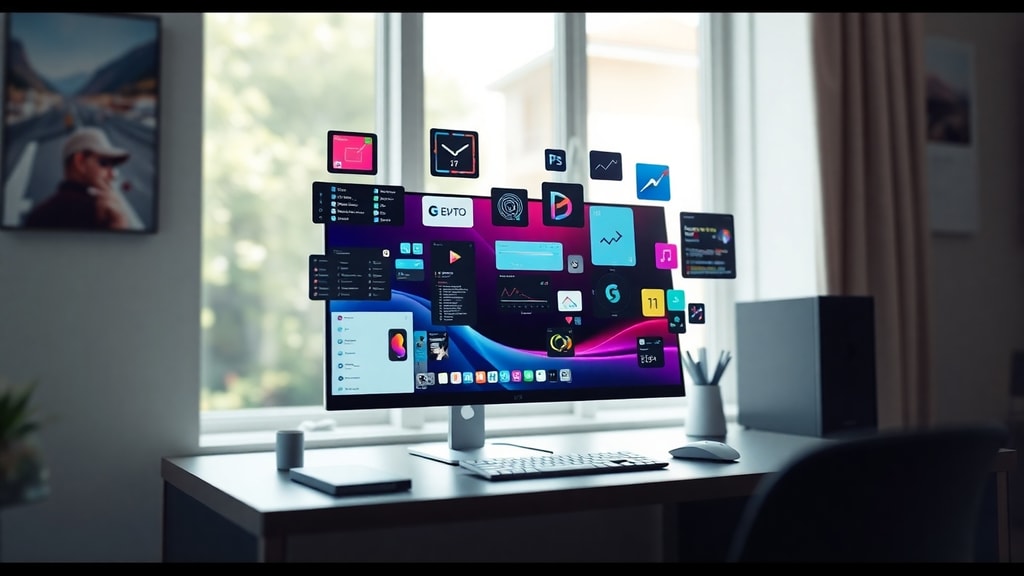
Desktop widgets are not just about appearance. They can significantly boost productivity by placing critical information right where you can see it. For instance, a system monitor widget can show your CPU and RAM usage in real time, helping you keep an eye on performance during demanding tasks. A calendar widget can display your next appointment without opening your calendar app. A to-do list widget can remind you of tasks without cluttering your browser tabs. These small conveniences add up throughout the day, reducing the number of clicks and switches between windows. At the same time, widgets can make your desktop feel more alive and personalized, transforming a plain background into a dashboard that works for you.
Desktop Widgets Across Operating Systems
Desktop widget support varies between operating systems. Windows has a long history with widgets, starting with the Windows Sidebar in Windows Vista and later evolving into the modern widgets panel in Windows 11. However, the built-in widget system on Windows 11 is limited to a side panel that overlays your screen rather than placing elements directly on the desktop. For true desktop widgets, Windows users often turn to third-party applications. Windows 10 does not include a native desktop widget system at all, which is why tools like Rainmeter and Win10 Widgets have become popular. These applications let you place fully customizable widgets on your desktop background, from analog clocks and weather displays to system monitors and music players. The flexibility is enormous, and the community around these tools creates thousands of skins and configurations.
macOS, on the other hand, includes a Notification Center with widget support since macOS Mojave. In recent versions of macOS, widgets are available in the Notification Center and can also be placed on the desktop if you use third-party apps. Native macOS widgets are clean and consistent with Apple's design language, but they are limited in terms of placement and customization. For users who want more freedom, apps like MacWidget and WidgetWall allow you to place widgets anywhere on your desktop, resize them, and choose from a variety of styles. MacWidget offers widgets for weather, calendar, clock, and system stats, while WidgetWall focuses on creating a beautiful widget-based desktop experience. Both are available on the Mac App Store and are well-reviewed by users who want to enhance their workflow without sacrificing visual quality.
Linux users also have access to desktop widgets through various desktop environments like KDE Plasma, which includes a comprehensive widget system by default. Conky is another popular tool for Linux that provides highly customizable system monitors and information displays. While this article focuses primarily on Windows and macOS, it is worth noting that the desktop widget ecosystem is rich and diverse across all major platforms.
Best Desktop Widgets for Windows Users
Windows users have the widest selection of desktop widget tools, ranging from lightweight single-purpose apps to powerful customization suites. Below is a list of some of the best options available today, each with its own strengths in terms of functionality and design.
- Rainmeter: Rainmeter is the most powerful and popular desktop widget platform for Windows 10 and Windows 11. It allows you to create and display fully customizable skins that show everything from system performance and weather to music controls and RSS feeds. Rainmeter runs in the background with minimal resource usage, and its community has created thousands of free skins. You can start with a simple clock and expand to a full desktop dashboard over time.
- Win10 Widgets: This application uses Rainmeter as its engine but offers a simpler, more user-friendly interface. It includes a selection of pre-built widgets such as weather, CPU meter, battery status, and calendar. Win10 Widgets is ideal for users who want functional widgets without spending time learning how to customize Rainmeter skins manually.
- Seelen UI: Seelen UI is a free application for Windows 11 that provides elegant desktop widgets with a modern look. It features a clock widget, an audio control widget, and a system monitor that displays CPU, RAM, and network usage. The widgets are designed to blend seamlessly with the Windows 11 aesthetic, making them a great choice for users who prioritize style. You can download Seelen UI directly from the developer's website, and the installation process is straightforward.
- Gadget Revived: This tool brings back the classic Windows 7 desktop gadgets for Windows 10 and Windows 11. It includes a wide variety of gadgets like weather, clock, CPU meter, sticky notes, and news feeds. Gadget Revived is lightweight and easy to set up, making it a good option for users who miss the old gadget experience.
- Desktop Gadgets Revived: Similar to Gadget Revived, this tool restores the original Windows Desktop Gadgets platform on newer versions of Windows. It is open source and actively maintained, ensuring compatibility with the latest Windows updates.
Each of these tools offers something different. Rainmeter provides the most flexibility and is perfect for power users who enjoy customizing every detail. Win10 Widgets and Seelen UI are better suited for users who want a polished experience with minimal setup. Gadget Revived and Desktop Gadgets Revived are excellent for anyone who wants simple, familiar gadgets without complex configuration. Regardless of which you choose, all of these tools are free or offer free versions, making it easy to experiment and find the perfect setup for your workflow.
Best Desktop Widgets for Mac Users
Mac users who want desktop widgets beyond the built-in Notification Center have two standout options: MacWidget and WidgetWall. Both apps are available on the Mac App Store and allow you to place widgets directly on your desktop background. To help you compare these tools, here is a table showing their key features and differences.
| Feature | MacWidget | WidgetWall |
|---|---|---|
| Widget types | Weather, calendar, clock, system stats, battery, and more | Weather, calendar, clock, news, photos, and custom widgets |
| Customization | Resizable widgets, multiple themes, and color options | Widget groups, adjustable opacity, and layout presets |
| Desktop integration | Widgets appear on the desktop and can be positioned freely | Widgets are placed on the desktop with a dedicated wallpaper layer |
| Performance impact | Low resource usage, optimized for Intel and Apple Silicon | Lightweight, runs efficiently in the background |
| Pricing | Free with in-app purchases; full version available for a one-time fee | Free with optional premium features via subscription |
| macOS compatibility | macOS 11 Big Sur and later | macOS 12 Monterey and later |
MacWidget is a solid choice if you want a straightforward set of functional widgets like weather, calendar, and system monitors. Its customization options let you match the widgets to your desktop style, and the performance is excellent even on older Macs. WidgetWall takes a slightly different approach by allowing you to create widget groups and save layout presets. This is useful if you switch between different workspaces or want different widget sets for work and personal use. Both apps are actively updated and have responsive developers, so you can expect ongoing improvements. If you are new to desktop widgets on macOS, starting with MacWidget is a good idea because of its simplicity. If you want more advanced layout options, WidgetWall is worth exploring.
How to Choose and Install Desktop Widgets
Choosing the right desktop widget tool depends on your operating system, your technical comfort level, and what you want the widgets to do. For Windows users, Rainmeter is the most powerful option, but it does require some learning if you want to create custom skins. If you prefer a simpler setup, Win10 Widgets or Seelen UI will get you up and running in minutes. For Mac users, both MacWidget and WidgetWall are easy to install and configure, with MacWidget being slightly more traditional and WidgetWall offering more creative flexibility. In all cases, you should consider the resource usage of the widgets. Most modern widget tools are designed to be lightweight, but it is always a good idea to check the system requirements and read user reviews to ensure they will not slow down your computer.
Installation is generally straightforward. For most third-party tools, you download an installer from the developer's website or the app store, run the installer, and follow the on-screen instructions. Many widget tools include a setup wizard that helps you choose which widgets to display and where to place them on your desktop. Once installed, you can usually right-click on the desktop or the widget itself to access settings and customization options. If you want to explore more options, you can find additional widgets or skins through community websites. For example, Rainmeter has a large library of user-created skins on sites like DeviantArt and the Rainmeter subreddit. Just remember to download files from trusted sources to avoid malware or unstable software.
To help you get started, here are two useful resources. For Windows users, the Windows Report guide offers a detailed look at the best widgets for Windows 10 and 11. For macOS users, the MacWidget page on the App Store provides descriptions and screenshots of what the app can do. These links will give you a clearer idea of the functionality and design you can expect from each tool.
Productivity and Style: Finding the Right Balance
Desktop widgets are not just about making your screen look interesting. They serve a real purpose in helping you stay organized and informed. When you place a calendar widget on your desktop, you can see your schedule at a glance without opening your calendar app. A to-do list widget keeps your tasks visible and top of mind. A weather widget helps you plan your day without checking your phone. These small conveniences reduce friction in your daily routine and help you focus on what matters. At the same time, widgets can improve your desktop aesthetics. A well-designed clock widget with a clean font and subtle colors can make your workspace feel more inviting. A system monitor widget with a sleek design can turn a boring desktop into a professional command center.
The key is to choose widgets that align with your actual needs. If you are a developer or a power user, system monitoring widgets that show CPU, RAM, disk, and network usage can be invaluable for troubleshooting and performance tracking. If you are a student or a project manager, a calendar widget combined with a task list widget can help you stay on top of deadlines. If you simply want a more pleasant desktop experience, a weather widget and a stylish clock might be all you need. Avoid the temptation to overload your desktop with too many widgets, as this can lead to clutter and actually reduce productivity. A few well-chosen widgets placed strategically on your screen will have a greater positive impact than a full screen of flashing information.
Style is also a matter of personal taste. Some users prefer minimalist widgets with transparent backgrounds that blend into the wallpaper. Others like vibrant colors and bold typography that stand out. Most widget tools allow you to adjust opacity, colors, and sizes so you can achieve the exact look you want. Experiment with different configurations until your desktop feels both functional and visually pleasing. Remember that your desktop is the first thing you see when you start your computer, so investing a little time in setting it up properly can improve your mood and efficiency throughout the day.
References
This article was informed by several reliable sources about desktop widgets and their use across different operating systems. The Microsoft Support article on Windows widgets explains how the built-in widget system works on Windows 11. The Windows Report article provides a curated list of the best third-party widgets for Windows 10 and 11, which was useful for comparing tools like Rainmeter and Win10 Widgets. The Seelen.io website offers detailed information about Seelen UI and its desktop widget features. For macOS options, the Mac App Store listings for MacWidget and WidgetWall provide up-to-date descriptions and user ratings. Finally, the Tecmundo article offers historical context and use cases for desktop widgets that remain relevant today. These sources were consulted to ensure the accuracy and completeness of the information presented in this article.