Why Driver Updates Matter
Keeping your computer drivers up to date can feel like a chore, but it is an important part of maintaining system stability and performance. Drivers act as the bridge between your operating system and your hardware, such as the graphics card, network adapter, or sound card. When a driver is outdated or missing, you may experience crashes, slow performance, or devices that simply do not work. However, many users worry about the complexity of updating drivers or fall into the trap of using questionable tools. This article explains how to update all PC drivers easily and safely without risking your system. The key is knowing which methods are trustworthy and when an update is actually necessary.
The Safest Foundation: Windows Update
For the vast majority of users, the best and safest method to update drivers is to rely on Windows Update. Microsoft includes driver updates as part of its regular patch cycle. Starting from Windows 10 and continuing in Windows 11, the operating system automatically downloads and installs critical drivers through Windows Update. Additionally, many optional driver updates are available in the "Optional updates" section under Settings. To check for these, go to Settings, then Windows Update, click "Advanced options," and look for "Optional updates." There you will find driver updates that are not critical but may add new features or fix minor bugs. Windows Update tests these drivers for compatibility with your system, drastically reducing the risk of installing a faulty driver. For most hardware, including network cards, chipset drivers, and audio devices, Windows Update is all you need. For a detailed walkthrough of this process, you can refer to Ask Leo's guide on updating drivers.
Using Device Manager for Manual Control
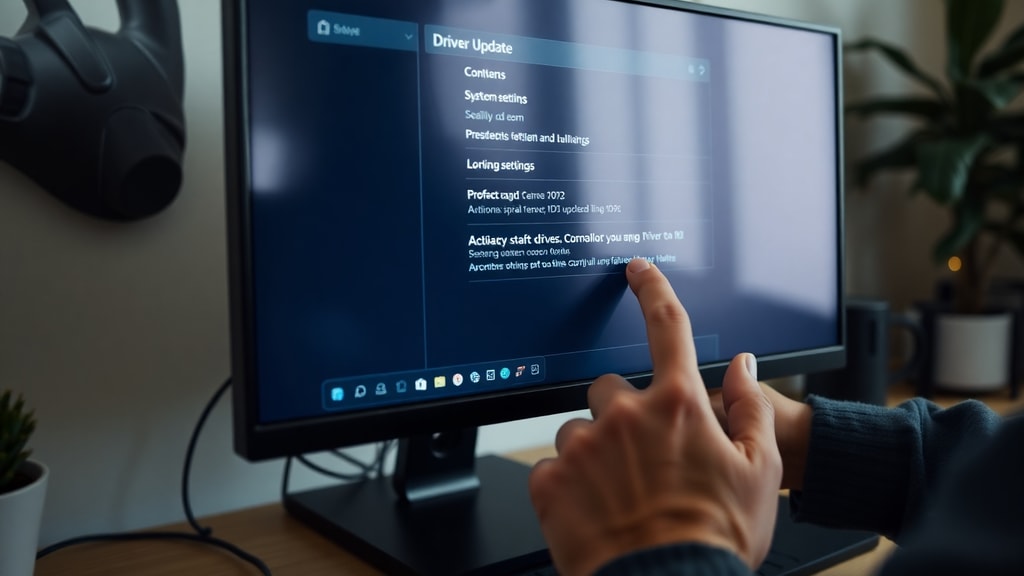
Sometimes a specific device is not recognized by Windows Update, or you may want to install a driver that you have downloaded manually from a manufacturer. In these cases, Device Manager gives you direct control. You can open Device Manager by right-clicking the Start button and selecting it, or by typing "devmgmt.msc" in the Run dialog (Windows key + R). Once open, you can update drivers step by step:
- Locate the device category (for example, "Display adapters" for your graphics card).
- Right-click the specific device and choose "Update driver."
- Select "Browse my computer for drivers" if you have already downloaded the driver file.
- Point to the folder where the driver is stored, and follow the prompts to install it.
- Alternatively, you can let Windows search automatically for a driver online, which is essentially the same as using Windows Update.
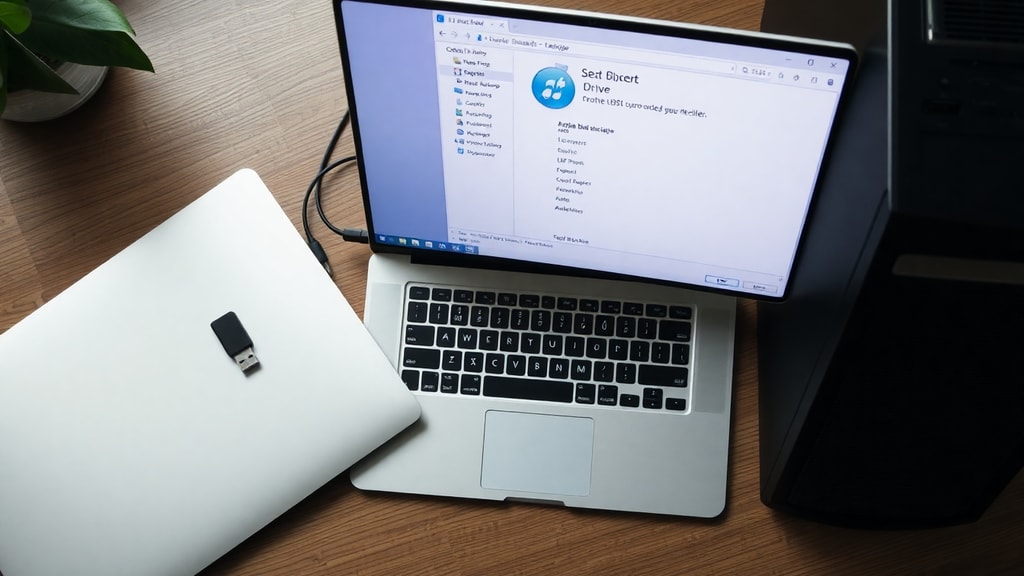
This method is reliable because you are telling Windows exactly which driver to use. However, it requires that you first obtain the correct driver from a trusted source, such as the hardware manufacturer's website. Device Manager is also useful for rolling back a driver if a new update causes problems. You can access the "Driver" tab in the device properties and click "Roll Back Driver" if the option is available.
Manufacturer Websites: The Definitive Source
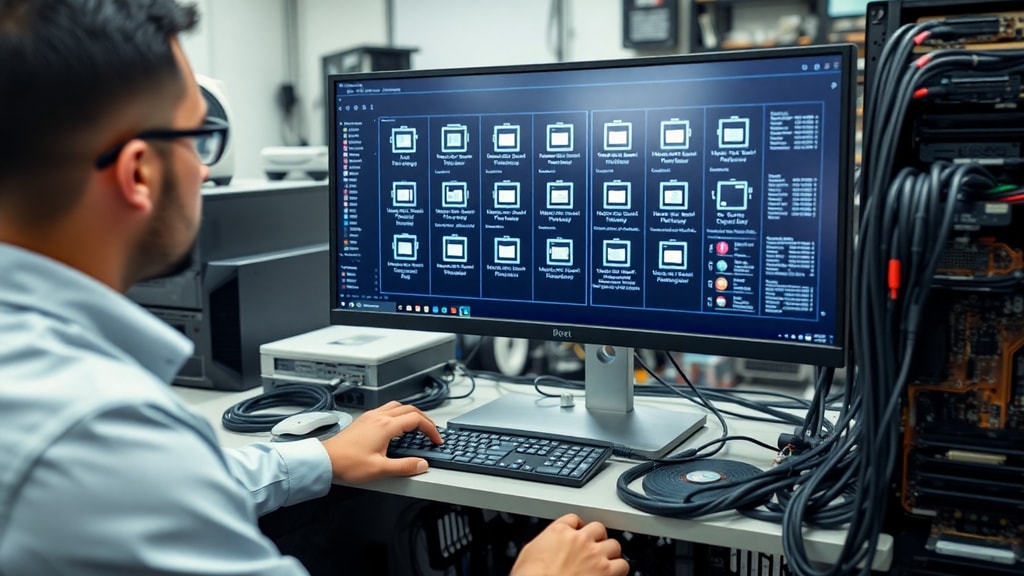
When a driver is missing, broken, or you need the absolute latest version for gaming or professional applications, the manufacturer's website is your best resource. Companies like NVIDIA, AMD, Intel, Dell, HP, and Lenovo provide driver downloads tailored to their hardware. These drivers are thoroughly tested and are guaranteed to be compatible with the device model. For example, if you own an NVIDIA GeForce graphics card, the NVIDIA website offers a driver search tool that detects your card and provides the latest Game Ready or Studio driver. Similarly, Intel provides the Intel Driver & Support Assistant, a free tool that scans your system and lists available updates from Intel itself. This is one of the few third-party tools that is actually recommended, because it comes directly from the hardware manufacturer. Always avoid downloading drivers from random file-sharing sites or pop-up ads. Stick to the official support page of your PC brand or component maker.
Comparing Driver Update Methods
To help you decide which approach works best for your situation, the table below summarizes the main methods, their ease of use, safety level, and when to use each.
| Method | Ease of Use | Safety | Best For |
|---|---|---|---|
| Windows Update | Very easy, automatic | Very high, tested by Microsoft | Routine updates, most users |
| Manufacturer Website | Moderate, needs manual download | High, official source | Critical hardware, latest features |
| Device Manager | Moderate, requires steps | High if using proper drivers | Specific device issues, manual install |
| Third-party auto-updaters | Easy but risky | Low, many contain malware | Not recommended for most users |
As shown, the safest and easiest path for the majority of driver updates is Windows Update. Only venture to manufacturer websites or Device Manager if you have a specific need.
Why You Should Avoid Most Third-Party Driver Updaters
You have probably seen advertisements for software that promises to scan your PC and update all drivers with one click. While convenient sounding, these tools are often dangerous. Many are scams that install malware, bloatware, or incorrect drivers that cause system instability. Some free versions nag you to purchase the paid edition, while the paid versions may still deliver outdated or wrong drivers. The official Microsoft support documentation strongly advises against using such tools. There are a few exceptions, like the Intel Driver & Support Assistant mentioned earlier, or Snappy Driver Installer Origin (SDIO), which is open source and used by enthusiasts. However, even these require caution and are not necessary for everyday users. If you do not have a specific problem with a device, there is no need to update its driver. Windows Update keeps you covered. Microsoft's official update drivers page provides clear guidance on safe practices.
When You Do Not Need to Update Drivers
A common misconception is that you must constantly update all drivers to keep your PC healthy. In reality, unless a device is malfunctioning or you need a new feature, updating drivers is unnecessary. For example, if your printer works fine, there is no need to install the latest driver. Windows Update already pushes critical security fixes for drivers. Updating a graphics driver may improve gaming performance, but it could also introduce bugs. It is wise to read release notes and user feedback before installing a new driver for a component that currently works well. Also, some PC manufacturers like Dell and HP lock driver versions to ensure stability with their hardware. In such cases, installing a generic driver from the component manufacturer might cause issues. Always check your PC maker's support site first. Remember the golden rule: if it is not broken, do not fix it.
Practical Steps for a Safe Driver Update Routine
To keep your drivers up to date without wasting time or risking your system, follow this simple routine. First, ensure Windows Update is set to receive updates automatically. Check for updates monthly and look at the optional updates section. Second, if you build your own PC or use specialized hardware like a high-end graphics card, visit the manufacturer's website every few months to see if there is a new driver that offers important fixes. Third, for any other device, only update when you encounter a problem. Fourth, before installing a driver from any source, create a system restore point. This way, if something goes wrong, you can revert. Finally, avoid the temptation of free driver updater software. By sticking to these steps, you will maintain a stable and secure system without unnecessary risk.

References
Ask Leo. "Should You Update Your Drivers? A Complete Guide." Available at: https://askleo.com/update-drivers/
GeeksforGeeks. "How to Update Drivers on PC – A Complete Guide." Available at: https://www.geeksforgeeks.org/techtips/how-to-update-drivers-on-pc-a-complete-guide/
Microsoft Support. "Update drivers in Windows." Available at: https://support.microsoft.com/en-us/windows/update-drivers-in-windows-10-ec62c1a4-9f1d-4c6a-8a4b-6b3a5e5c9e7a
IObit. "Driver Booster." Available at: https://www.iobit.com/en/driver-booster.php (Note: third-party tool usage is not recommended).
Reddit r/pcmasterrace and r/Windows10 community discussions on driver update best practices.