Understanding Why Ads Appear on Your Phone
Ads on your phone can be frustrating, especially when they pop up unexpectedly or slow down your device. They often come from free apps that rely on advertising revenue, but sometimes they indicate a more serious issue like adware or malicious software. Understanding the source of these ads is the first step to removing them effectively. Ads can appear in your browser, as notifications, or even as full-screen overlays when you are not using any app. This guide will walk you through practical steps to eliminate ads from both Android and iOS devices, ensuring a cleaner and faster user experience.
Identifying the Source of Ads on Android
Android devices are more susceptible to intrusive ads because of the flexibility of the operating system. Many free apps from the Google Play Store display ads, but some apps may be designed specifically to generate revenue through aggressive advertising. If you notice ads appearing outside of apps, such as on your home screen or as system notifications, you likely have an app with adware behavior. Check your recently installed apps by going to the Google Play Store, tapping your profile icon, selecting Manage apps and devices, and sorting by Last Used. Look for apps you do not recognize or that you installed around the time the ads started. Uninstalling these apps is often the quickest fix.

Removing Malicious Apps and Disabling Device Admin
Some adware apps gain device administrator privileges, making them harder to remove. To check this, go to Settings, then Security, and then Device admin apps. Look for any app that you did not intentionally grant admin access to. If you find a suspicious app, tap on it and select Deactivate. After deactivating, you can uninstall it normally from Settings or by long-pressing the app icon. If you cannot uninstall an app, it may be a system app that came pre-installed. In that case, you can disable it by going to Settings, Apps, selecting the app, and tapping Disable. This will prevent it from running and showing ads.
Disabling Browser Notifications and Pop-Ups
Many ads come from websites that request permission to send notifications. To stop this, open your browser, such as Chrome or Firefox. Tap the three-dot menu, go to Settings, then Site settings, and then Notifications. Toggle off the option that says Sites can ask to send notifications. You can also block pop-ups and redirects in the same menu. For Chrome, go to Site settings and select Pop-ups and redirects, then block them. Additionally, you can block ads directly by enabling the Ads setting under Site settings. This will prevent most intrusive web-based ads from appearing.
Limiting Ad Tracking and Personalization on Android
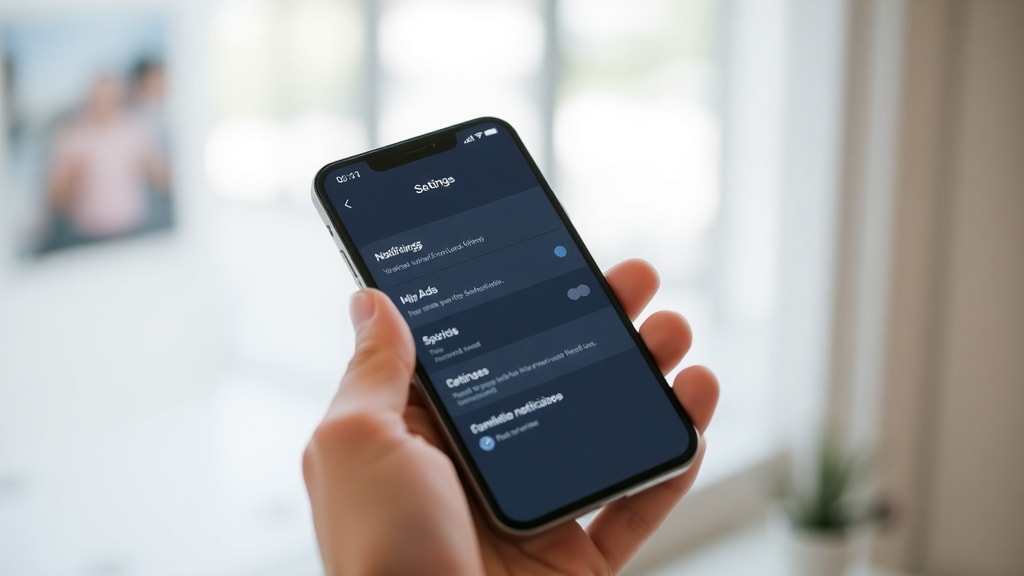
Android devices use an advertising ID to track your behavior and show personalized ads. You can limit this by going to Settings, then Privacy, then Ads. Here, you can enable the option to Opt out of Ads Personalization. This will reset your advertising ID and prevent apps from using it to target you. On Samsung devices, you may also need to disable the Customization Service. Go to Settings, then Privacy, then Customization Service, and turn it off. This reduces the number of targeted ads you see, though it may not block all ads entirely.
Blocking Display Over Other Apps Permission
Some adware apps use the Display over other apps permission to show ads on top of other content. To stop this, go to Settings, then Apps, then Special app access, and then Display over other apps. Review the list of apps that have this permission. If you see an app you do not trust or that you suspect is showing ads, toggle its permission off. This will prevent it from drawing over other apps and displaying intrusive pop-ups. Be cautious with this setting, as some legitimate apps like screen dimmers or chat heads also use it.
Using Ad-Blocking DNS on Android
A powerful method to block ads system-wide on Android is to use a private DNS that filters ad traffic. Go to Settings, then Network and internet, then Private DNS. Select Private DNS provider hostname and enter dns.adguard.com. This will route your internet traffic through AdGuard's DNS servers, which block ads at the network level. This method works for all apps and browsers, and it does not require root access. It is effective for blocking ads in free games, news apps, and web browsing. You can revert this change at any time by switching back to Automatic.
Removing Ads on iOS Devices
iOS devices are generally more locked down, but ads can still appear in apps and browsers. The first step is to disable personalized ads from Apple. Go to Settings, then Privacy and Security, then Apple Advertising, and toggle off Personalized Ads. This will stop Apple from using your data to show targeted ads in the App Store and Apple News. While this does not block all ads, it reduces the number of relevant ads you see. For web browsing, you can use content blockers that are available in the App Store.

Using Content Blockers and Ad-Blocking Browsers on iOS
Apple allows third-party content blockers that integrate with Safari. You can download apps like AdGuard, 1Blocker, or BlockBear from the App Store. After installing, go to Settings, then Safari, then Extensions, and enable the content blocker. This will block ads, trackers, and pop-ups in Safari. Alternatively, you can use a browser that has built-in ad blocking, such as Brave or Firefox Focus. These browsers automatically block most ads and trackers without requiring additional setup. For a more comprehensive solution, you can install a configuration profile from AdGuard that blocks ads system-wide, but this requires some technical knowledge.
Managing App Permissions and Notifications
Both Android and iOS allow you to control which apps can send notifications. If you receive ad notifications from a specific app, go to Settings, then Notifications, and find that app. Toggle off Allow Notifications to stop them. On Android, you can also long-press a notification to see which app sent it and block it directly. This is useful for stopping ads that appear as system notifications. Additionally, review app permissions regularly. Revoke permissions like Location, Microphone, and Camera for apps that do not need them, as some adware uses these permissions to serve targeted ads.

Using Ad-Blocking Apps and VPNs
There are dedicated ad-blocking apps available for both platforms. On Android, apps like AdGuard and Blokada can block ads in all apps and browsers. These apps often work by creating a local VPN that filters traffic. On iOS, similar apps are available but are limited by Apple's restrictions. You can also use a VPN service that includes ad blocking, such as ProtonVPN or NordVPN. These services block ads at the server level, so you do not need to install additional software. Be aware that some ad-blocking apps may affect the functionality of certain websites or apps that rely on ads for revenue.
Resetting Advertising ID and Clearing Cache
Resetting your advertising ID can help reduce targeted ads. On Android, go to Settings, then Google, then Ads, and tap Reset advertising ID. On iOS, the advertising identifier is reset when you disable Personalized Ads. Clearing your browser cache and data can also remove stored ad scripts. In Chrome, go to Settings, then Privacy and security, then Clear browsing data. Select Cookies and site data and Cached images and files, then tap Clear data. This will remove any ad-related data stored by websites. You may need to log in to websites again after clearing this data.
Table: Comparison of Ad Removal Methods by Platform
| Method | Android | iOS |
|---|---|---|
| Disable Personalized Ads | Settings > Privacy > Ads > Opt out | Settings > Privacy > Apple Advertising > Off |
| Block Browser Notifications | Chrome > Settings > Site settings > Notifications > Block | Safari > Settings > Websites > Notifications > Off |
| Use Ad-Blocking DNS | Settings > Network > Private DNS > dns.adguard.com | Not natively supported; use VPN or content blocker |
| Install Content Blocker | AdGuard app from Play Store | AdGuard or 1Blocker from App Store |
| Remove Malicious Apps | Settings > Apps > Uninstall or Disable | Settings > General > iPhone Storage > Delete App |
List: Quick Steps to Remove Ads from Your Phone
- Uninstall any suspicious or recently installed apps that may be causing ads.
- Disable browser notifications and pop-ups in your browser settings.
- Turn off personalized ad tracking in your device privacy settings.
- Block the Display over other apps permission for unknown apps on Android.
- Set up a private DNS like dns.adguard.com on Android for system-wide blocking.
- Install a content blocker or ad-blocking browser on iOS.
- Review and revoke unnecessary app permissions, especially for notifications.
- Clear your browser cache and reset your advertising ID periodically.
Preventing Future Ads on Your Phone
Once you have removed the ads, you can take steps to prevent them from returning. Only download apps from official stores like Google Play or the Apple App Store, and read reviews before installing. Avoid clicking on ads within apps, as this can lead to more aggressive adware. Keep your operating system and apps updated, as updates often include security patches that block adware. Consider using a reputable antivirus app on Android, such as Bitdefender or Malwarebytes, to scan for adware regularly. On iOS, the system is more secure, but you should still avoid installing configuration profiles from untrusted sources.
When to Seek Professional Help
If you have tried all the methods above and ads still appear, your phone may be infected with persistent adware or malware. In this case, you may need to perform a factory reset. Before doing this, back up your important data, such as photos and contacts, to the cloud or a computer. After the reset, restore your data carefully and avoid restoring apps that may have caused the issue. If you are not comfortable with a factory reset, take your phone to a professional repair service or contact your device manufacturer for support. Persistent adware can sometimes require advanced tools to remove.
References
Bitdefender. How to Remove Ads from Android. Retrieved from https://www.bitdefender.com/consumer/support/answer/97975/. Samsung Support. Remove Ads on Samsung Device. Retrieved from https://www.samsung.com/au/support/mobile-devices/remove-ads-on-samsung-device/. Google Help. Manage Ads on Android. Retrieved from https://support.google.com/android/answer/13720755?hl=en. Apple Support. About Advertising and Privacy. Retrieved from https://support.apple.com/. YouTube Tutorial. How to Block Ads on Android Using Private DNS. Retrieved from https://www.youtube.com/watch?v=rV5hKb9dy1o.