Why Checking Your Router Firmware Update Status Matters
Many people set up their router once and never think about it again. But just like your computer or smartphone, your router runs on software called firmware. This firmware controls everything from security protocols to Wi-Fi performance. When the manufacturer releases a new version, it usually includes critical security patches, bug fixes, and sometimes even new features. If your router is running outdated firmware, you could be exposing your entire home network to vulnerabilities that hackers can exploit. Checking whether your router has been updated is not a complicated process, but it does require a few deliberate steps. This article will walk you through every method so you can confirm your device is up to date and secure.
Understanding Router Firmware and Its Importance
Firmware is the low-level software stored on a chip inside your router. It manages how the device communicates with your internet service provider, handles data traffic, and applies security rules. When a manufacturer releases a firmware update, it often addresses known vulnerabilities, improves connection stability, and can even boost Wi-Fi speeds. Ignoring these updates leaves your network open to attacks such as DNS hijacking, malware injection, or unauthorized access. For example, in recent years, a vulnerability called VPNFilter affected hundreds of thousands of routers worldwide. Those who had updated their firmware were largely protected, while others were not. Therefore, knowing how to verify whether your router has the latest firmware is a fundamental part of responsible home network management.
Method One: Accessing the Router Web Interface
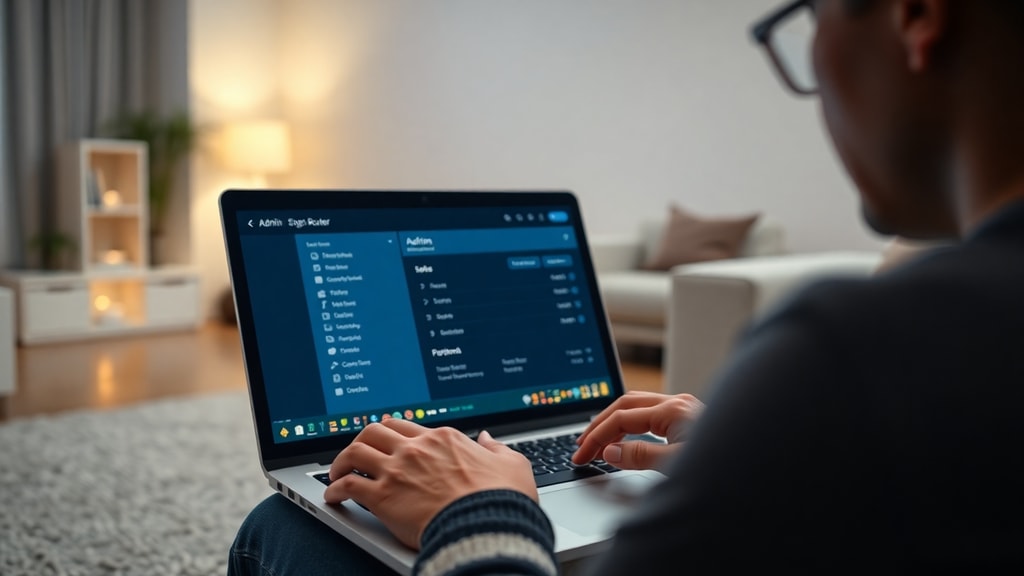
The most direct way to check your firmware version is by logging into your router’s administration panel. To do this, you need to know the default gateway IP address of your network. On most home networks, this is either 192.168.1.1 or 192.168.0.1. You can find this address on a sticker on the router itself or by checking your device's network settings. On Windows, open Command Prompt and type ipconfig. Look for the Default Gateway entry. On macOS, go to System Settings, click Network, select your connection, and find the Router address. Once you have the IP, open a web browser, type that address into the address bar, and press Enter. You will see a login page that asks for a username and password. If you have never changed these, the default credentials are usually admin/admin or admin/password. You can also find them on the router sticker or in the user manual.
Locating the Firmware Version in the Interface
After you log in, the exact location of the firmware version varies by brand, but most routers place it under a section labeled Status, System Information, or Administration. Look for a phrase like Firmware Version, Software Version, or Current Firmware. In many TP-Link routers, you can find it under Advanced Settings then System Tools then Firmware Upgrade. On Intelbras models, it is often under Status. In D-Link routers, check the Status or Maintenance tab. Write down the version number you see. For example, it might look like 1.0.2 Build 20230301 rel.12345. This number is what you will compare against the latest version available from the manufacturer. Some routers also display a date or a build number that indicates when the firmware was released. If you see a version that is several months or years old, there is a good chance an update is available.

Method Two: Comparing Your Version with the Manufacturer’s Website
Once you have the current firmware version, the next step is to find out what the latest official version is for your specific router model. Go to the support section of the router manufacturer’s website. Most brands have a support page where you can search by model number. The model number is usually printed on a sticker on the bottom or back of the router. It often looks like TL-WR840N, Archer C6, or D-Link DIR-615. Enter that model number in the search box on the support site. Look for a section called Firmware, Downloads, or Updates. Compare the latest version listed on the site with the version you wrote down. If they match, your router is already up to date. If the website shows a higher version number or a more recent release date, then your firmware is outdated and you should consider updating. Some manufacturers also provide release notes that explain what the new version fixes.
Method Three: Checking for Automatic Update Notifications
Many modern routers include a built-in feature that automatically checks for new firmware and alerts you. After logging into the router interface, look around the main dashboard or the top menu for icons that indicate an update. These icons may be a red dot, an exclamation mark, or a small arrow that says Update Available. Some routers also show a notification on the login page itself. If you see such an alert, it usually leads you directly to the update section where you can read about the new version and install it with one click. However, not all routers have this feature, especially older models. If you see no notification, it does not necessarily mean your firmware is current; it might just mean the automatic check feature is disabled or not present. Therefore, relying solely on notifications is not recommended. Always verify manually using the web interface or a mobile app.
Method Four: Using Manufacturer Mobile Apps
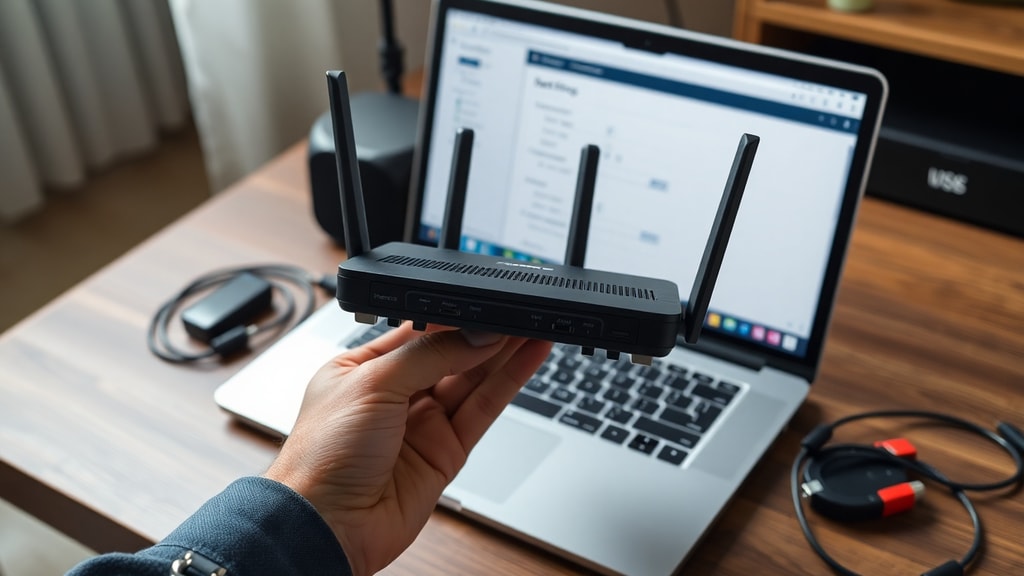
Most major router brands now offer companion mobile apps that simplify firmware management. For example, TP-Link has the Tether app, Intelbras provides the MeU app, and D-Link offers the Wi-Fi Monitor app. These apps can connect to your router over Wi-Fi and display the current firmware version. They often include a check for updates button that compares your version directly with the latest on the manufacturer’s server. If an update is available, the app will tell you and guide you through the installation process. Some apps can even download and install the firmware automatically, making the whole process much easier. Using a mobile app is especially convenient if you find navigating the web interface confusing. Just make sure your phone is connected to the router’s Wi-Fi network and that you have the app installed and logged in with your router admin credentials.
List: Quick Steps to Verify Router Firmware Status
- Find your router’s default gateway IP address, usually 192.168.1.1 or 192.168.0.1.
- Open a web browser, enter the IP, and log in with admin credentials.
- Navigate to Status, System, or Administration to locate the current firmware version number.
- Write down the exact version and build date.
- Visit the manufacturer’s official support website and search for your router model.
- Compare the latest available firmware version with your current version.
- If they match, your router is up to date. If not, download and install the new firmware.
- Alternatively, use a mobile app like TP-Link Tether to check and update directly.
Table: Common Default Gateway IPs by Brand
| Router Brand | Default Gateway IP | Default Admin URL |
|---|---|---|
| TP-Link | 192.168.1.1 | tplinkwifi.net |
| Intelbras | 192.168.1.1 | 192.168.1.1 |
| D-Link | 192.168.0.1 | dlinkrouter.local |
| Linksys | 192.168.1.1 | linksyssmartwifi.com |
| Netgear | 192.168.1.1 | routerlogin.net |
| Asus | 192.168.1.1 | asusrouter.com |
Note: These are common defaults. Your specific model may use a different IP or URL. Check the sticker on your router or consult the user manual if the ones above do not work.

What to Do If You Cannot Log In
Sometimes the default credentials do not work because they were changed at some point and forgotten. If you cannot log in, you may need to reset the router to its factory settings. Look for a small pinhole button on the back or bottom of the router labeled Reset. Press and hold it with a paperclip for about 10 seconds while the router is powered on. This will erase all custom settings, including the admin password and Wi-Fi name, and restore the default login credentials. After the reset, you can log in using the default username and password from the sticker. Then you can proceed to check the firmware version. Keep in mind that resetting the router will also remove any custom configurations you have set, such as port forwarding or parental controls, so you will need to reconfigure those afterward.
Interpreting Firmware Version Numbers
Firmware version strings can look confusing at first, but they usually follow a pattern. A typical version might be 1.0.2 Build 20230301 rel.12345. The first three digits (1.0.2) indicate the major, minor, and patch version. A higher major version number means a significant release with major changes. The build date (20230301) tells you when that firmware was compiled, in YYYYMMDD format. The release notes on the manufacturer’s site will tell you what each version adds or fixes. If the latest version on the site has a higher major version or a more recent build date, your router is outdated. Some manufacturers use different numbering schemes, but the principle is the same: compare the version string from your router interface with the version string on the support page. If they are identical, you are up to date. If not, an update is available.

Common Pitfalls When Checking Firmware Updates
One common mistake is looking at the hardware version instead of the firmware version. Many routers have a hardware revision printed on the label, such as Ver 1.0 or Ver 3.2. This is not the firmware version. You must look for a string that explicitly says Firmware Version or Software Version. Another pitfall is assuming that the version displayed on the mobile app is correct; some apps cache old data and may not refresh immediately. Always double-check using the web interface if you want to be certain. Also, be aware that some internet service providers lock their routers and do not allow users to update the firmware manually. If your router was provided by your ISP, check their support page or call them to ask about firmware updates. In some cases, the ISP pushes updates automatically, and you may not have any control over it.
How to Update Your Router Firmware Safely
If you confirm that an update is available, download the new firmware file from the manufacturer’s official website. Do not use third-party sources, as they may contain malicious code. Once downloaded, go back to the router web interface, find the Firmware Upgrade section, and upload the file. The update process usually takes a few minutes. Do not turn off the router or disconnect it during the update, as this can brick the device. After the update completes, the router will reboot automatically. Log back in and verify that the firmware version now matches the latest version from the website. You can also check that all your settings are still intact, though sometimes a factory reset is recommended after a major update to ensure stability. For more detailed instructions tailored to your specific brand, you can refer to official support pages such as TP-Link’s guide on updating firmware.
Benefits of Keeping Your Router Updated
Keeping your router firmware current does more than just fix bugs. It strengthens your network security by patching vulnerabilities that attackers could use to steal data or infiltrate your devices. It also improves performance, as updates often optimize the way the router handles traffic, reducing latency and buffering. In some cases, updates add new features like improved parental controls, guest network enhancements, or support for newer Wi-Fi standards. Additionally, updated routers tend to have fewer random disconnections and better compatibility with modern devices. If you rely on a stable home network for remote work, streaming, or gaming, staying on top of firmware updates is one of the easiest ways to maintain a high-quality connection. A 2022 article from Redeszone highlights that many users overlook this simple maintenance step, leaving their networks exposed to known exploits.
When to Check for Firmware Updates
It is a good habit to check for router firmware updates every three to six months, or immediately after you hear about a major security vulnerability. You can also enable automatic update notifications if your router supports them. Some routers allow you to schedule automatic updates, which can be convenient. However, even with automatic updates, it is wise to manually verify at least once a year, because the automatic check may fail silently. If you notice unusual behavior like frequent disconnections, slow speeds, or devices dropping off the network, checking the firmware version should be one of your first troubleshooting steps. Often, a simple firmware update resolves these issues without any further troubleshooting. For a more visual walkthrough, the Portuguese-language guide from Canaltech offers step-by-step instructions that are useful even for non-native speakers.
References
TP-Link Support. “How to Update Firmware.” https://www.tp-link.com/br/support/faq/2796/
Canaltech. “Como atualizar o firmware do seu roteador.” https://canaltech.com.br/hardware/como-atualizar-o-firmware-do-seu-roteador/
Redeszone. “Comprobar si el router está actualizado para evitar problemas.” https://redeszone.net/noticias/redes/comprobar-router-actualizado-evitar-problemas/
Voicpergunta. “Como saber se o roteador está atualizado.” https://vocepergunta.com/library/artigo/read/634054-como-saber-se-o-roteador-esta-atualizado
Lenovo Brasil. “How to Update Router Firmware.” https://www.lenovo.com/br/pt/glossary/how-to-update-router-firmware/