Understanding Error 1068 and Its Causes
Error 1068, which translates to "The dependency service or group failed to start," is a common Windows error that prevents essential services from running. When Windows attempts to launch a service that relies on other services to function, it checks whether those dependencies are active. If one or more of those required services is stopped, disabled, or corrupted, the system throws error 1068. This problem frequently appears when trying to start network-related services, audio services, or internet connection sharing. Users often encounter it when they try to enable a shared internet connection on a local area network, or when their sound stops working after a system update.
The error indicates a chain failure: the main service cannot start because a dependent service is missing or misconfigured. Common culprits include the DHCP Client, Network Location Awareness, and Windows Audio services. In many cases, the issue arises after malware cleanup, improper driver installations, or changes made to the system registry by third-party software. Understanding the dependency chain is critical because fixing the root cause requires identifying which specific service failed and why.
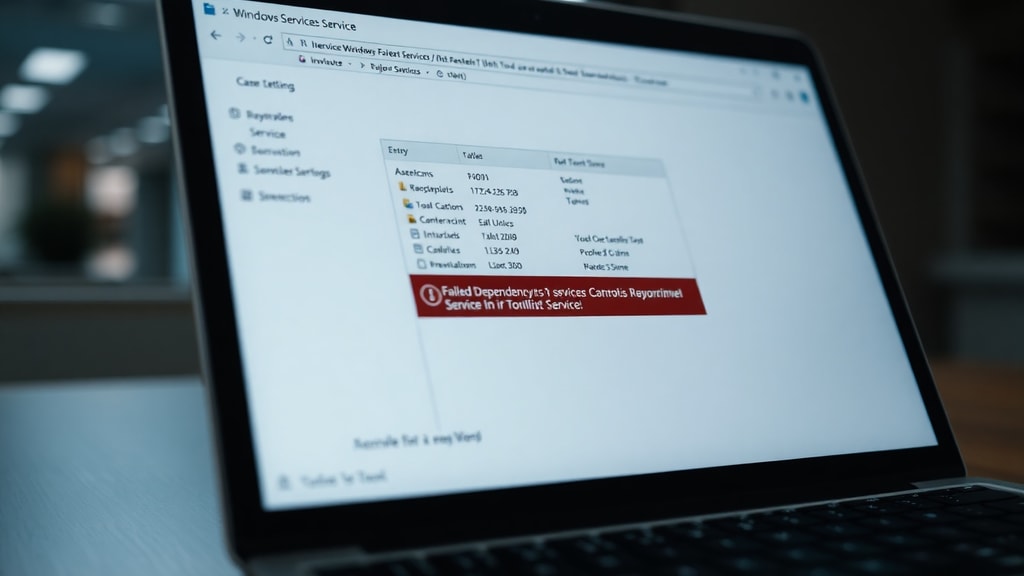
Solution 1: Verifying and Configuring Dependent Services
The first step in resolving error 1068 is to open the Services console and inspect the service that is throwing the error. You can access it by pressing Windows Key + R, typing services.msc, and pressing Enter. Locate the service that is failing to start. Right-click it and select Properties. Under the General tab, look at the "Startup type" setting. It should normally be set to Automatic. If it is set to Manual or Disabled, change it to Automatic.
Next, click on the Dependencies tab. This tab shows a list of services that must be running before the selected service can start. If any of those listed services are not running, you need to start them manually. However, if a dependent service is disabled or missing, Windows cannot start it automatically. To fix this, navigate back to the main Services list, find each dependent service, and ensure its startup type is set to Automatic and that it is currently running. The following list outlines the typical steps:

- Open Services Manager by typing
services.mscin the Run dialog. - Find the problematic service (for example, Internet Connection Sharing or Windows Audio).
- Check its Properties under the Dependencies tab to see which services it needs.
- For each dependency listed, return to the Services list, right-click the service, and select Properties.
- Set the startup type to Automatic, then click Start if the service is not running.
- After all dependencies are active, go back to the original service and click Start.
If a dependent service cannot be started because it is disabled, you may need to enable it. Sometimes the dependency list includes a service that is not essential for your system. In that case, you can proceed to the next solution, which involves editing the registry. For more detailed instructions on service dependency management, you can refer to the Microsoft Support article on error 1068.
Solution 2: Editing the Registry to Modify Dependency Chains
When a dependent service is not needed for your specific configuration, you can remove that service from the dependency list using the Windows Registry Editor. This is a more advanced solution and should be performed carefully. Before making any changes, back up your registry by exporting the key you plan to modify. To access the registry, press Windows Key + R, type regedit, and press Enter.
Navigate to the following path: HKEY_LOCAL_MACHINE\SYSTEM\CurrentControlSet\Services. Under this key, you will find subkeys for every service installed on your system. Locate the subkey for the service that is failing (for example, Dhcp for DHCP Client or Eaphost for Extensible Authentication Protocol). Inside that subkey, double-click the DependOnService value. This value contains a list of services that the current service depends on, separated by null characters or line breaks.
You can remove any entry that is not essential. For example, if you see "Afd" listed and your system does not require the Ancillary Function Driver for networking, you can delete it. Be cautious: removing a necessary dependency can cause other problems. After editing, click OK, close the Registry Editor, and restart your computer. Then try starting the original service again. This method is described in detail at the ISO Standards guide for fixing error 1068.
If you are unsure which dependency to remove, look for services that are related to network sharing or audio. Often, removing "Afd" from the DependOnService list of the Internet Connection Sharing (ICS) service resolves error 1068 for network issues. Always restart the system after registry edits to ensure the changes take effect.
Solution 3: Using Command Prompt to Reset Network Components
Many instances of error 1068 involve network services such as DHCP, DNS, or the Windows Firewall. In such cases, running a series of commands from an elevated Command Prompt can reset the network stack and repair corrupted components. The following table summarizes the essential commands and what they do:

| Command | Purpose |
|---|---|
netsh winsock reset | Resets the Winsock catalog to a clean state, repairing issues with network sockets. |
netsh int ip reset | Resets the TCP/IP stack to default settings, clearing any misconfigured IP parameters. |
netsh advfirewall reset | Restores Windows Firewall settings to their default configuration. |
sfc /scannow | Scans all protected system files and replaces corrupted ones with cached copies. |
To execute these commands, open Command Prompt as Administrator (right-click the Start button and select Command Prompt Admin or Windows Terminal Admin). Run each command one by one, pressing Enter after each. Allow each command to complete fully before moving to the next. After executing all four commands, restart your computer. This process can fix underlying issues with network dependencies, allowing services like Internet Connection Sharing or DHCP Client to start normally.
If error 1068 persists after running these commands, consider performing a System File Checker (SFC) scan alone or followed by a Deployment Imaging Service and Management Tool (DISM) check. Run DISM /Online /Cleanup-Image /RestoreHealth in the same Command Prompt window to repair the Windows image. This extra step can resolve deeper system corruption that might be affecting service files.
Additional Considerations
Sometimes error 1068 is triggered by malware that disables critical services as a defense mechanism. If you have recently removed a virus, check that the services were re-enabled. You can also perform a clean boot to isolate whether third-party software is interfering with service startup. Open System Configuration (msconfig), select Selective startup, and disable all non-Microsoft services. Restart and test the problematic service. If it works, you can gradually enable services to find the culprit.
Another approach is to use the Windows Troubleshooter for Network and Internet or for Audio Playback, depending on the affected service. These built-in tools can automatically detect and repair some dependency issues. While they are not always successful, they provide a quick first step before diving into registry edits or command line work.
If the error appears after a Windows update, rolling back the update or installing the latest cumulative update may resolve underlying service conflicts. Also, ensure that your system drivers, especially network and audio drivers, are up to date. Outdated drivers can cause services to fail because they rely on driver support that is missing or incompatible.
References
Microsoft Support. Error message "Error 1068" when you try to turn on Internet Connection Sharing. Available at: https://support.microsoft.com/es-es/topic/mensaje-de-error-error-1068...
ISO Standards. Corrigindo o erro 1068 (o serviço de dependência ou grupo falhou). Available at: https://isost.org/pt/corrigindo-o-erro-1068-o-servi%C3%A7o-de-depend%C3%AAncia-ou-grupo-falhou/