What Is a Print Test?
A print test, known in Portuguese as teste de impressão, is a preliminary procedure used to verify printer performance, detect errors in digital files, and ensure color accuracy before a final production run. Whether you are running a home office, a small design studio, or a large print shop, running a print test helps you catch problems early. These tests act as a prototype or sample that both clients and printers use to approve the output. By examining the printed page, you can identify faded colors, irregular lines, ink stains, misalignment, or blurred text. The test confirms whether your printer is outputting data correctly, including colors, text, and graphics.
Why Perform a Print Test?
Performing a print test before a large print job can save time, materials, and frustration. Below are the main reasons why you should always run a test page.
- Color Accuracy: A test page shows if the printer reproduces the intended colors, especially when using CMYK or RGB profiles.
- Alignment and Registration: Misaligned nozzles or paper feed issues can cause text and images to shift. A test detects such problems.
- Ink or Toner Issues: Faded bands, streaking, or missing colors indicate low ink, clogged nozzles, or faulty toner cartridges.
- Resolution and Sharpness: Text blocks on the test page reveal blurriness, while gradients show if the printer handles transitions smoothly.
- Hardware Health: Regular testing helps you monitor the printer’s overall condition and schedule maintenance before a critical job.
- Client Approval: In professional printing, a test print serves as a proof that clients can review and approve before production.
Common Elements of a Print Test Page
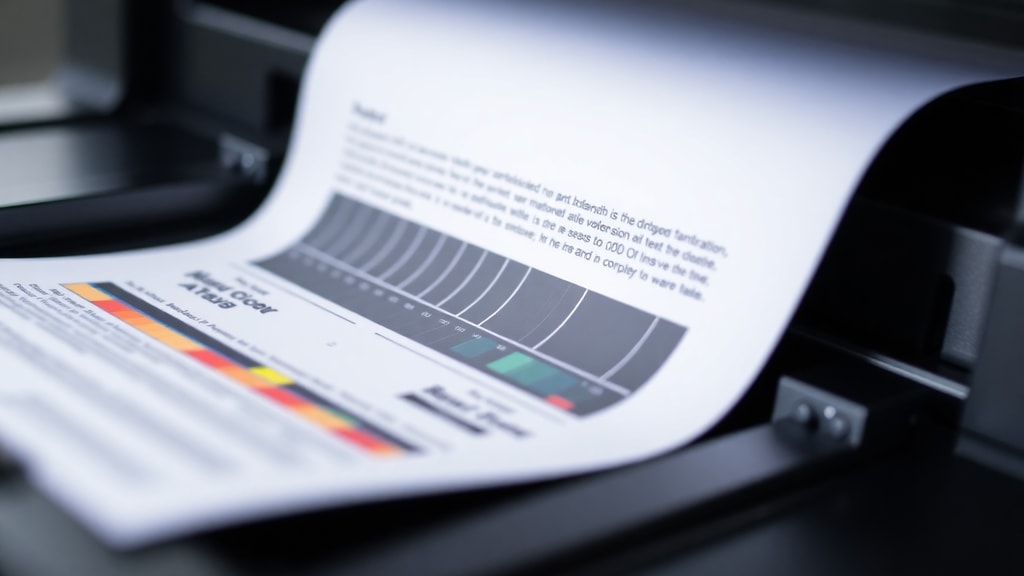
A standard test page contains several elements designed to stress different aspects of the printer. By analyzing these components, you can pinpoint specific issues. The table below outlines the typical elements and what they reveal.
| Element | Purpose | What It Reveals |
|---|---|---|
| Color gradients (CMYK) | Test continuous color transitions from light to dark | Bandings, color shifts, or blocked nozzles in specific channels |
| Solid color blocks | Check uniform ink coverage | Streaks, uneven density, or mottling |
| Black text | Evaluate sharpness and contrast | Blurry edges, double images, or fading |
| Fine lines (horizontal and vertical) | Check nozzle alignment | Gaps, overlapping, or misaligned rows |
| Gray scales | Verify neutral grays without color casts | Color tint in grays (e.g., too warm or too cool) |
| Geometric shapes and patterns | Detect jagged edges or scaling errors | Poor resolution or driver issues |
How to Perform a Print Test on Windows
Running a test page from Windows is straightforward. Follow these steps to print a built-in test page using the operating system’s printer properties.
First, open the Control Panel and navigate to Devices and Printers (Dispositivos e Impressoras in Portuguese). Find the printer you want to test. Right-click on its icon and select Printer Properties (Propriedades da impressora). In the new window, click the General tab. At the bottom, you will see a button labeled Print Test Page (Imprimir Página de Teste). Click it, and a standard test page will be sent to the printer. Wait for the page to finish printing.
Many Epson printers also offer a hardware-based self-test. To use it, turn off the printer, then press and hold the Power button and the Cancel button simultaneously for about four seconds. The printer will initialize and automatically print a diagnostic page. This method works even without a computer connection. For more detailed instructions, consult the official Epson support guide for printing test pages.
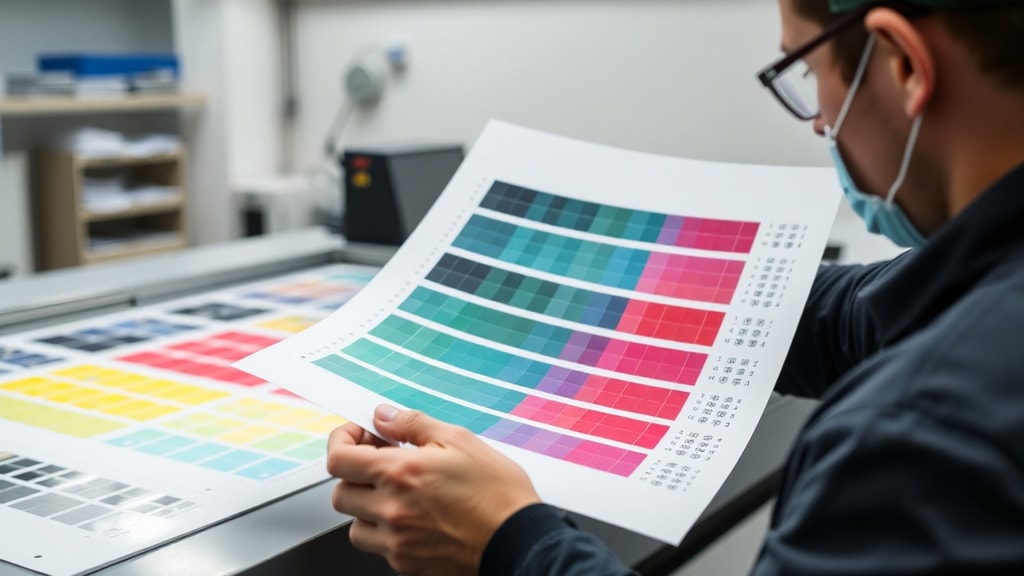
If your printer does not respond to the Windows method, you can also download a custom test page from a reliable source. The website printtestpage.org offers a free test page that you can print directly from your browser. This page includes CMYK gradients, grayscale ramps, and sharp text blocks designed to stress every part of the printing system.
Analyzing Print Test Results
Once the test page has printed, examine it under good lighting. Natural daylight is best because artificial light can mask subtle color cast. Look at the color gradients first. They should transition smoothly from one shade to the next without visible bands. If you see distinct horizontal lines, the printer may have clogged nozzles or low ink in one channel. The solid color blocks should be uniform. Any white streaks or dark spots indicate a problem with the ink delivery system.
Next, inspect the black text. It should be crisp and black, with no gray halos around the letters. Blurred text often points to a misaligned print head or poor paper quality. The fine lines in the test pattern must be straight and consistent. If you see zigzag edges or breaks, the printer’s alignment needs adjustment. Many printers include a calibration utility in the driver that can fix this.
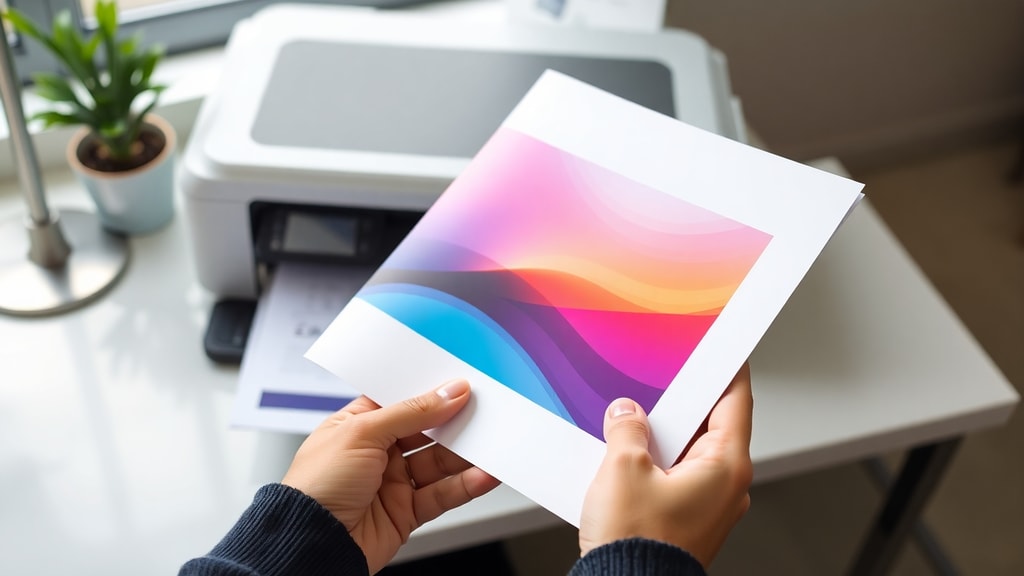
Gray scales are another critical indicator. A neutral gray should appear exactly gray, without a reddish, greenish, or bluish tint. If the grays look colored, your color management profile may be incorrect, or the printer’s firmware has a balance issue. In such cases, you might need to update the driver or perform a color calibration.
Finally, check the geometric patterns for sharpness. Jagged edges on circles or diagonal lines suggest that the printer is not rendering the image at its native resolution. This can happen when the print driver is set to a lower quality or when you are printing an image that was scaled incorrectly in the software.
Troubleshooting Common Issues Found in a Print Test
If your test page reveals problems, here are some common solutions.
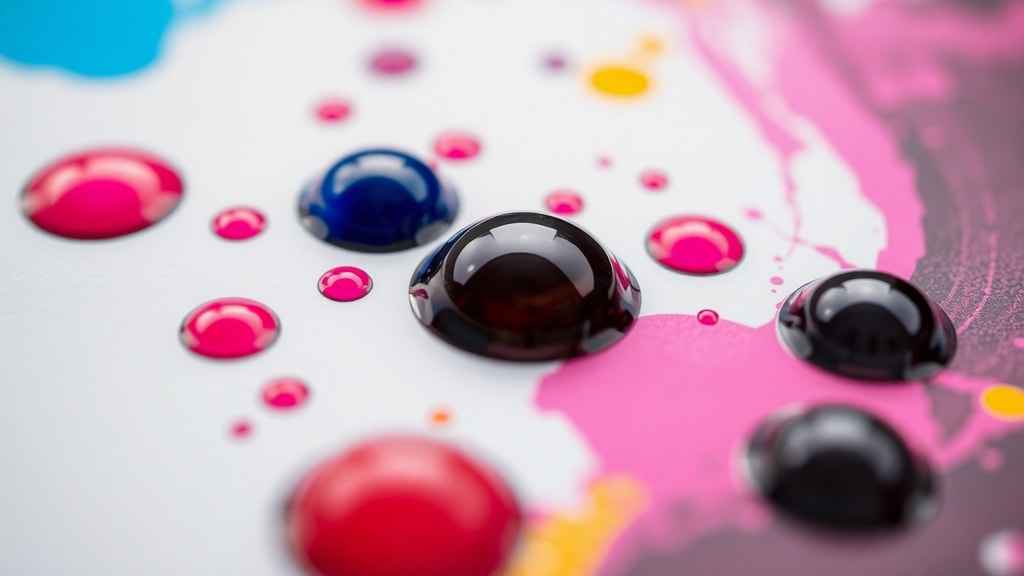
Faded or missing colors. This is usually caused by low ink or toner. Replace the cartridge or refill it. For inkjet printers, run the print head cleaning utility from the printer’s software. You may need to run it two or three times to clear dried ink. If the problem persists, the print head might be damaged and need replacement.
Streaks or white lines. These often indicate clogged nozzles. Use the printer’s nozzle check and cleaning function. If your printer has a manual cleaning option, follow the instructions. For laser printers, streaks can come from a dirty drum or transfer roller. Remove the toner cartridge and check for debris.
Misaligned text or images. Run the printer’s alignment utility. On most printers, this is found in the maintenance or tools section of the driver. The printer will print an alignment page, and you will need to choose the best pattern. After alignment, print another test page to confirm the fix.
Color inaccuracy. Check your color management settings. Ensure that your document uses the correct color profile (e.g., sRGB for screen, CMYK for print). The printer driver should be set to the same profile. You can also use a hardware calibration tool to adjust the monitor and printer to match.
Blurry or jagged text. Select a higher print quality mode in the driver. For inkjet printers, use the best photo or high-quality mode. Also, make sure you are using the correct paper type setting. Printing text on glossy photo paper may cause ink to bleed if the wrong setting is selected.
Best Practices for Regular Print Testing
Make print testing a routine part of your workflow. Before any important job, run a test on the same paper you plan to use. Store your test pages with the job notes so you have a record of the approved output. If you share a printer in an office, encourage everyone to run a short test after changing cartridges or after a period of inactivity. Small issues caught early can prevent wasted materials and unhappy clients.
Also, consider using a standardized test page that includes elements relevant to your typical work. For example, if you print many photographs, add a portrait with skin tones and a landscape with sky gradients. If you print mostly text documents, focus on small font sizes and line spacing. The goal is to make the test page mimic what you actually produce.
References
This article incorporates information from the following reliable sources:
PrintTestPage.org provides a comprehensive guide to printing test pages, including examples of standard elements and analysis tips. For further reading, visit PrintTestPage.org.
Epson Support Europe offers official manuals for many printer models, including step-by-step instructions for performing hardware-based print tests. Their guide can be found at Epson Support - Test Printing.
Additional technical details about color proofing and printer diagnostics were drawn from industry documentation and manufacturer support pages. Always consult your printer’s manual for model-specific procedures.